All posts by Ashley Maule

Earn more with Pay-Per-Text

Your Guide to Earning Big with Pay-Per-Text on CAM4!


Hey Creator, Ready to Boost Your Earnings?

Imagine this: every message you receive or media file you get from your fans directly puts tokens in your pocket. Sounds amazing, right? That’s exactly what Pay-Per-Text (PPT) on CAM4 does for you. It’s time to take control of your chat, maximize your earnings, and create deeper, more meaningful connections with your fans. Let’s dive in and get you set up for success!


Why Pay-Per-Text Is a Game-Changer for You

  1. Get Paid for Your Time
    Every message or media file your fans send is now a chance to earn. Yes, even that quick “hello” can add up to tokens in your account.

  2. Build Your Inner Circle
    Want to make your Fan Club the hottest spot? Reward members with free or discounted interactions while charging others a premium. It’s a win-win!

  3. Total Control, Your Way
    You decide how much to charge and for what. Want to charge only for photos or prioritize Fan Club messages? The choice is all yours.

  4. A Premium Experience for Fans
    Fans love feeling special! By charging for messages and media, you’re offering them guaranteed attention and an exclusive connection with you.

  5. Track Your Success
    CAM4 makes it easy to see exactly how much you’re earning from PPT, so you can fine-tune your strategy and watch those tokens roll in.


How to Set Up Pay-Per-Text (It’s Super Simple!)

Step 1: Let’s Get Ready!

First things first, make sure you’re Broadcast Approved and that the Pay-Per-Text feature is enabled in your settings. Easy!

Step 2: Set Up While Streaming

  1. Start Your Broadcast
    Log in and go live!

  2. Access Your Chat Settings
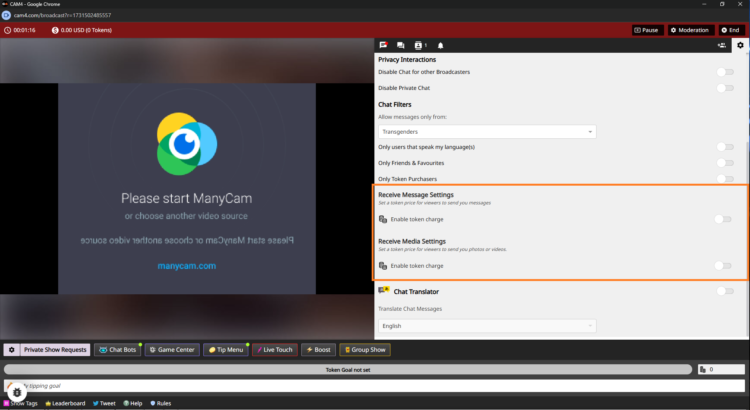
    Click the cogwheel icon (top-right corner) in the Broadcast Window. Scroll down to find the PPT options.

  3. Turn On Token Charges
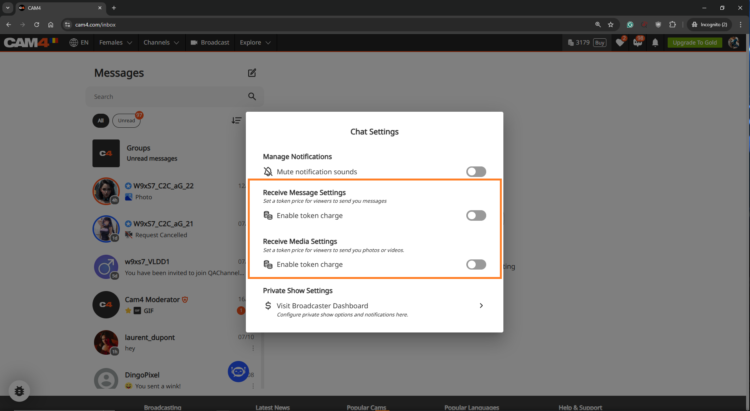
    Flip the toggle for Receive Message Settings to start earning tokens for public and Fan Club messages.
    Example: Set 5 tokens for public messages and 1 token for Fan Club members (or keep it free to encourage signups).

    Do the same for Receive Media Settings to earn from photos and videos.
    Example: Charge 10 tokens for public uploads and 2 tokens for Fan Club uploads.

  4. Let CAM4 Do the Rest
    No need to hit save—your settings are updated instantly.

Step 3: Pre-Configure in the Messenger Interface

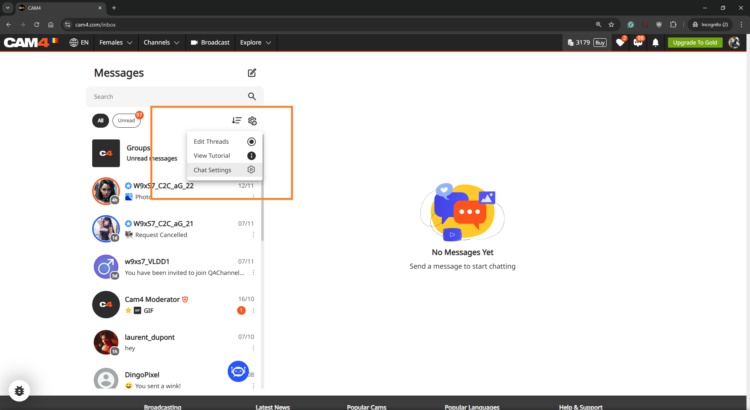
Want to set things up before you go live? No problem! Head to the Messenger Interface via the Chat Icon on your profile. Adjust your PPT settings, and they’ll sync across the platform.

Make the Most of Pay-Per-Text

  • Treat Your Fan Club Like VIPs
    Let’s be real: your Fan Club is your squad. Offer them free or reduced-rate messages to build loyalty while charging higher rates for everyone else.

  • Experiment with Token Rates
    Try different pricing to see what works best for your fans. The sweet spot is where your earnings soar, and your fans stay engaged.

  • Test It Out First
    Use a test account or ask a trusted viewer to make sure your settings work perfectly before going live.

  • Be Clear and Upfront
    Fans appreciate transparency. Display token charges clearly so there are no surprises—just good vibes.


Watch Your Earnings Grow!

Head to your Broadcaster Dashboard to track every token you earn from messages and media. It’s all broken down for you under the Tip History tab, so you know exactly where your success is coming from.

Feeling curious? Check out the Tipping Reports to see which strategies are working best. Is it media uploads? Fan Club messages? You’ve got all the insights at your fingertips.


FAQs (Because We Know You’ll Crush It!)

  • Can I charge for just one thing, like media?
    Absolutely! You’re in control, so choose what works for you.

  • What if a viewer doesn’t have enough tokens?
    No worries—they’ll get a prompt to buy more before their message or media goes through.

  • Are Fan Club messages free by default?
    Yep, but you can change that. Charge a little or keep them free—it’s totally your call.


Pay-Per-Text isn’t just a feature—it’s your gateway to more earnings, more connections, and more control over your time and energy. Ready to turn every interaction into an opportunity? Let’s do this! Your fans are waiting, and those tokens are yours to claim. 💎


~That’s all for this lesson!

Happy Camming!

Love, Your Coaching Team!

Are your Offline Private Show (OPS) Notifications on?

Never miss a private show request, even when you’re offline or away from your computer. With Offline Private Show (OPS) notifications, your viewers can make private show requests and view your schedule at any time!

This guide will help you get started with 'Offline Private Shows’ (OPS) and setting up your notifications. By leveraging these powerful CAM4 features, you can keep your audience continuously engaged and build lasting relationships- even outside of your regular online shows.

What are the Benefits of using OPS Notifications?

Notification Preferences – Personalize your alerts and select the channels where they’ll be delivered in real-time. 

Customized Pricing – Set your desired Private Show pricing with the ability to allow Cam2Cam and Spying. 

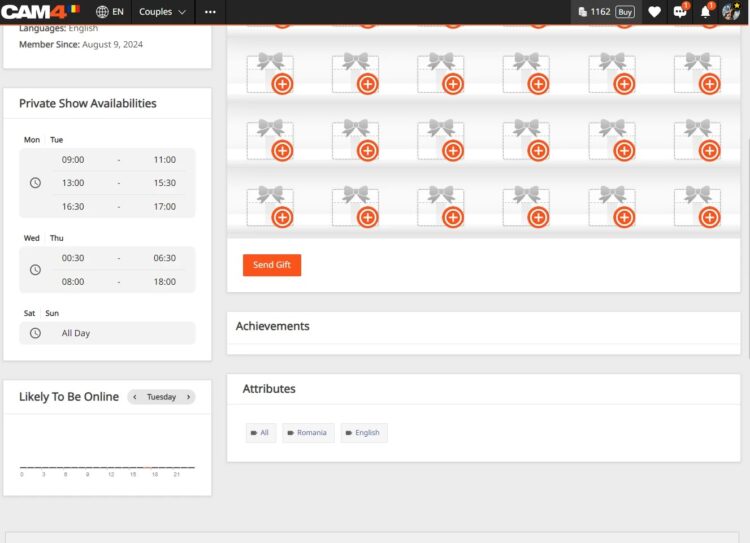
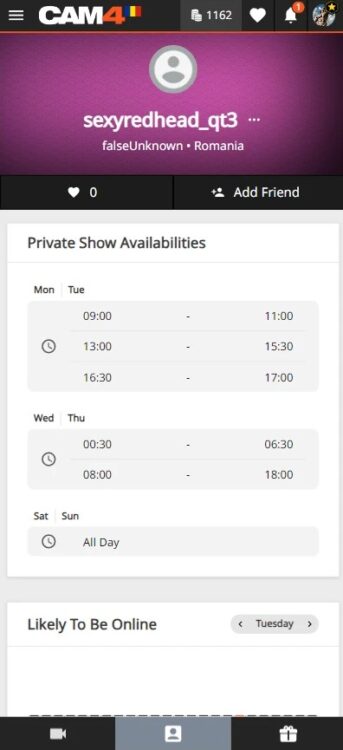
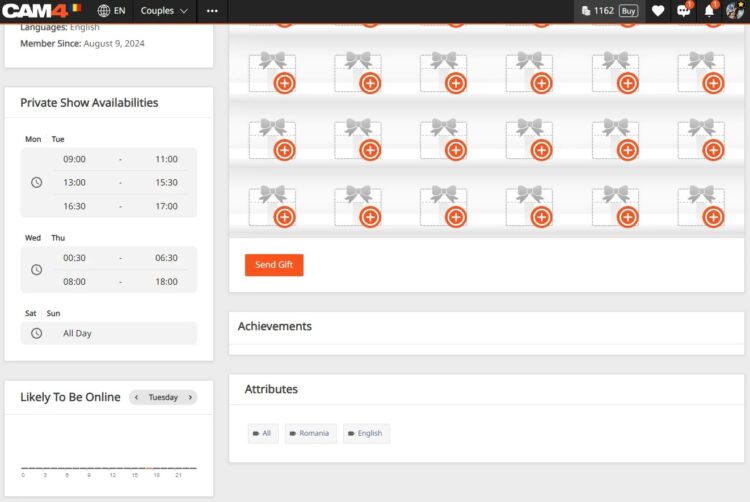
Improved Schedule Visibility – Make your Private Show schedule and availability visible to your fans… it’s super easy to configure and is shown right on your profile- Set up to 3 different time slots.

How do I find the OPS settings?
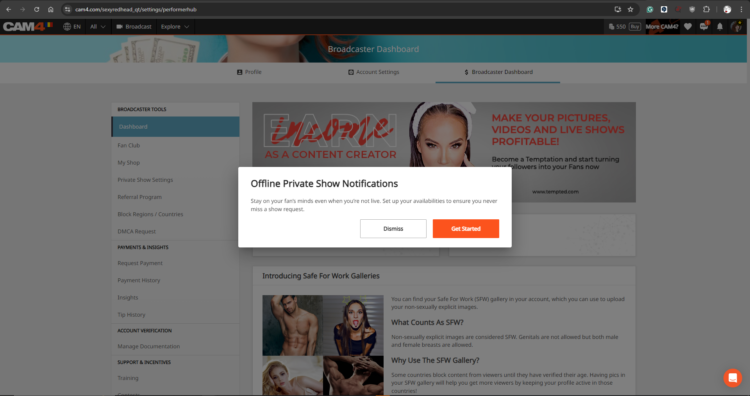
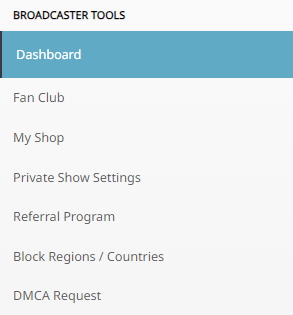
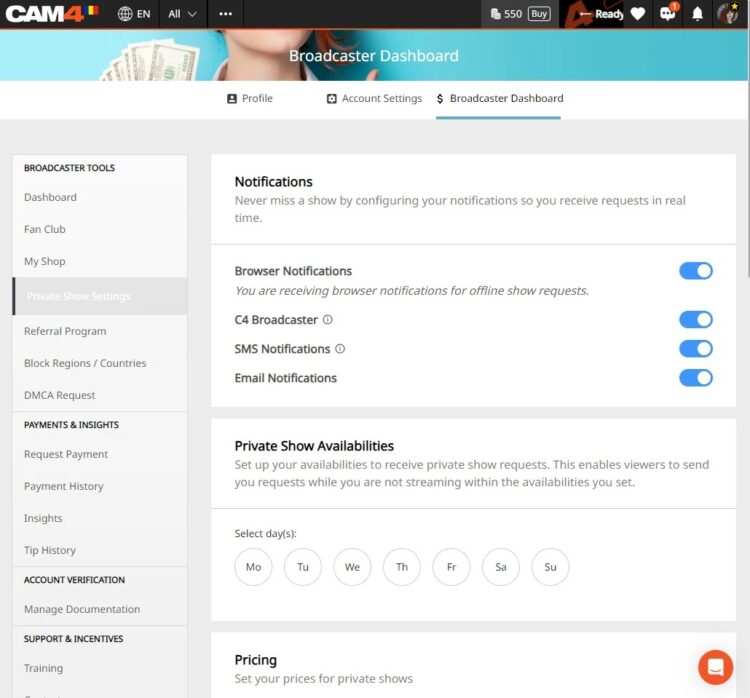
Once logged into your CAM4 account navigate to your Broadcaster Dashboard , then click on „Private Show Settings” from theBroadcaster Tools” menu on the right.

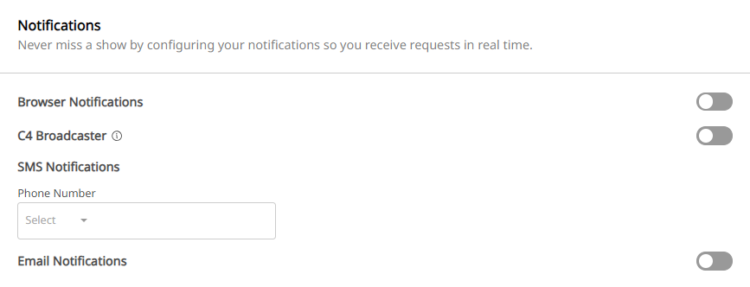
IMPORTANT: The first thing to note is that the OPS Notifications function is defaulted to OFF, therefore as a creator you will need to activate this in your settings by sliding to ON.

Want to understanding your Offline Private Show (OPS) Notifications? 

BROWSER NOTIFICATIONS

These notifications are pop-ups that appear on your screen, regardless of which website you are on.  If your browser (ie. Safari, Firefox, Chrome) is open, a notification will be shown.   

To enable, simply toggle the “Browser Notifications” option to ON.

iOS users this feature requires additional steps to be enabled. You must add the web app to your home screen and access it from there to enable notifications.

Installing Web App

  1. Open your Web browser and go to CAM4.com
  2. Click the download icon at the bottom of your browser. 
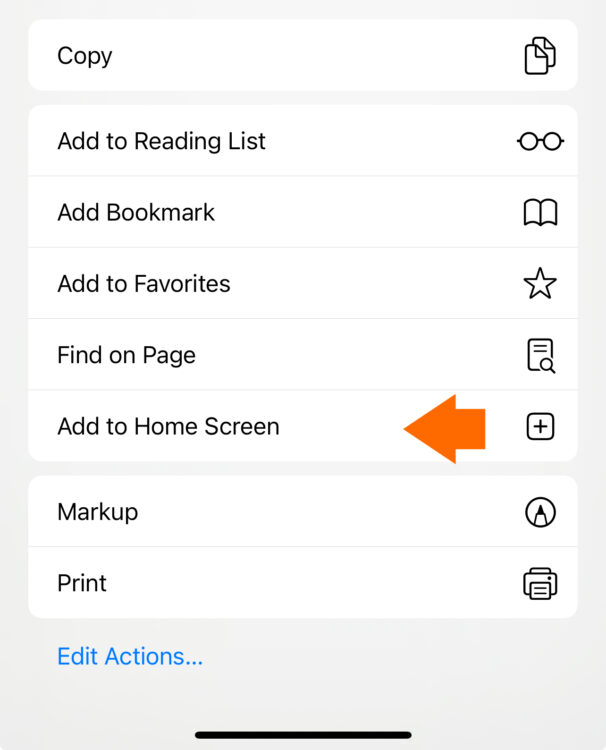
  3. Select “Add to Home Screen from the menu

  1. Rename the icon or just press “add”
  2. The C4 icon will appear on your home screen 

C4 BROADCASTER APP NOTIFICATIONS

These notifications are sent through the C4 Broadcaster App keeping you informed about your private show requests directly to your mobile device.

To enable, simply toggle the “C4 Broadcaster” option to ON.

EMAIL NOTIFICATIONS

These notifications are sent directly to an external email address, ensuring you have a record of the request in your inbox.

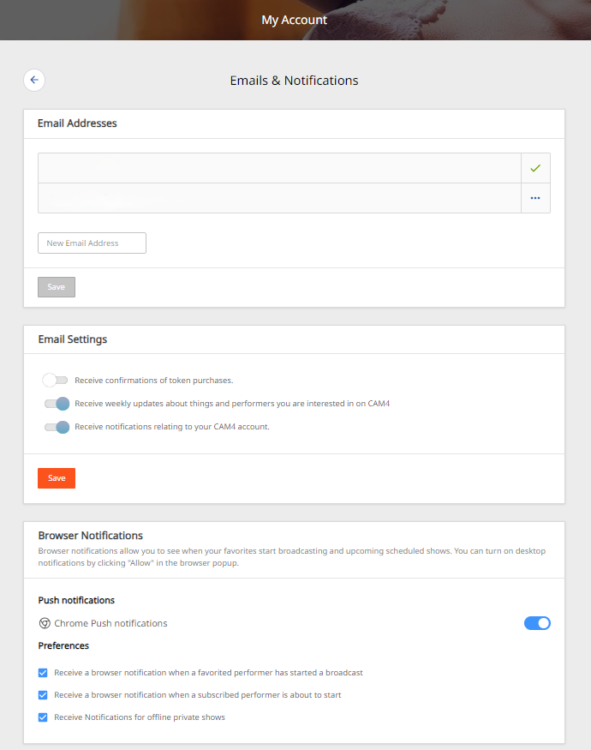
Once enabled, check your email preferences to ensure the “Receive Notifications Relating To Your CAM4 Account” option is ON.


SMS NOTIFICATIONS

These notifications are sent as a text message to your mobile phone whenever a private show request has been made. 

To enable, simply “Add Your Mobile Number” in the settings.

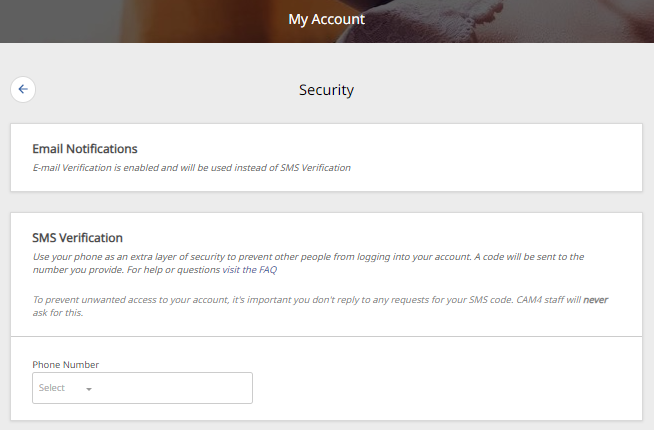
Note: if Two-Factor Authentication (2FA) is on, the mobile number MUST MATCH  the one used for 2FA.

SET PRICING
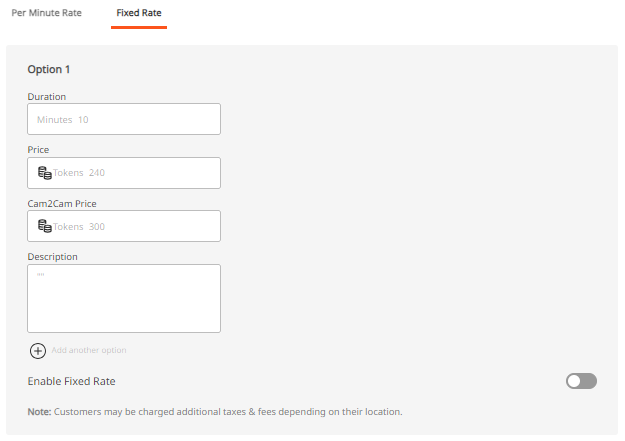
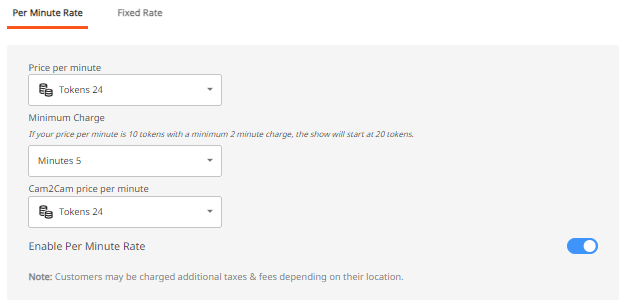
This feature allows you to set your Private Show pricing either per minute or as a fixed rate. You can configure your “Price Per Minute”, “Minimum Timeframe”, “Spy Per Minute Rate”, and “Cam2Cam” settings here.

3 USEFUL TIPS TO REMEMBER

TIP 1: GET NOTIFIED MULTIPLE WAYS- You can activate one or more notification channels at once, enabling you to receive alerts through various methods and stay informed no matter what you’re doing or where you are.

TIP 2: CUSTOMIZE YOUR AVAILABILITY- Set the times when you are open to accepting Private Show requests.  This will help boost engagement and more private shows coming your way..  

TIP 3: SHOW YOUR SCHEDULE ON THE PROFILE & MESSENGER-  Setting your schedule will show on your profile page and also on  your messenger, ensuring viewers can easily see your availability., 

With the right settings in place, you can look forward to a more organized, responsive, and profitable PRIVATE SHOW experience.

👉 If you have any questions, feel free to ask the Coaching Bot 👈

NEED MORE HELP?

Read our FAQ’s or join one of our regular Coaching Sessions every Tuesday & Thursday at 10am EST for useful insights and to meet other creators.

Alternatively, please reach out to CAM4’s Support Team via the chat bubble in the bottom right hand corner of CAM4, or by email at support@cam4.com

One final thing… The content of Private Shows are subject to CAM4’s creator rules, and all persons on your cam must be approved by CAM4.

~That’s all for this lesson!

Happy Camming!

Love, Your Coaching Team!

Cam Crawl

Looking for new ways to be discovered on CAM4?

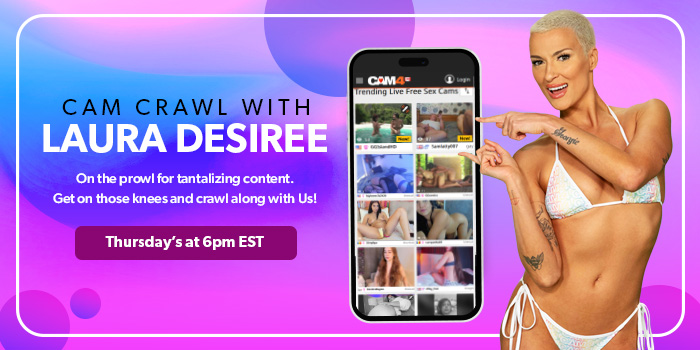
Every Thursday from 6pm to 7pm EST, Laura will broadcast live with split-screen magic, allowing her viewers to sit next to her in real-time.

Navigating from room to room, Laura will guide her viewers showing them exactly how to interact with the most delicious creators from North America and around the world!

You could be one of them!

Gain new fans each week and be discovered for new possibilities with CAM4.

The task is to catch Laura’s eye during the crawl… Simply login to CAM4 on Thursdays and be streaming  live between 6pm – 7pm EST. Make sure  you stream the greatest show you have to offer.

That means:
Good lightingGet out of the dark!
Engaging with your viewersShe wants to see you on cam.
HD Quality CamNo grainy streams
Nice cam roomTake pride in the space around you, it makes a big difference.

CAM4’s exclusive Cam Crawl provides opportunity for our creators to be discovered and improves the tipping habbits of our users.

By shining a spotlight on new talent and encouraging viewers to engage with them, the crawl is working to help cultivate a community of appreciation and support.  Showcasing creators and the wonderful content the create is our goal.

Hope to see you on the next Cam Crawl!


~That’s all for this lesson!

Happy Camming!

Love, Your Coaching Team!

Start-Up Program (USA & CAN Only)

Start-Up Program

🚀 New Broadcaster Exclusive

JOIN THE START-UP PROGRAM

We offer new broadcasters an 8-week bonus program where your weekly earnings are doubled — up to a maximum bonus per week — on top of what you already earn on CAM4!

Earn up to $400 Extra! 💰

💰

Earnings Matched

Up to $50 bonus per week — your tips are matched!

⏱️

Stream Hours

Minimum 4 hours of streaming per week required

📅

8 Weeks

Bonus weeks run Monday through Sunday

📆 8 Weeks of Earning

WEEK 1

Earn tips → get matched

up to +$50

WEEK 2

Earn tips → get matched

up to +$50

WEEK 3

Earn tips → get matched

up to +$50

WEEK 4

Earn tips → get matched

up to +$50

WEEK 5

Earn tips → get matched

up to +$50

WEEK 6

Earn tips → get matched

up to +$50

WEEK 7

Earn tips → get matched

up to +$50

WEEK 8 ⭐

Final week! Push hard!

up to +$50

TOTAL POTENTIAL BONUS: $400 💰

✅ Requirements

🌎

North American ID on file with CAM4 (USA or Canada)

🆕

New to CAM4 — registered within the last 60 days. No multiple accounts allowed.

🚫

Canada and USA not fully blocked — you may still block your own province or state

⏱️

Stream the required hours each week (minimum 4 hours)

👥

Real viewer tips only — only tips earned from genuine viewers count toward your weekly total

1️⃣

You can only be part of one incentive program at a time

💳 Bonuses are credited to your account no later than end-of-day Tuesday of the following week.

🟠 Ready to Start?

Signing up is easy! Here’s how it works:

💬

Step 1

You receive a message from Julia in your CAM4 support bubble

↩️

Step 2

Reply to let Julia know you want to join!

Step 3

Julia verifies and adds you to the program — you’re in!

⚠️ You are only added once Julia receives your reply!

Token Indicators

More insight in what your viewer might spend 
As a Broadcaster on CAM4, it’s always good to keep track of your tippers spending behavior to prioritize your attention during a live show. Get ready to see just how big of a spender your viewers may be with the brand new Token Indicator. Conveniently integrated within your CAM4 chat, this tool now allows you to identify viewers tipping habits !


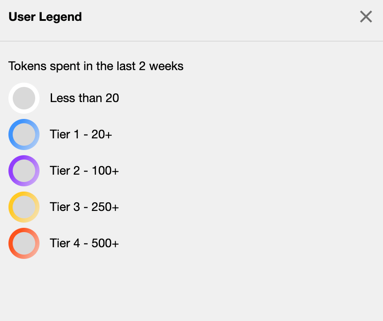
Viewers in your chat will be indicated by color coded usernames representing 5 different token tiers alongside their corresponding viewer type (Gold Member, Fanclub Subscriber, Moderator) showing you what they have spent in tokens over the last 2 weeks


TIER 1: WHITE = Has not spent any tokens in the past 2 weeks

TIER 2: BLUE = Has spent at least 1 token but not more than 19 in the past 2 weeks

TIER 3: PURPLE = Has spent at least 20 tokens but not more than 99 in the past 2 weeks

TIER 4: YELLOW = Has spent at least 100 tokens but not more than 500 in the past 2 weeks

TIER 5: ORANGE = Has spent at least 500 tokens in the past 2 weeks

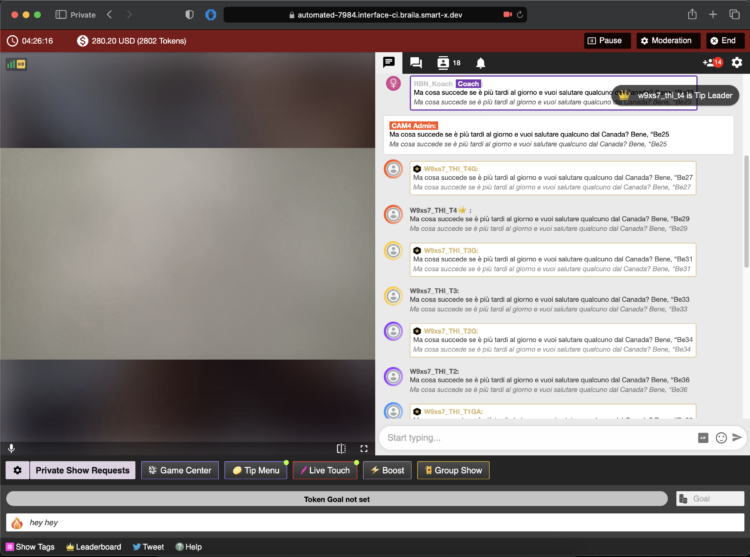
THIS IS WHAT YOU WILL SEE…


Whether they are blue, purple, yellow, or orange, be sure to show them some extra love and attention while visiting your room. You never know when a regular viewer may become your next big tipper !!! 

~That’s all for this lesson!

Happy Camming!
Love, Your Coaching Team!

What is Chat Bot?

NEED A HAND ?
CAM4 is excited to introduce a brand-new function within your CAM4 broadcasts. With our NEW ChatBot tool you will be able to multitask while giving your viewers that special chat room experience unique from other broadcasters.


WHAT IS A CHAT BOT ?
A ChatBot is a conversational tool that can assist your LIVE chat with ease and free up those busy hands of yours… think of it as your very own personalized moderator. By utilizing the ChatBot function during your CAM4 broadcast it will help automate messaging so you can remain focused and give your audience your undivided attention.

A few examples and benefits of what a ChatBot can be helpful with include :

WELCOME BOT
Generate a specific “Welcome Message” visible to NEW viewers who join your room. Note, this message has a 5 second delay when someone comes in.


TIPPING BOT
Send out aThank You” message when a certain tip amount has been received or a token goal achieved. Including different chat responses for different token thresholds

TIMED / AUTO NOTIFICATION BOT  
Create a set of predefined messages that will be displayed in your Public Chat at predetermined time increments. Note, atleast 3 messages from viewers must be sent in the chat for these messages to begain.

Examples
Updates on Room Goals
Tip Menu changes
Fan Club / My Shop offerings and discounts
Notifying your audience of Room Rules
Promoting Social Media handles
Promoting Wishlists (CAM4 Swag Store, Amazon, Stock Room, etc)
Upcoming shows and cam Schedule

With an endless list of customizable options and 3 unique bot commands, CAM4’s NEW ChatBot feature is a sure way to keep your show flowing, all while doing the work for you and keeping your viewers in the loop and their tokens tipped.

~That’s all for this lesson!

Happy Camming!
Love, Your Coaching Team!

Level UP Program

Level Up

GAME ON!!!

Grab onto your joysticks and get ready to Level Up each month!
This program will have you feeling like a boss… From the 1st of each month we are challenging YOU with the opportunity to make an extra $2,000+

📩 HOW TO SIGN UP

Want to take part? Contact Julia via the orange CAM4 contact bubble to register!
You must sign up each month to participate.

Achievement Levels

LEVEL 1 — Earn $100
+ $10 Bonus
LEVEL 2 — Earn $200
+ $20 Bonus
LEVEL 3 — Earn $300
+ $30 & CAM4 Shirt
LEVEL 4 — Earn $400
+ $40 Bonus
LEVEL 5 — Earn $500
+ $50 & Creator Pack
LEVEL 6 — Earn $750
+ $50 Bonus
LEVEL 7 — Earn $1,000
+ $100 Bonus
LEVEL 8 — Earn $1,500
+ $100 & Lovense Toy
LEVEL 9 — Earn $2,000
+ $100 Bonus
LEVEL 10 — Earn $3,000
+ $200 Bonus
LEVEL 11 — Earn $4,000
+ $300 Bonus
LEVEL 12 — Earn $5,000
+ $1,000 BONUS!

🔓 Unlock each bonus as you go — the more you earn, the more you collect!

Creator Pack from the Swag Store

Female Swag ($100 Value)

Female Swag

Male Swag ($100 Value)

Male Swag

The creator pack changes monthly. Swag shown does not reflect exact products available.

BONUS ROUND — „Top Up’s”

Creators who earn $300+ can win 1 of 5 additional randomly selected „Top Ups” ranging between $20 – $100 each month!

As you unlock each $$$ level there are additional prizes & stretch goals along the way — from
CAM4 Swag to
LIVE TOUCH connected toys by
Lovense!

Choose your destiny — beat your best score with the CAM4 Level-Up Program!

Rules

  • Creators MUST be 2257 approved
  • Creators MUST live in North America/Canada
  • Creators MUST broadcast a minimum of 4 hours
  • Transferring tokens between accounts is not allowed
  • Earnings are counted from 12:00am ET the 1st of the month till 11:59pm ET on the last day
  • Creators MUST sign up each month to take part in the program
  • Top Up’s are rewarded through random draw
  • Each Swag Store Prize can only be redeemed ONCE
  • You can only be part of one incentive program at a time

⏱️ Any bonuses will be credited to your account within the first 7 days of the following month.

Ready to Level Up?

Contact Julia via the orange CAM4 contact bubble to get registered and start earning!

Connecting a Wishlist to your Profile

Let your fans SPOIL you!

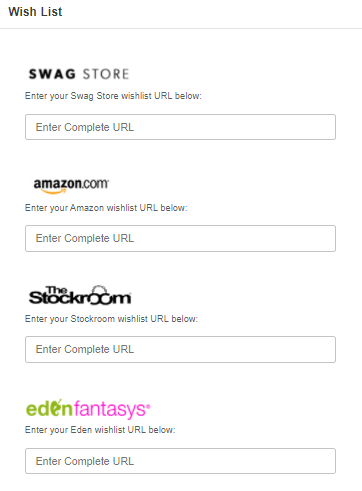
Fans are always looking for ways that they can help and spoil their favorite broadcasters. Create a Wishlist on one of these great sites and let your fans know exactly what you need!

What do I need to Do?

  1. Visit the website of one of the CAM4 supported stores listed above.
  2. Create an account on their site and use their registry or Wishlist function to start building your list.

    If you are having issues, please contact the store you are building your Wishlist on. CAM4 does not provide support these platforms.

  1. Once your list is complete copy the Registry or Wishlist URL that they provide you and go to CAM4.com.
  1. Login into your CAM4 and hover your mouse over your profile icon on the top right-hand side of the homepage. From the menu click on “My Account”.


5. Click on “Wishlist” and add the URL below the logo for the store you used and click “Save”

When you visit your profile on CAM4 you will see your wish list appear on the bottom left under you “Detailed Bio”.


To add a list for another CAM4 supported store, just repeat the process and you will see the logo linking you viewer to your list appear under “Wishlist” as well.

PRO TIP: When creating your Wishlist, DO NOT use your real name. All Wishlist will hide your mailing info but some will show the owners name when viewing the list. If you want to hide your legal identity, always use your fake name.


~That’s all for this lesson!

Happy Camming!
Love, Your Coaching Team!


Your Tip Menu

Launch Your Very Own Custom Tip Menu to Improve Engagement and Increase Earnings!

Tell your fans what to tip for and earn more tokens, set up yours now!

What Is It?
The CAM4 Tip Menu is a fun tool that allows you to create a customized list of actions with the corresponding token amount a viewer needs to tip for you to perform the action during your performance. We’ve recently upgraded our tipping menu functionality to allow for simple set up and easy viewer access. Performers who’ve launched their own tip menus have reported heightened activity and ultimately an increase in show earnings! 

Benefits of Creating a Tip Menu:

  • The tip menu is an easily customizable list that you control and can change / update at any time
  • Your viewers know exactly what they can tip for each performance action without having to ask
  • You won’t need to set up an HTML bio
  • The tip menu is easily accessible via your profile during every show
  • Less chatty viewers are more likely to engage

Quick & Easy Tip Menu Set Up
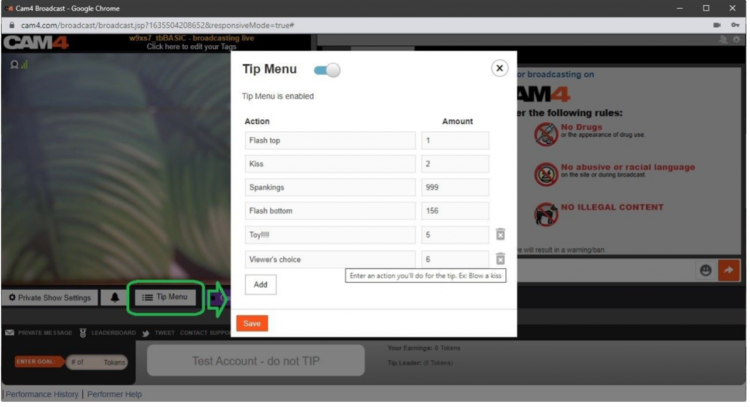
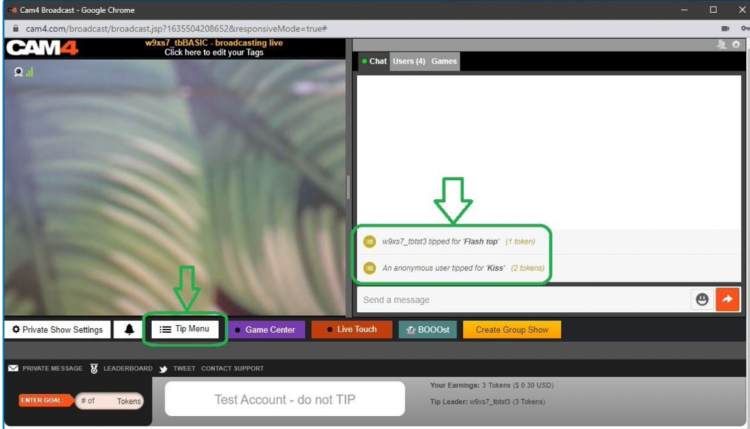
Locate the Tip Menu feature near the Game Center and enter each action and the required tipping amount. *Please note you must enter at least four (4) actions to activate your tipping menu for viewers

You can add up to 12 tip menu options; click the trash can icon to the right of each option to delete and update. Once you’ve completed your list, click SAVE to activate.

You will receive a special notification in your chat window every time a viewer selects an item in your tip menu


Tip Menu Ideas
What you include on your tip menu is completely up to you, and the great thing is you can add and update the menu as you learn what your viewers want and need in your shows!  Here are some sample tip menu options to get you started:

  • Blow kisses
  • Custom shout out message
  • Flash boobs
  • Oil rubdown
  • Spanking
  • Twerk
  • Insert toy for 15 seconds

Get creative here – the sky really is the limit!

The Key to Tip Menu Success
Our best advice for making the tip menu work for you is to keep your list of options fresh and creative while continuously directing viewers to it during your show.

We’re Here to Help You Win!
If you need help setting up your tip menu or are looking for ways to maximize this fun tool, please reach out to support@CAM4.com at any time and one of our experts will guide you.


~That’s all for this lesson!

Happy Camming!
Love, Your Coaching Team!

How To Start Your Broadcast

All the basics to start your broadcast: from launching the broadcast window, to how to put all the settings in place!

Step 1: Launch the Broadcast Window

Start your show by hitting 'Broadcast’ on the CAM4 header bar (at the top of your screen) in your Dashboard or any other page on CAM4.

Please note: only ID verified broadcasters can live stream. If you are not ID verified yet you will be asked to go through this process first. 

Step 2: Select Broadcast Type 

Regular Broadcast – This is the default broadcast type for CAM4. 

External Encoder – If you have experience with external encoding software, you can use this tab to connect your external stream to CAM4. 

Learn more about External Encoding here.

Let’s have a look at what it will look like when you start Regular Streaming:

Step 3: Video / Audio Settings

It is important that you give permissions for CAM4 to use your video and your microphone. Once you give these permissions, CAM4 will detect your video and audio devices: 

You don’t have to worry about the aspect ratio of your video. This will be chosen automatically, based on the ideal proportions for your hardware.

Usually you don’t have to tinker with these settings and CAM4 will detect the right devices automatically. But here you can select your preferred video and audio input if you wish, or choose to use an external encoder like OBS. 

You can flip your image horizontally by toggling Mirror video.

Step 4: Show Details

Underneath your audio and video  settings, you will find your show details:

Category

Here you can select whether you will broadcast by yourself (Solo) or with another, verified user. Depending on your gender, you’ll be shown the options (Male-Female, Male-Male, or Female-Female). 

Select the appropriate category. 

Mode

By default this is set to public. If you are an approved CAM4 broadcaster (2257/ID approved) then you can choose to have a password protected room. 

Step 5: Set your tags

Tags are a great way to communicate to potential viewers what to expect from your show. 

Choose tags that are appropriate to what your show is all about. This will make sure viewers will get to see what they want, and you get viewers that want to see what you want to show!

We recommend picking about 3 tags.

Step 6: Check your stream quality

Below the area where your video is shown, you’ll see information about your stream quality and FPS:

It’s useful to give these a quick glance before you start your broadcast, just to make sure that your video quality is to your viewers satisfaction.

Stream Quality
Indicates any stream issues so you can fix them before you start your broadcast. The light bulb shows troubleshooting suggestions.

FPS – Your cameras frames per second (FPS). 25-30 FPS is ideal.

When you see a low Stream quality and/or FPS, it may be worthwhile to do a speedtest and/or a reset of your router. 

Step 7: Go Live!

Once your settings are correct you can go live and start your show!


~That’s all for this lesson!

Happy Camming!

Love, Your Coaching Team!