All posts by Ashley Maule

Your Tip Menu

Launch Your Very Own Custom Tip Menu to Improve Engagement and Increase Earnings!

Tell your fans what to tip for and earn more tokens, set up yours now!

What Is It?
The CAM4 Tip Menu is a fun tool that allows you to create a customized list of actions with the corresponding token amount a viewer needs to tip for you to perform the action during your performance. We’ve recently upgraded our tipping menu functionality to allow for simple set up and easy viewer access. Performers who’ve launched their own tip menus have reported heightened activity and ultimately an increase in show earnings! 

Benefits of Creating a Tip Menu:

  • The tip menu is an easily customizable list that you control and can change / update at any time
  • Your viewers know exactly what they can tip for each performance action without having to ask
  • You won’t need to set up an HTML bio
  • The tip menu is easily accessible via your profile during every show
  • Less chatty viewers are more likely to engage

Quick & Easy Tip Menu Set Up
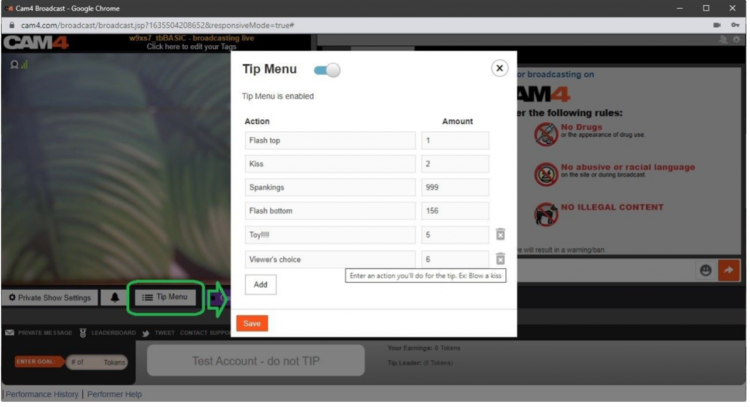
Locate the Tip Menu feature near the Game Center and enter each action and the required tipping amount. *Please note you must enter at least four (4) actions to activate your tipping menu for viewers

You can add up to 12 tip menu options; click the trash can icon to the right of each option to delete and update. Once you’ve completed your list, click SAVE to activate.

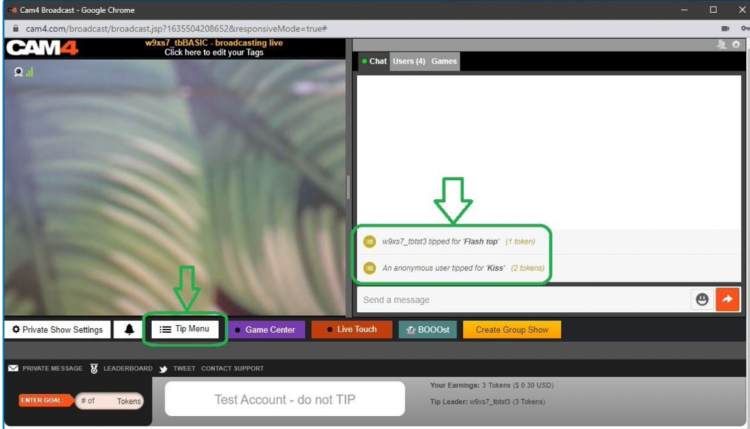
You will receive a special notification in your chat window every time a viewer selects an item in your tip menu


Tip Menu Ideas
What you include on your tip menu is completely up to you, and the great thing is you can add and update the menu as you learn what your viewers want and need in your shows!  Here are some sample tip menu options to get you started:

  • Blow kisses
  • Custom shout out message
  • Flash boobs
  • Oil rubdown
  • Spanking
  • Twerk
  • Insert toy for 15 seconds

Get creative here – the sky really is the limit!

The Key to Tip Menu Success
Our best advice for making the tip menu work for you is to keep your list of options fresh and creative while continuously directing viewers to it during your show.

We’re Here to Help You Win!
If you need help setting up your tip menu or are looking for ways to maximize this fun tool, please reach out to support@CAM4.com at any time and one of our experts will guide you.


~That’s all for this lesson!

Happy Camming!
Love, Your Coaching Team!

How To Start Your Broadcast

All the basics to start your broadcast: from launching the broadcast window, to how to put all the settings in place!

Step 1: Launch the Broadcast Window

Start your show by hitting ‘Broadcast’ on the CAM4 header bar (at the top of your screen) in your Dashboard or any other page on CAM4.
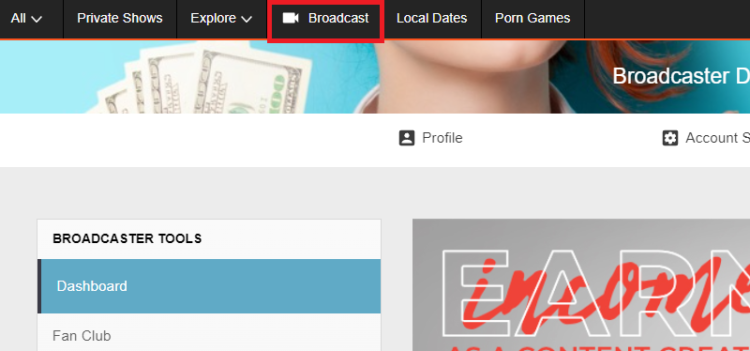
Please note: only ID verified broadcasters can live stream. If you are not ID verified yet you will be asked to go through this process first. 

Step 2: Select Broadcast Type 
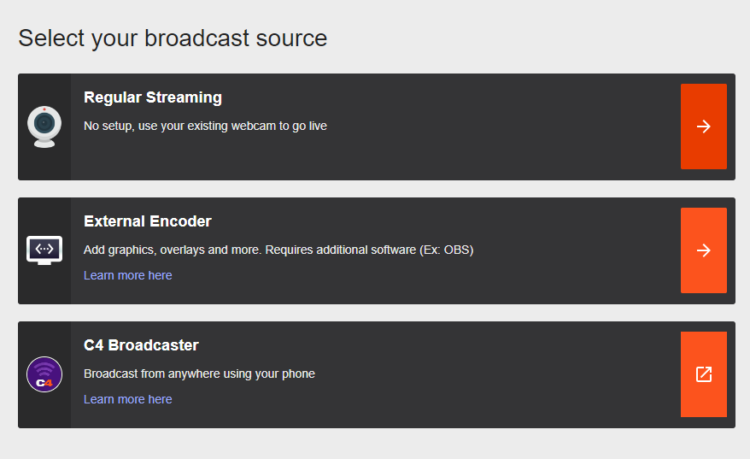
Regular Broadcast – This is the default broadcast type for CAM4. 

External Encoder – If you have experience with external encoding software, you can use this tab to connect your external stream to CAM4. 

Learn more about External Encoding here.

Let’s have a look at what it will look like when you start Regular Streaming:

Step 3: Video / Audio Settings

It is important that you give permissions for CAM4 to use your video and your microphone. Once you give these permissions, CAM4 will detect your video and audio devices: 
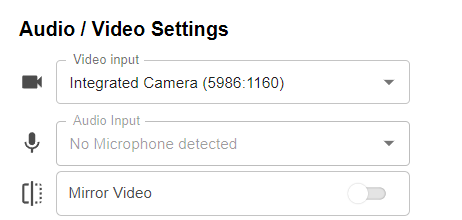
You don’t have to worry about the aspect ratio of your video. This will be chosen automatically, based on the ideal proportions for your hardware.

Usually you don’t have to tinker with these settings and CAM4 will detect the right devices automatically. But here you can select your preferred video and audio input if you wish, or choose to use an external encoder like OBS. 

You can flip your image horizontally by toggling Mirror video.

Step 4: Show Details

Underneath your audio and video  settings, you will find your show details:
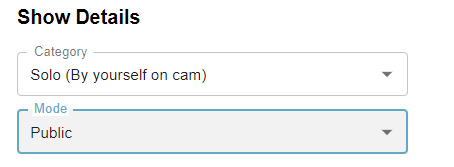
Category

Here you can select whether you will broadcast by yourself (Solo) or with another, verified user. Depending on your gender, you’ll be shown the options (Male-Female, Male-Male, or Female-Female). 

Select the appropriate category. 

Mode

By default this is set to public. If you are an approved CAM4 broadcaster (2257/ID approved) then you can choose to have a password protected room. 

Step 5: Set your tags

Tags are a great way to communicate to potential viewers what to expect from your show. 
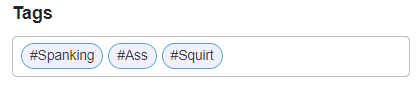
Choose tags that are appropriate to what your show is all about. This will make sure viewers will get to see what they want, and you get viewers that want to see what you want to show!

We recommend picking about 3 tags.

Step 6: Check your stream quality

Below the area where your video is shown, you’ll see information about your stream quality and FPS:

It’s useful to give these a quick glance before you start your broadcast, just to make sure that your video quality is to your viewers satisfaction.

Stream Quality
Indicates any stream issues so you can fix them before you start your broadcast. The light bulb shows troubleshooting suggestions.

FPS – Your cameras frames per second (FPS). 25-30 FPS is ideal.

When you see a low Stream quality and/or FPS, it may be worthwhile to do a speedtest and/or a reset of your router. 

Step 7: Go Live!

Once your settings are correct you can go live and start your show!

~That’s all for this lesson!

Happy Camming!

Love, Your Coaching Team!
 

Use C4Broadcaster on your Windows Browser

If you’re using both Windows on your computer and a Samsung device for streaming with C4Broadcaster, you can now mirror your phone through wi-fi and enjoy the app directly onto your PC.

REQUIREMENTS:
1. Windows 10
(running the Windows 10 May 2019 Update) 

2. Samsung device
(listed below in the supported devices list running Android 9.0 or above)

Follow these simple steps to set it up:

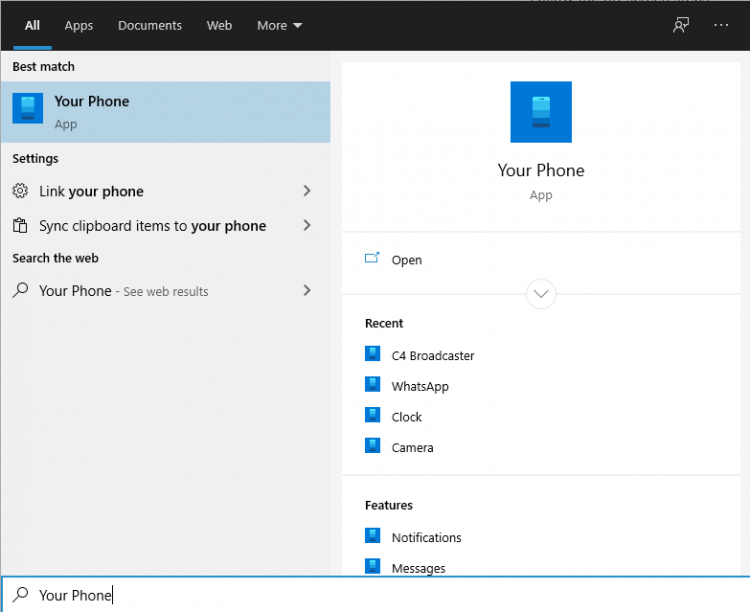
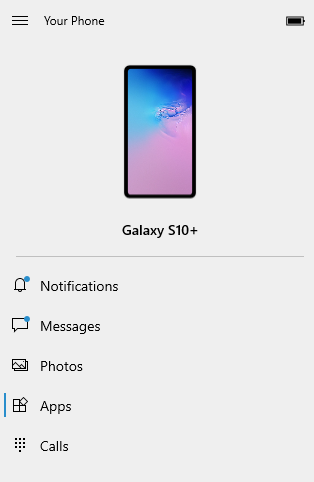
On your PC: Go to > Start and search for Your Phone
Windows 10 users with running the Windows 10 May 2019 Update will have the abillity to mirror their screen through wi-fi.

Log in with your Microsoft account in the application.
Follow the on-screen steps.

ON YOUR PHONE:

Check if the device you’re using is listed below as one of the supporting devices.

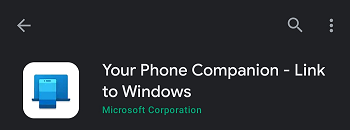
If yes, then check if you already have preinstalled on your Samsung device, “Your Phone Companion – Link to Windows” application. If not, it can be found on the Google Play Store and be downloaded from there.

Follow the on-screen steps

Make sure your phone and your PC are both connected to the same wi-fi network

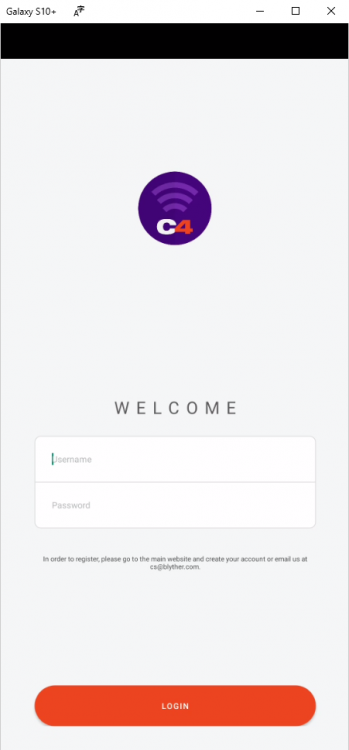
After the initial setup, you can access C4Broadcaster from the Apps button in the Your Phone menu.

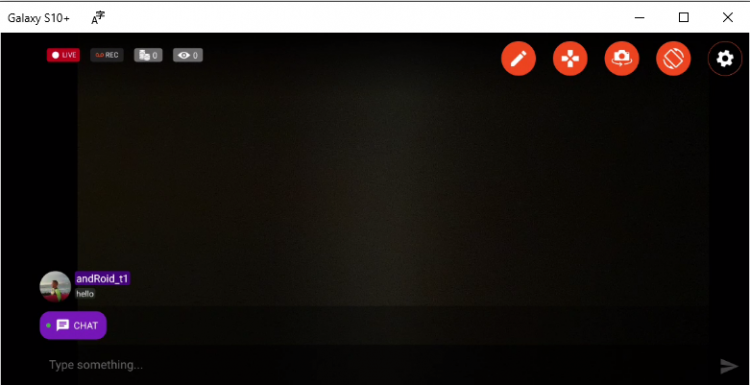
Accept the request on your phone and voila, you can now use C4broadcaster on your PC.

The experience is the same as on mobile, you can switch the camera, rotate the device, play tipping games and apply image filters like you did when using solely your phone


~That’s all for this lesson!

Happy Camming!
Love, Your Coaching Team!

Attract Spies with a Solo Private Show

Make It Easier To Stream On More Than One Cam Site 

If you broadcast on CAM4 and another site (or sites!) at the same time, it can be hard to pay attention to the chat in all of them at once – especially if you go private with a viewer!

Sometimes going private on one cam site even means pausing your streams on the others, and losing your viewers.

Now, you can use the Solo Private Show feature to help maintain your audience on all the sites at once. If you go private with a viewer while you’re on another cam site, start a Solo Private Show on CAM4. Your audience will see that you are in Private and can spy on your CAM4 broadcast as usual, but you can focus on the viewer paying you to go private.

HOW TO SET IT UP

When you are live on CAM4 select “Private Show Settings” on the bottom left side of the broadcast window.

This allows you to start a private show with no viewer which

  • Gives you privacy for the show.
  • Keeps your directory position and viewers in CAM4.
  • Offers an increase in your revenue by having spy viewers.

You will find a new tab under your private show settings called Solo to set this up

Once you have picked all your settings and pressed the “Start” button you will see some changes to you menu below your broadcast image. This allows you to see how long you have been hosting a solo show and what you have gained from your “Spy” viewers.



  • # of Spies
  • Fan Club Spies
  • Show earnings
  • Spy earnings
  • End Show


~That’s all for this lesson!

Happy Camming!
Love, Your Coaching Team!

Open Broadcaster Software (OBS)

CAM4 is an official streaming platform on OBS! This means OBS will auto configure your exact setting needs for optimal streaming on CAM4.

Here’s how it works:

  1. Login to Cam4.com > Select Broadcast
  2. Select > External Encoder
  3. Select > Get Stream Key
  4. Highlight Stream Key and Copy key as it will be pasted into OBS
  5. Open > OBS
  6. Select > Tools. Then select > Auto Configuration Wizard
  7. Select > Optimize for streaming, recording is secondary
  8. Click > Next
  9. Base (Canvas) Resolution select: Use Current

** Base canvas = your primary monitor’s resolution**

  1. FPS: Select 30
  2. Click > Next
  3. Stream Type: Streaming Services
  4. Service: Cam4 (show all if Cam4 is not listed)
  5. Stream Key: (clear if populated; paste key previously copied from your Cam4 broadcast window)
  6. Estimate bitrate with bandwidth test: CHECKED
  7. Prefer Hardware Encoding (if an option): UNCHECKED
  8. Click > Next
  9. Stream Warning pop up box: Select YES and wait while settings are configured
  10. OBS then shows Final Results for your settings.

              Select Apply to use the new settings.

              Settings will not be applied if you select Cancel

Other Article to check out:

What Is External Encoding?

How Do I Improve My Broadcast Quality?

How To Use Lightstream Studio


~That’s all for this lesson!

Happy Camming!

Love, Your CAM4 Coaching TEAM

Auto Pause after a Private or Group Show

Auto-Pause is designed to give you time to prepare to be in front of your regular viewers again after your Private or Group show ends.

Go grab some food or something to drink, clean up, use the washroom, or change your outfit. You have 5 minutes to do whatever you need to do before going live on cam for your viewers again.

HOW DOES IT WORK?

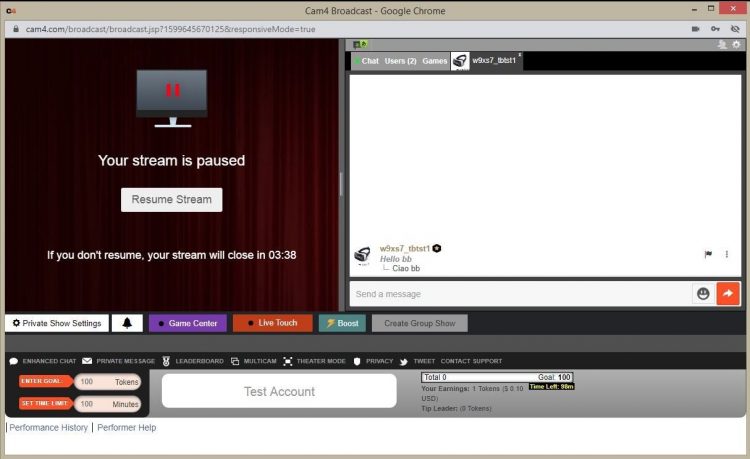
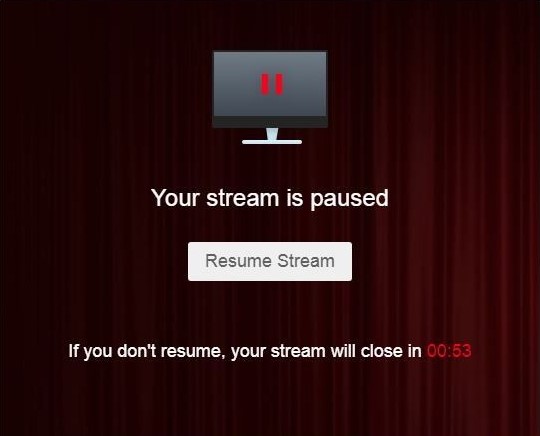
Start your Private or Group show as you normally would.  At the end of the show, your stream will pause for a maximum of 5 minutes .

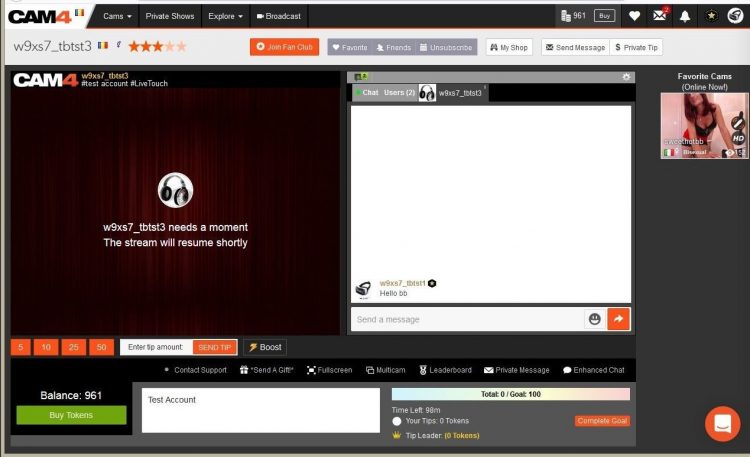
What YOU will see:


What your VIEWERS will see:

The stream is resumable at any time by clicking on the “Resume Stream” button. 

If you do not resume the stream during the first 5 minutes, the stream ends automatically. 

Private Show requests are not available while your show is paused. 

~That’s all for this lesson!

Happy Camming!
Love, Your Coaching Team!

BOOST: The Ultimate Way to Grow your Audience


Struggling to build an audience? Just logged on and want to kickstart your show?

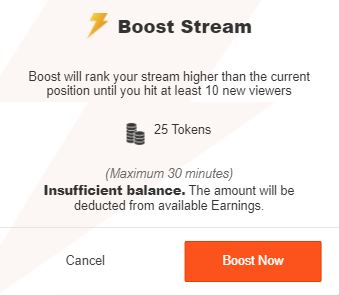
Now you can BOOST your room higher in the directory for just 25 tokens!

CAM4 has put YOU in the drives seat, giving YOU the ability to increasing your rank on the page so you  will get more viewers in your show!

How it Works:  

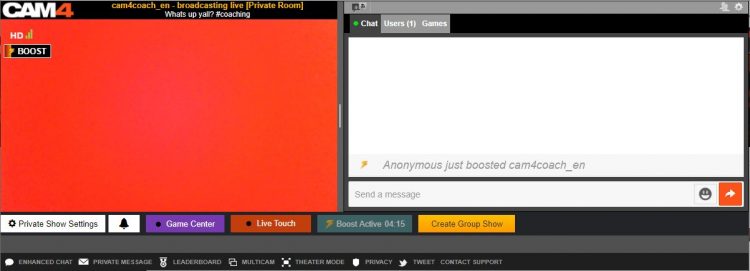
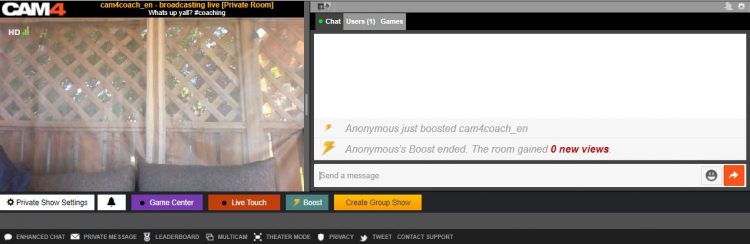
BOOST will display on your screen once you start a LIVE broadcast and is visible to you and your viewers.

This feature (once purchased) will  position you within the top percent of cams currently on the site for the duration of the BOOST.

Click on the “BOOST” button to start the feature.

It costs 25 tokens to BOOST your cam for 5 minutes, or until you have gained 10 new viewers in your room (to a max of 30 mins).

When you click on “Proceed” the cost of the BOOST will be deducted from your CAM4 account and your cam will be re-positioned on the directory page. 

What Happens when BOOST starts?

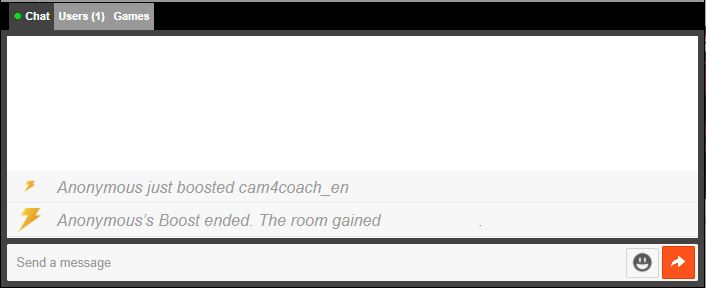
  1. You will see a message in your chat letting you know who purchased the boost.
  2. There is a bar on your broadcast window that will slowly fill up as the time runs out. 
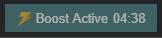
  3. The BOOST button is now inactive, this mean you cannot click on it. The text has also changed to read” Boost Active” and includes a count down. 

PRO TIP
When your boost is active, more people will be seeing your thumbnail. This is your moment to try to attract more viewers to your show! Switch it up with an alluring pose, a sexy strip tease, wet t-shirt show, or closeups. Anything you can do to attract the attention of the new audience you now have access to.

What Happens When the BOOST ends?

  1. The button will say “Boost” again become active enabling you to click on it again.
  2. You will see a message in the chat window that will tell you that the BOOST has ended and display how many viewers you gained during that BOOST.
  3. Your directory position will change, but not necessarily back to your original position – because your new position will reflect increases in your viewers due to the boost.

Viewers can BOOST you too!!

Viewers are always looking for ways to  support their favorite broadcasters. Why not encourage them to use the Boost feature on you?  With their help, boosting can really make a difference in your performance and exposure on CAM4. 

~That’s all for this lesson!

Happy Camming!
Love, Your Coaching Team!

Submit a Share-able Image

Do YOU want to be promoted on one of CAM4’s Official social-media accounts? Even be our monthly Cover Model on X.com?


Well, CAM4 needs YOUR help… Send us any of your best quality SFW (Safe For Work / Non Nude) images below, and your X.com or Instagram info so we can tag you.

USA/ Canada:
Click HERE to upload your SFW images now!!!!


United Kingdom/ Australia:
Upload for UK/AU 

Or contact: julia@cam4.com

And don’t forget, give us a follow


How To Buy A Gold Membership With Tokens

One of the benefits of being a verified performer on CAM4 is the ability to purchase your gold membership with tokens at a discounted price! Take a look at how you can convert your tokens into over 20 awesome Gold features.

Using Tokens For Your Gold Membership

First, tokens must come from your dashboard to be used for a Gold Membership.

Go into your Performer Dashboard  and request a CAM4 TOKENS payment for $12.50. 

You will see these tokens in your account on the CAM4 homepage.

new-account-gold-membership


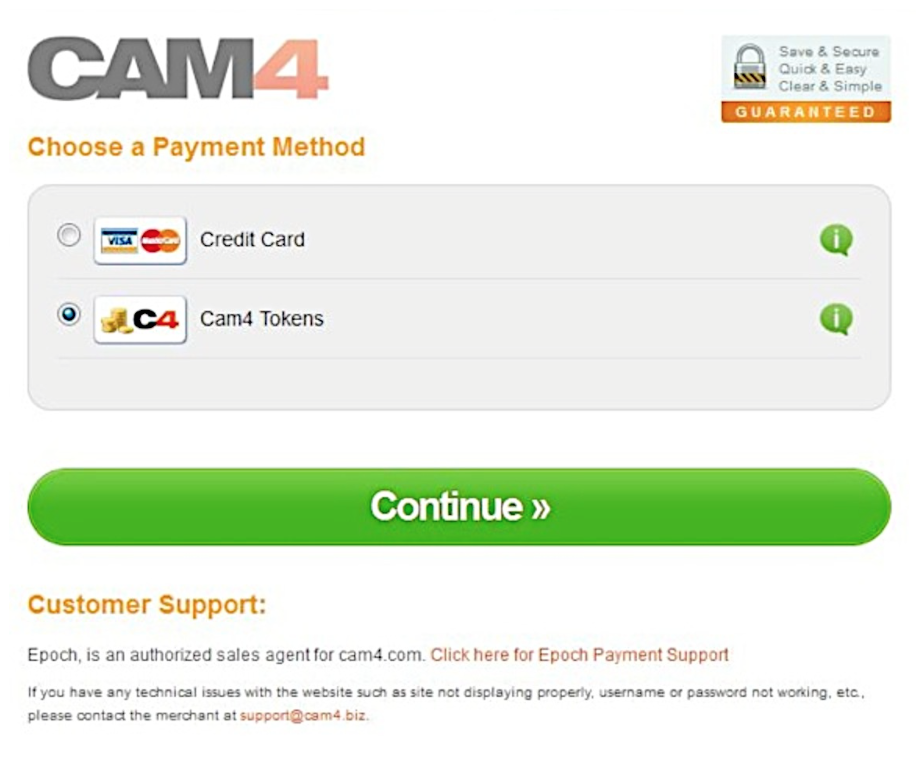
Once you press the “Upgrade to Gold” button you will be  taken to a  checkout window where CAM4 Tokens is a payment option.


Screen Shot 2015-06-25 at 2.48.50 PM

After clicking continue, you will receive a receipt and see your status go to Gold in a few minutes.  (You may have to refresh your page)


~That’s all for this lesson!

Happy Camming!
Love, Your Coaching Team!

How to Use Lightstream Studio

Here at CAM4, we’re proud to welcome a new feature that will forever benefit performers and their streaming quality – Lightstream Studio! 

Lightstream Studio is a web-based broadcast studio that will give our broadcasters the tools they need to create their most fun, or craziest, live shows! Lightstream Studio is similar to tools such as Split and OBS, but performers don’t need to download and install any software to use it! 

Features for Lightstream Studio include:

  • The ability to combine multiple cams into a single stream
  • Add graphic overlays into your videos
  • Pre-recorded video playback for review
  • 3rd party plugins are allowed

Broadcasters on CAM4 will have to create an account on Lightstream Studio before they can use the feature on CAM4. 

NOTE: The only way you can create an account on Lightstream Studios is to link it to an existing FACEBOOK, YOUTUBE, TWITCH OR MIXER account. Once you’re linked on Lightstream Studios, you can disable broadcasting on any of these platforms. Performers who want to stay anonymous are recommended to create a new YouTube or Twitch account to sign up.


~That’s all for this lesson!

Happy Camming!

Love, Your CAM4 Coaching TEAM