Category Archives: Do not use

GroupShows

Give an exclusive group show on CAM4: sell tickets, start on time, and stream only for paying viewers.

Group Shows on CAM4

A group show is an exclusive show for which viewers buy a ticket. Only ticket buyers see your stream — ideal for guaranteed, paying viewers.

Tip: announce your group show in advance and start no later than ~15 minutes after your intro.

What is a Group Show?

You sell tickets to viewers who want access. So it’s one performer for a group of paying viewers (not: multiple performers at the same time). Announce in time what happens in the show; the countdown shows when you start.

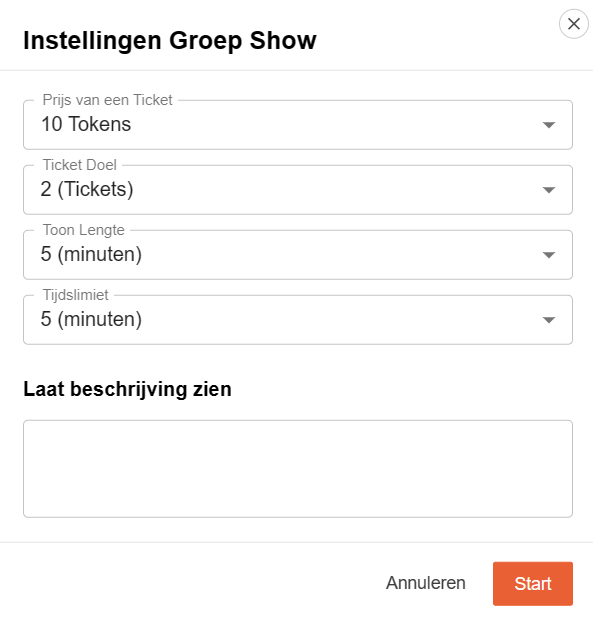
Groepshow instellen (voorbeeld)

How to Set Up Your Group Show

Settings in the Menu

  • Description: what can viewers expect?
  • Ticket price: your fixed price per access.
  • Minimum number of tickets for passage.
  • Duration of the show.
  • Countdown: how long people can still buy tickets.

Interface

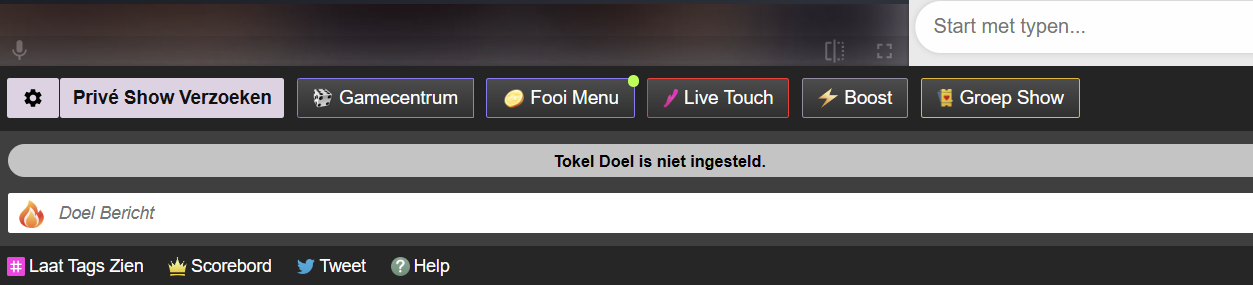
Find the Group Show options in your broadcast screen and set them as desired.

Groepshow menu

Don’t you sell the minimum? You can still start. If you don’t start, buyers will automatically get their tokens back.

Price & Expectations

Transparency to Viewers

The price viewers pay is higher than your token earnings; in many regions, VAT is added on top of that. Take this into account when setting your ticket price.

Regional differences (VAT/fees) are possible; viewers see a cost indication before purchase.

Quick Tips for Success

Tease & Announce

Use your Activity Feed to tease the show and mention time, duration, and highlights.

Clear Promise

Clearly describe what you are going to do. Clarity increases conversion.

Thank Buyers

Mention ticket buyers audibly/visibly and start on time to maintain trust.

Adding shows into your Calender

Let fans know when you go live: schedule your shows in your CAM4 calendar, gather followers, and increase the chance they’ll return.

Plan your shows with the CAM4 calendar

Fans can subscribe to your calendar via your profile and get a notification as soon as you go live. Easy to stay in touch, more returning viewers.

Tip: put themes, guests, and hashtags (#footfetish, #dominatrix) in your description for extra visibility.

Why planning works

Predictability

Fans know exactly when you’re live and can set a reminder.

More reach

Notifications to profile followers increase the chance they’ll return.

Flexible schedule

Plan up to 90 days in advance, a maximum of 5 shows per week.

How to schedule a show

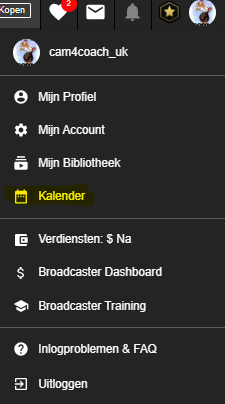
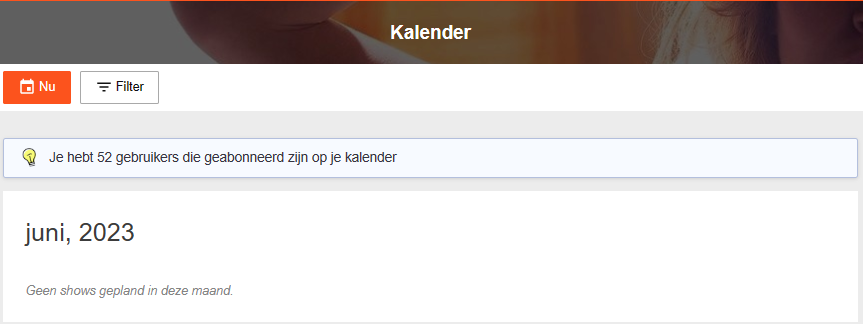
Log in to CAM4 and open your Avatar in the top left → Calendar. You’ll see your calendar, how many fans receive updates, and the “NOW” option.

Open calendar
Calendar details

Then the screen opens where you can schedule your show. Fill in:

  • Date — first month, then day, then year.
  • Start time — when does your show start?
  • Duration — how long will you broadcast?
  • Description — pitch your show: what can fans expect (theme, guest, goal)?

Click “Schedule New Broadcast” to confirm your scheduled show.

Make your announcement stronger

What do you mention?

  • Show type (tease, games, group show, private focus).
  • Goals or Tip Menu highlights (e.g. 25/50/150 tokens).
  • Hashtags for discoverability (#cam4, #liveshow + niche).

Timing

  • Schedule shows at fixed times (rhythm = recognition).
  • Post a reminder in your Activity Feed the same day.
  • Afterwards: thank you post with highlight (build loyalty).

Pro tip: announce special shows (guest/theme) a few days in advance and pin the post to the top of your Feed.

Lovense Toys

Connect Lovense toys to CAM4

Make your show more engaging and increase your tips: with every tip, your toy reacts directly — you determine the intensity per threshold.

Tip: Put your thresholds (e.g. 25 / 50 / 150 tokens) clearly in your description or Tip Menu.


Interactive toys make your shows more dynamic and give viewers direct feedback. You control the experience — they remember it.

Please note: Live Touch / FeelConnect is not suitable for Lovense. Always use the official Lovense software.

Lovense integration

Lovense works great with CAM4. Use the Lovense Browser Extension or Lovense Stream Master to sync tips with your toy.

Step-by-step

  • Update Lovense app and firmware.
  • Install the extension or Stream Master.
  • Connect your toy.
  • Make a test tip (small amount).

Tips for the show

  • Link thresholds to intensity or duration (e.g. 25 / 50 / 150 tokens).
  • Pin your thresholds visibly and repeat them aloud.
  • Use goals and your Tip Menu for rhythm and transparency.

Multiple toys

You can use multiple Lovense toys at the same time. Test combinations in advance and keep an eye on battery status.

Supported models (selection, 2025)

Vibrators & wearables

  • Lush 4, Lush Mini, Lush 3
  • Ferri (panty vibrator)
  • Ambi, Exomoon (bullet / lipstick)
  • Mission 2, Osci 3, Dolce, Flexer
  • Tenera 2 (clitoral suction)

Rabbit & G-spot

  • Nora (all generations)
  • Lapis (strapless strap-on)

Masturbators

  • Max 2 (and older Max)
  • Calor
  • Solace / Solace Pro

Prostate & penis

  • Edge 2 (and older Edge)
  • Gush 2 (and older Gush)
  • Diamo (cockring)

Anal / Wands / Specials

  • Hush 2 (all sizes), Hush (older gen.)
  • Domi 2 (and older Domi), Gravity, Hyphy
  • Gemini (nipple)
  • Lovense Sex Machine (mini & full)

Disclaimer: This list is a selection. Compatibility may change due to new firmware or models. Always consult the official
Lovense website for the most up-to-date information.


Best practices

Test in advance

Test connection, intensities and thresholds before you go live. Have a short demo tip ready to let your audience experience the effect.

Communicate clearly

Keep thresholds short and visible. Repeat them to newcomers and thank them for each trigger (name + what happens).

Boundaries & rules

Stay within your comfort zone and CAM4 rules. Set time-outs or cooldowns if you want to control the pace.


Quick recap: Always use Lovense software (extension or Stream Master), test in advance, set clear thresholds and communicate them. Update apps and firmware, and keep batteries ready. Consistency creates better experience and more tips.

Token Indicators + user badges

Get direct insight into who’s in your room: with the CAM4 Token Indicator you recognize big tippers, read the chat smarter and steer your show more effectively.

More insight with the CAM4 Token Indicator

See at a glance who recently tipped, recognize big spenders and focus your energy where it pays off — directly in your chat.


Tip: link your goals and Tip Menu to what your “colored” viewers show for maximum conversion.

What is the Token Indicator?

The Token Indicator shows in your CAM4-chat how much a viewer has spent in the last 14 days.
Color-coded names and badges (such as GOLD, Fanclub or Moderator) help you quickly assess how involved someone is.

CAM4 chat with token indicator

Colors based on spending

Everyone in your chat gets (if applicable) a color based on tokens spent in the last 14 days.

Color levels legend

Whatever color you see — greet these viewers warmly and involve them in your goals. Often regular visitors are your next top tippers.

Badges and roles in the chat

In addition to colors, you see different icons and labels. This way you know directly who is speaking:

Token icon

Indicates that a viewer currently has tokens available.

Token icoon

Your messages

This is what your chat messages look like as a creator during the broadcast.

Creator in chat

GOLD member

Viewers with a Gold subscription and extra features. Their status is independent of their token balance.

Gold member icoon

Moderator

Helpers you designate with tools like mute, kick and ban (only in your room).

Moderator icoon

Regular member

A registered CAM4 user without a Gold subscription.

Normaal lid icoon

Admin (CAM4 Crew)

Official CAM4 staff who provide support and oversee the rules. They never ask for your password.

Admin icoon

Coach (CAM4 Crew)

Selected CAM4 coaches who support creators and provide training.

Coach icoon

Smart use of newcomers

Binnenkomer melding

You immediately see when someone enters your room (like this example of a Gold member). Use that info wisely: greet new “colored” viewers, link your goals (“120 more to Goal 2”) and highlight 1–2 popular Tip Menu items. This increases your chance of tips — without pushing.

Pro tip: have a few short sentences ready to name thresholds (“80 more to Goal 1”), thank them for each unlock and name 1–2 menu-suggestions (e.g. 25/50/150 tokens).

SPRING GIFTING CONTEST (MARCH 23 – APRIL 5)

COLLECT SPRING GIFTS & WIN UP BIG !!! 


What did the Easter egg say to the boiling water ? …It’s gonna take me a while to get hard !!!

From MARCH 23rd to APRIL 5th forget decorating eggs and decorate your CAM4 profile with our annual SPRING GIFTING CONTEST

Broadcasters who earn the most $$$ from receiving gifts featured in our “Sweet Spring” and “Flower Letters” gifting categories within the 2 weeks will win some very EGG-citing prizes !!!

TOP NA / RO / RU / UA PRIZES

1st Place:  $200
2nd Place:  $150
3rd Place:  $100
4th Place:  $75
5th Place:  $50
6th – 10th Place:  $25

————————-

CLICK HERE TO SIGN-UP FOR UK / AU 


RULES

-MUST be 2257 Approved
-MUST Sign-Up below
-MUST Sign-Up by Thursday, April 2nd
-MUST broadcast a minimum of 4hrs during contest period
-Gifts MUST be from either “Sweet Spring” & “Flower Letters” categories
-Gifts MUST be from viewers (broadcaster to broadcaster gifts do NOT count)
-Limit of gifts valued at 6000 token per unique tipper / gifted
-ONLY gifts received between MARCH 23rd – April 5th at 11:59pm ET are counted

*** SIGN-UP BELOW ***

Lovense Stream Master & Browser Extension

Quickly learn how to use your Lovense toys in your CAM4 shows — via Stream Master or with the Browser Extension.

Lovense Integration on CAM4

Choose what suits your setup: Lovense Stream Master (all‑in‑one) or the Lovense Browser Extension (Chromium). Let your toy react to tips and enhance the experience.

Tip: communicate clear thresholds (e.g. 25/50/150 tokens) and test a small “tip‑demo” before you go live.

Two ways to connect

Lovense Stream Master

All‑in‑one software/browser from Lovense, designed for live streamers. Combines streaming, cam/browser‑integration and toy‑linking in one tool — fewer separate parts needed.

Lovense Browser Extension

Extension for Chromium‑browsers (Chrome/Edge/Brave) that passes tip‑events to your Lovense‑toy, so it reacts in realtime to tips during your stream.

Key benefits

Less hassle

With Stream Master you don’t have to work separately with OBS + separate browser + extension; many functions are built in.

Direct response

The (Cam) Extension forwards tips to Lovense, so your toy vibrates or responds to agreed thresholds/amounts.

Stability

Stream Master is the recommended route and replaces the older “Lovense Browser + extension” mode for a smoother experience.

Disadvantages & points to note

  • The older “Lovense Browser with extension” will no longer receive updates since September 1, 2023 — Stream Master is recommended.
  • Always use Lovense Connect to pair your toy (the Remote‑app does not work for this).
  • The Extension works well on Chromium‑browsers; support on Firefox/Safari is limited/not available.
  • Performance may vary: high resolution + multiple apps can cause lag/crash/delay on weaker PCs. Test your setup.

Setup (short steps)

  1. Install Lovense Connect on your phone and pair your toy via Bluetooth in that app.
  2. Download/install Stream Master (or choose the Browser Extension in a Chromium‑browser).
  3. In Stream Master: add your cam‑site and set up video/overlays/toy‑integration.
  4. If you use the Extension? Install the correct extension, open the extension page before you start streaming.
  5. Do a test‑tip (small amount) to check if your toy reacts exactly as you expect.

Best practices

Test in advance

Update firmware/apps, check battery/connection and show a short demo‑tip to your chat to “learn” the thresholds.

Communicate thresholds

Keep your mapping simple (e.g. 25/50/150 tokens = light/medium/intense response) and pin them visibly in your description or Tip Menu.

Disclaimer & current info

Please note: Lovense regularly releases updates (firmware/software/compatibility). Experiences vary per hardware and internet. Always consult the official Lovense‑manuals and release notes before you go live.

Social Media

Smart social media = more visibility, more viewers, and a stronger community around your CAM4 shows.

Social Media — Use it to Reach a Larger Audience

Reach new viewers, build a loyal community, and drive traffic to your CAM4 room with a simple, consistent social strategy.

Tip: Schedule regular posts around your shows (teaser beforehand, live notification, thank you afterward) and make your CAM4 link visible everywhere.

How to Use Social Media

Post consistently! Variety and regularity keep you top-of-mind. More interaction = more reach = more chance that viewers will find your show.

Content Mix

  • Images, short videos, polls, and personal updates.
  • Behind-the-scenes and reminders for your next show.
  • Post teasers and direct followers to your full-content platform.

Planning

  • Make yourself a simple schedule: e.g., 1 post daily.
  • Announce shows well in advance + post a reminder.

Engagement

  • Respond to comments/DMs (short, friendly replies).
  • Ask questions and use polls to start conversations.

A Strong Bio

Your profile is your digital business card. Briefly tell who you are, your style, and where people can find you.

What to Include

  • 1 sentence about your vibe/style.
  • What viewers can expect.
  • Link to your CAM4 profile (Check the platforms rules)

Quick Writing Tip

Think like a fan: what would you want to read about your favorite creator? Use that as inspiration.

Ensure Clear Links

  • Put your CAM4 link in your bio and pin it where possible.
  • Repeat your link in show announcements and updates.
  • Use link stickers or “link in bio” where direct links are limited.
  • Every social platform is different as far as what they allow and don’t. Make sure that you are following their rules before adding your links and content.

Use Hashtags Wisely

Hashtags increase your discoverability. Use them consistently and appropriately for your content.

  • Examples: #cam4, #liveshow, #streaming + your own creative tags.
  • Mix broad and niche tags; don’t overdo it (quality > quantity).

Share Your Mentions

Are you being mentioned or promoted? Share it again (retweet/repost/share). Social proof increases your credibility and reach.

Key Platforms

X (x.com) / Twitter

  • Allows nudity/adult (within rules).
  • Ideal for show announcements and direct links.
  • Use hashtags, tags, and retweets for reach.

Instagram

  • Strict rules: no nudity; lifestyle/suggestive is possible.
  • Reels & Stories for engagement.
  • Link in bio to your CAM4 profile.

Facebook

  • Strict rules: no nudity.
  • Fan pages and community building.
  • Use a separate account for privacy.

TikTok

  • No nudity; large reach with short, creative videos.
  • Use trending sounds and hashtags.
  • Subtly refer to your other socials/CAM4.

Bluesky

  • Emerging platform (similar to X).
  • Relatively spacious, but rules may change.
  • Be active early and build an audience now.

Summary

Socials change, but the core remains: be visible, creative, and make it easy to follow you. Choose platforms that suit you, post consistently, and put your CAM4 link front and center — this maximizes your reach and income.

Quick recap: content mix + planning, strong bio, clear links, relevant hashtags, share social proof, and time your show moments smartly.

How many tokens should I ask?

We’ll tell you all about that here!

Setting Prices on CAM4

Knowing what to charge is just as important as what your show looks like. Clear prices help your viewers, and your wallet.

Tip: set your goals in advance and stick to them for more confidence and tips.

How do I know what to charge?

Start with your desired income and work backward. This keeps it realistic and achievable.

1) Determine your minimum

What is the minimum you want to earn per month to cover your fixed costs?

2) Determine your “comfortable” goal

What feels good to live comfortably? Not too high, but challenging.

3) Divide over your broadcast time

Divide your goal by the number of shows/hours. This gives you your goal per show.

Make your goals small — micro-goals keep the excitement going and give viewers quick “wins.”

  • Example: Do you want 1000 tokens (~100 USD) per show? Split into 4 goals of 250 tokens.
  • Goal 1: 250 tokens = nude
  • Goal 2: 250 tokens = oil show
  • Goal 3: 250 tokens = playing with yourself
  • Goal 4: 250 tokens = cumming (only if you feel good about it)

Pro tip: stick to your goals. If you keep changing them, it seems like you’re hesitating, viewers notice that immediately.

Quick triggers that always work

Make small, direct actions easily accessible. This encourages more frequent tipping.

  • Tongue = 1 token (someone tips 1 token → you stick your tongue out briefly, playful and fun)
  • “Flash breasts” for a set number of tokens

Use your Tip Menu

Avoid “what does this cost?” questions. Your Tip Menu makes it clear what you offer and at what price. You can find it in the bar under your broadcast screen (also adjustable from a private broadcast).

Butt 25 tokens popular
Breasts 25 tokens
Vagina 50 tokens
Tongue 1 token
Oil Show 150 tokens
Private DM 20 tokens
Whisper name 10 tokens
Song request 15 tokens
Dance (1 min) 40 tokens
Change clothes 60 tokens
Grab toy 80 tokens

Do’s

  • Be crystal clear about your prices and what you offer.
  • Split your show into small goals for constant progress.
  • Thank tippers and mention achieved goals out loud.
  • Test, evaluate, and adjust your menu based on what works.

Pay attention

  • Don’t change your room goal until it is hit
  • Stay within your boundaries and within the platform rules.
  • Be consistent: Always complete the actions that are tipped for.

Important: Adhere to local laws and platform rules. Only 18+ broadcasters and consent is always required.

Pay per Text

Earn from DMs: with Pay-Per-Text (PPT), you get tokens for messages and media — set it up, test it, and let your inbox work for you.

Pay‑Per‑Text on CAM4: Get Paid for Messages and Media

Set a fixed price on DMs and uploads, prioritize Fanclub members, and earn through — even when you’re not live.

Tip: communicate your PPT‑rates in your bio or Feed and pin a post with “how it works”.

Short Demo

Why Pay‑Per‑Text Works

  1. Get paid for your time — every message or media file can earn tokens, even that quick “hello”.
  2. Build your inner circle — give Fanclub members free or discounted DMs/media and charge a higher rate for the public — this builds loyalty.
  3. Full control — you determine prices and what counts (messages, media) and who you prioritize.
  4. Premium feel — paying fans get guaranteed attention and exclusive connection.
  5. Insight — see exactly what PPT yields and adjust your strategy.

Setup: Super Simple

Step 1: Basics

Make sure you are Broadcast Approved and enable Pay‑Per‑Text in your settings.

Step 2: While Streaming

PPT instellingen tijdens stream

  1. Go live — log in and start your broadcast.
  2. Open chat‑settings — click on the gear (top right in your broadcast window) and scroll to the PPT‑section.
  3. Turn on pay per message — activate “Receive Message” and set amounts.
    Example: 5 tokens for public, 1 token for Fanclub (or free to stimulate sign-ups).
  4. Turn on pay for media — activate “Receive Media” with separate amounts.
    Example: 10 tokens for public uploads, 2 tokens for Fanclub‑uploads.
  5. No ‘Save’ needed — changes are applied immediately.

Step 3: Set Up in Messenger in Advance

Want to get everything ready before you go live? Open the Messenger via the chat‑icon on your profile and set your PPT‑settings there. Everything is synchronized platform‑wide.

PPT in Messenger instellen
Messenger instellingen overzicht

Get the Most Out of Pay‑Per‑Text

Treat Fanclub as VIP

Give Fanclub free or discounted DMs/media and charge a higher rate for the public — this builds loyalty.

Experiment with Prices

Test different token amounts; find the sweet spot where income rises and fans remain engaged.

Test & Communicate

Check with a test account or ask a regular fan to test. Communicate your rates clearly to avoid surprises.

View Your Results

In your Broadcaster Dashboard, you can see per day what DMs and media yield. Check the Tip History tab and compare strategies: does media work better, or Fanclub‑messages?

Frequently Asked Questions

  • Can I only charge for media? — Yes. You choose whether to charge for messages, media or both.
  • What if a viewer has too few tokens? — They will receive a notification to buy tokens before the message or media is sent.
  • Are Fanclub‑messages free by default? — Yes, but you can adjust that. Set a few tokens or leave it free for conversion.

Summary: turn on PPT, distinguish between public and Fanclub, test prices, communicate clearly, and monitor your results. Consequence wins — every interaction becomes a chance to earn.

Goals & Tip Menu

Your guide to tipping options on CAM4

Tip menu and room goals — earn more by guiding your viewers

Earn more tokens by giving your viewers exactly what they want!
Your fans need to know what you’re willing to do and how to get you to do it. Keep your tip menu and your room goal separate by offering different things.

Pro tip: quick, fun actions keep energy high while tips also contribute to your larger goal.

Tip Menu — what is it?

The Tip Menu is a simple way to boost engagement. Create a list of actions with their token values so viewers know exactly how much it costs to see that action.

Broadcasters using a clear tip menu often see more interaction and higher show revenue.

Tip menu ideas

What you include is up to you — adjust based on what your audience likes.

  • Kiss-hands
  • Mention the viewer’s name or write it on your body
  • Flash breasts
  • Oil massage
  • Spanking
  • Twerk
  • Use toy for 15 seconds
  • Be creative — the sky is the limit!

Set up your Tip Menu

How to set it up

Find the Tip Menu near the Game Center and add your actions with the required tip amount.

Note: you must enter at least four (4) actions to activate your tip menu for viewers.

Setting up the tip menu

Manage & notifications

You can add up to 12 options. Use the trash icon to delete/update. Ready? Click SAVE to activate.

Once a tip menu is activated, you can’t remove it from your live show.

Your tip menu is automatically promoted in your chat so viewers know it’s active. When someone purchases an item, a special notification appears in chat.

Tip menu notifications in chat

Room Goal

Besides individual actions, you can also add goals. Goals are a joint challenge: viewers tip together to reach your target — once it’s hit, you perform the action.

Use goals for bigger actions, but start with micro-goals to maintain tension and give quick wins.

How to set it up

Once live, set your Goal! Click the white bar (right of the fire emoji) at the bottom of the broadcast window. Type the name of the action you will perform when the room goal is hit.

Then set the price: find the “Goal” box to the right of the grey bar that says “Token Goal not set” and add the amount in tokens.

Set your goal

Know your value

Think about what you want to do and how much you want to make before you go live. You don’t want goals that are too easy or too hard.

Example: want 1000 tokens (~$100 USD) per show? Split into four goals of 250 tokens.

  • Goal 1: 250 tokens = Naked
  • Goal 2: 250 tokens = Oil show
  • Goal 3: 250 tokens = Playing with yourself
  • Goal 4: 250 tokens = Cumming (only if you feel comfortable with that)

Pro tip: stick to your goals. If you keep changing them, it looks like you’re hesitating — viewers notice immediately.