CAM4 Pages de Niche : Tout ce que vous devez savoir


Prêt(e) à trouver votre Niche ?

Plongez et commencez à explorer les Niches ! Suivez-en quelques-unes qui éveillent votre curiosité, partagez du contenu, et voyez qui se présente.

Vous pourriez découvrir une nouvelle facette de votre style que vous adorez — et vous connecter avec des fans qui l’adorent aussi.

Votre prochain contenu préféré (et votre prochaine vague de fans) pourrait vous attendre dans une Niche que vous n’avez pas encore essayée.

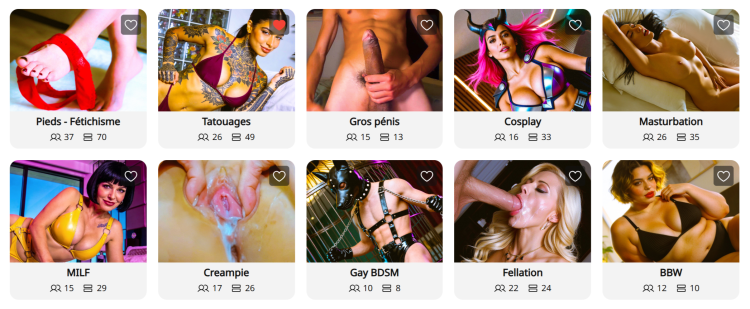
Que sont les Niches ? Les pages de Niche sont des espaces communautaires spécialisés sur CAM4, organisés autour d’intérêts spécifiques comme BDSM, Feet, BBW, Creampie, et bien plus encore. Considérez-les comme des pages où vous pouvez vous connecter directement avec des utilisateurs qui recherchent précisément le type de contenu que vous proposez.


Pourquoi les Niches changent la donne pour votre découverte :

  • Exposition ciblée : Au lieu de concurrencer dans la page d’accueil, vos publications et vos diffusions en direct apparaissent dans des communautés dédiées à votre style/kink .
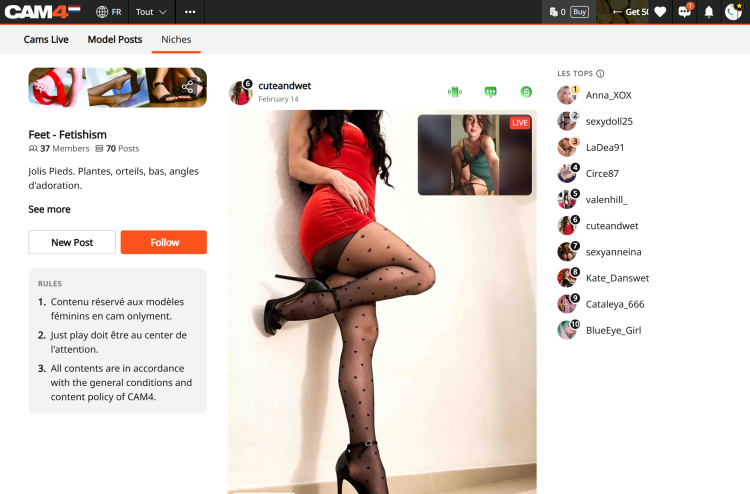
  • Aperçu en direct sur les publications : Lorsque vous diffusez en direct, toute publication que vous avez faite dans une Niche affichera automatiquement un aperçu vidéo de votre show en direct. Cela permet aux utilisateurs parcourant le fil de la Niche de rejoindre directement votre room.
  • Le Classement : Chaque Niche propose un Classement présentant les 10 meilleurs modèles en fonction du nombre total de likes. Être classé ici offre une visibilité massive et vous aide à devenir une référence reconnue dans la communauté.
  • Onglet « Cams » dédié : Les Niches disposent d’un onglet « Cams » spécifique qui affiche uniquement les modèles en direct membres de cette Niche. Cela permet aux spectateurs de vous trouver plus facilement lorsqu’ils recherchent un contenu spécifique.

Comment rejoindre une Niche :

  1. Trouvez votre Niche : Cliquez sur l’onglet « Niche » dans la barre de navigation supérieure.
  2. Suivre pour rejoindre : Cliquez sur « Follow » sur une page de Niche pour devenir membre.
  3. Partager du contenu : Une fois membre, cliquez sur « Créer un post » pour partager des photos ou des vidéos depuis votre Coffre Médias.
    Vous pouvez également cliquer sur « Publier aussi sur mon Fil d’Actualité » pour que la photo que vous postez sur la niche apparaisse aussi sur votre Fil D’Actualité. 

    Note :
    Toutes les publications de Niche sont gratuites à consulter, ce qui en fait le « trailer» parfait pour attirer les utilisateurs vers votre contenu payant ou votre show en direct
  4. Interagir : Interagir avec les commentaires sur vos publications aide à construire une communauté fidèle au sein de la Niche.


La valeur : Débloquer de nouvelles sources de revenus
Les Niches sont plus qu’un simple outil social ; elles constituent un moyen puissant d’augmenter vos gains :

  • Conversion plus élevée : Vous atteignez une audience ayant un intérêt spécifique pour ce type de contenu, ce qui mène à davantage de tips et de demandes de shows privés.
  • Marketing automatisé : Votre aperçu en direct agit comme une publicité permanente auprès des spectateurs intéressés pendant que vous êtes en direct.
  • Vente de contenu : Utilisez des teasers GRATUITS dans les Niches pour générer du trafic vers vos médias payants et les vidéos sur votre Activity Feed.
  • Statut dans le Classement : Une meilleure visibilité dans le Classement est directement corrélée à une augmentation des inscriptions au Fan Club et à la croissance des abonnés à long terme.

Commencez à explorer maintenant : www.cam4.com/niches


Besoin d’un coup de main ? Pour plus de détails sur les autres fonctionnalités de CAM4, consultez notre FAQ ou demandez à notre chatbot « Spark » que vous trouverez dans votre boîte de réception.

Bon camming !

Les Niches CAM4

What is SFW

SFW profile photos: why they’re essential for your visibility and earnings on CAM4.

SFW Profile Photos: Maximum Visibility, Maximum Earnings

A Safe For Work (SFW) profile photo is the key to worldwide visibility. Without an SFW photo, you remain invisible in important markets and search engines.

SFW means: sexy and attractive, but not explicit. Suitable for all platforms and search engines.

What Does SFW Mean?

SFW stands for Safe For Work. This means your profile photo is suitable to be shown anywhere online — including on platforms and search engines with strict content rules.

SFW photo = sexy and attractive, but not explicit.

Think of it as an advertising photo: enticing enough to attract attention, but safe enough not to be blocked anywhere.

Why Is an SFW Photo So Important?

Very simple: no SFW photo means less visibility — and therefore less income.

Invisible in Many Countries

Without an SFW profile photo, you won’t be shown in search results in countries like the US, Canada, Australia, and large parts of Europe.

Blocked by Search Engines

Search engines block profiles without an SFW photo. This means you miss out on traffic from people actively searching online.

Stricter Regulations

Platforms must comply with international regulations. An SFW photo protects your own visibility.

What Is a Good SFW Photo?

✅ This Is Allowed

  • Swimsuit, lingerie, or bikini
  • Provocative pose, but fully clothed
  • Close-up of your face (optional)
  • Full body photo in a nice outfit
  • Suggestive close-up without explicit details
  • Good lighting and clear quality

Tip: A photo that’s just too explicit can often be made SFW with smart cropping.

❌ This Is Not Allowed

  • Full nudity (visible breasts or genitals)
  • Sexual acts
  • Toys in use
  • Underwear where everything is visible
  • Extreme close-ups of intimate body parts

Do You Have to Show Your Face?

No. You don’t have to be recognizable. Many models choose, for example:

From Behind

Body photo without face

Accessories

Hat, sunglasses, or shadow

Partially

Face partly out of frame

Focus on Body

Full body photo without face

As long as your photo is SFW, you are visible worldwide.

Examples of Good SFW Photos

  • A stylish dress or lingerie set
  • Swimsuit photo by the pool or beach
  • Artistic photo with beautiful lighting
  • Sexy pose, but fully clothed
  • Close-up of lips, shoulders, or neck

Example of an SFW profile photo

Summary

✅ With SFW Photo:

  • Visible worldwide
  • More viewers
  • More income

❌ Without SFW Photo:

  • Invisible in many countries
  • No viewers
  • No income

It’s really that simple: upload a good SFW photo today and immediately expand your reach.

Lovense Stream Master & Browser Extension

Quickly learn how to use your Lovense toys in your CAM4 shows — via Stream Master or with the Browser Extension.

Lovense Integration on CAM4

Choose what suits your setup: Lovense Stream Master (all‑in‑one) or the Lovense Browser Extension (Chromium). Let your toy react to tips and enhance the experience.

Tip: communicate clear thresholds (e.g. 25/50/150 tokens) and test a small “tip‑demo” before you go live.

Two ways to connect

Lovense Stream Master

All‑in‑one software/browser from Lovense, designed for live streamers. Combines streaming, cam/browser‑integration and toy‑linking in one tool — fewer separate parts needed.

Lovense Browser Extension

Extension for Chromium‑browsers (Chrome/Edge/Brave) that passes tip‑events to your Lovense‑toy, so it reacts in realtime to tips during your stream.

Key benefits

Less hassle

With Stream Master you don’t have to work separately with OBS + separate browser + extension; many functions are built in.

Direct response

The (Cam) Extension forwards tips to Lovense, so your toy vibrates or responds to agreed thresholds/amounts.

Stability

Stream Master is the recommended route and replaces the older “Lovense Browser + extension” mode for a smoother experience.

Disadvantages & points to note

  • The older “Lovense Browser with extension” will no longer receive updates since September 1, 2023 — Stream Master is recommended.
  • Always use Lovense Connect to pair your toy (the Remote‑app does not work for this).
  • The Extension works well on Chromium‑browsers; support on Firefox/Safari is limited/not available.
  • Performance may vary: high resolution + multiple apps can cause lag/crash/delay on weaker PCs. Test your setup.

Setup (short steps)

  1. Install Lovense Connect on your phone and pair your toy via Bluetooth in that app.
  2. Download/install Stream Master (or choose the Browser Extension in a Chromium‑browser).
  3. In Stream Master: add your cam‑site and set up video/overlays/toy‑integration.
  4. If you use the Extension? Install the correct extension, open the extension page before you start streaming.
  5. Do a test‑tip (small amount) to check if your toy reacts exactly as you expect.

Best practices

Test in advance

Update firmware/apps, check battery/connection and show a short demo‑tip to your chat to “learn” the thresholds.

Communicate thresholds

Keep your mapping simple (e.g. 25/50/150 tokens = light/medium/intense response) and pin them visibly in your description or Tip Menu.

Disclaimer & current info

Please note: Lovense regularly releases updates (firmware/software/compatibility). Experiences vary per hardware and internet. Always consult the official Lovense‑manuals and release notes before you go live.

Comment configurer vos sextoys Lovense sur CAM4

Les jouets Lovense offrent une nouvelle dimension d’interaction avec vos spectateurs. Grâce à eux, chaque tip devient une action réelle sur votre jouet : vibration, pulsation ou intensité variable selon les niveaux de tokens. Cela crée une expérience plus immersive, plus ludique et souvent beaucoup plus rentable, puisque vos voyeurs ont la possibilité de participer directement à votre show en prenant le contrôle du plaisir. C’est une manière simple et efficace de dynamiser vos lives, de fidéliser votre audience et de rendre chaque émission unique grâce à l’interactivité en temps réel.

Installer et configurer un jouet lovense avec stream master sur cam4 

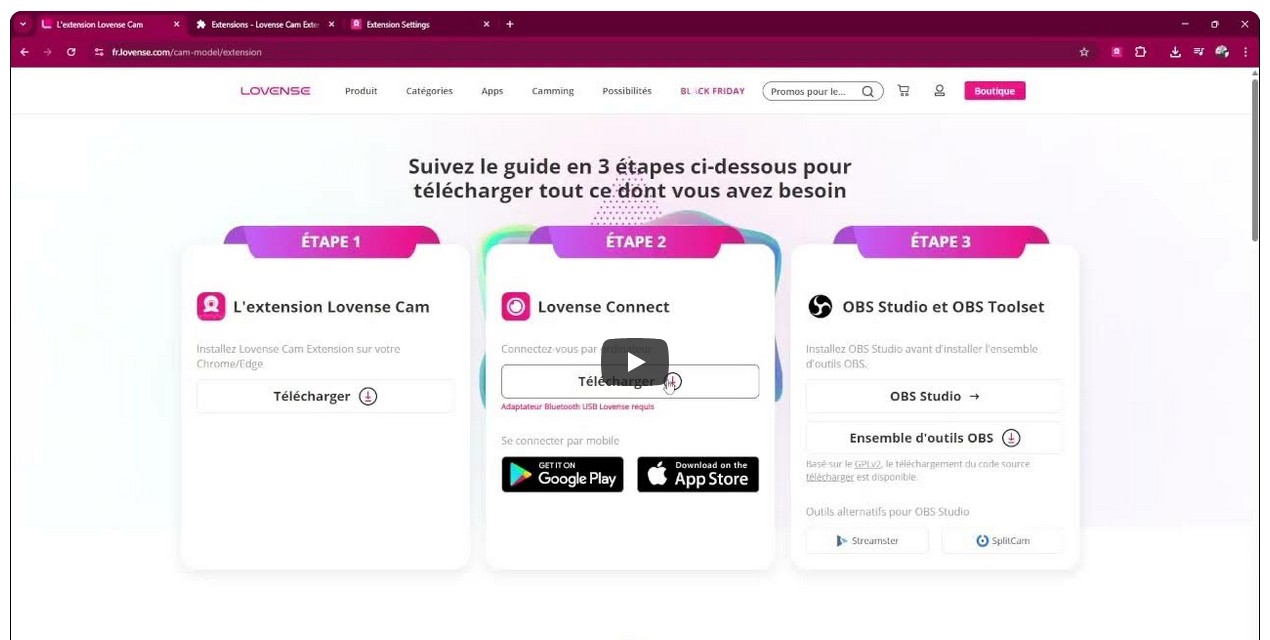
1. Installer l’extension Lovense avec Lovense Stream Master 

  • Allez sur : https://www.lovense.com/cam-model/extension

  • Cliquez sur Camming, puis sur Télécharger (Mac ou PC)
  • Une fois téléchargé sur votre ordinateur, lancer l’installation
  • Une fois sur le navigateur web de Stream Master, sélectionnez CAM4 dans Cam Site


2. Connecter ton jouet Lovense a CAM4

  • Connectez votre jouet (partie supérieure droite)
  • Sélectionnez « Use Lovense recommended settings » (cela vous donnera des paliers de vibrations déjà configurés) 
  • Cliquez sur Connecter Lovense pour vérifier que votre jouet est bien connecté
  • Vérifié les paramètres de Lovense, et passez en Live


3. Le Tuto Vidéo (et rappel android c4broadcaster)


Installer et configurer l’extension Lovense

1. Installer l’extension Lovense pour Google Chrome

  • Allez sur : https://www.lovense.com/cam-model/extension

  • Cliquez sur Lovense Cam Extension, et suivez l’Etape 1
  • Une fois téléchargé sur votre ordinateur, faites un clic droit sur le fichier Lovense, puis sélectionnez « Extraire Tout… »
  • Retourner sur Chrome et ajouter l’extension Lovense en cliquant sur « Charger l’extension non empaquetée » (activez le Mode Développeur)
  • Selectionnez le dossier de l’extension Lovense, et elle sera ajoutée
  • Appuyez sur Détails, et activez l’option « Autoriser les scripts utilisateurs »
  • N’oubliez pas d’épingler votre extension Lovense en cliquant sur le puzzle puis sur l’épingle, pour un accès plus facile depuis votre navigateur
  • Cliquez sur l’icône Lovense et sur Settings
  • Dans la fenêtre de l’extension Lovense, sélectionnez CAM4 dans Cam Site
  • Sélectionnez « Use Lovense recommended settings » (cela vous donnera des paliers de vibrations déjà configuré) 
  • Passez ensuite à l’Etape 2 en retournant sur la page Lovense, et téléchargez Lovense Connect puis Installer
  • (Si vous n’avez pas la clé Lovense, il faudra installer l’application Lovense Connect sur votre smartphone à la place)
  • Démarrez Lovense Connect, et connectez votre jouet Lovense
 

2. Connecter ton jouet Lovense a CAM4

  • Démarrez Lovense Connect, et connectez votre jouet Lovense
  • Lancer votre diffusion depuis votre extension Lovense

  • Cliquez sur Connecter Lovense pour vérifier que votre jouet est bien connecté
  • Vérifié les paramètres de Lovense, et passez en Live


3. Le Tuto Vidéo 


Comment connecter votre sextoy Lovense à votre téléphone portable à l’aide de l’application C4 Broadcaster

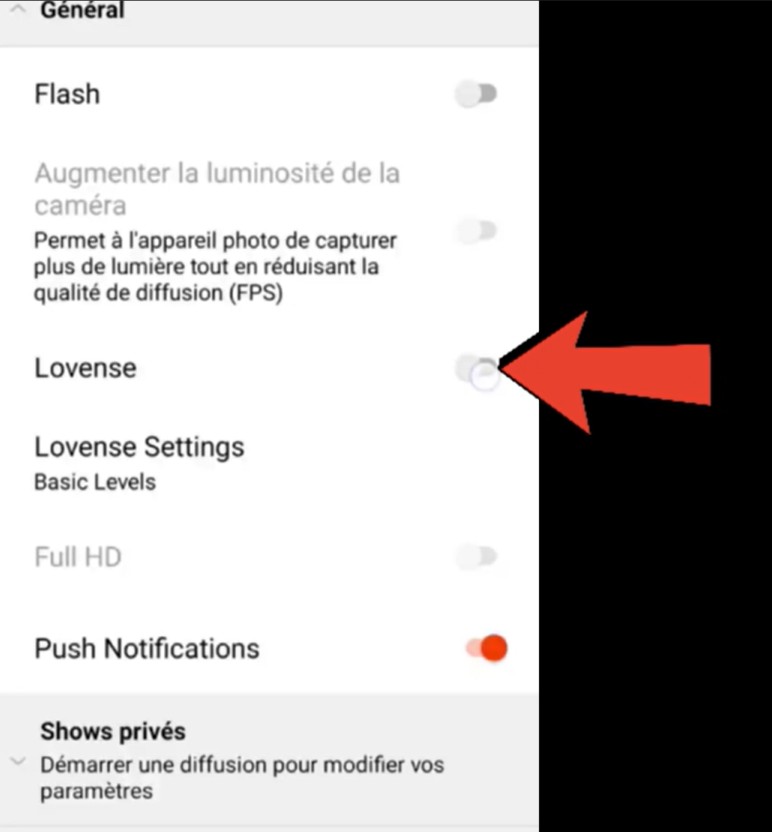
L’application C4 Broadcaster pour Android permet de connecter directement vos jouets Lovense en Bluetooth afin qu’ils vibrent automatiquement dès que vous recevez des tips pendant votre live mobile.

Il suffit d’ouvrir les Paramètres, puis Général,  et ensuite d’activer Lovense, puis de connecter votre jouet en Bluetooth. Une fois détecté, il est prêt à fonctionner pendant votre show.


Games

Games energize your show, break the ice, and often lead to more tips — here’s how to use Token Keno, Spin the Wheel, and Roll the Dice smartly.

Play Games in Your CAM4 Shows

Games are perfect for starting your show, creating atmosphere, getting to know your audience, and earning tokens.

Tip: Keep rules and prizes visible (overlay/board/description) and link them to your goal bar.

Token Keno

There are 12 boxes; for each box, you choose an action/prize and the price in tokens. Viewers choose a box live, and you perform the corresponding action.

Battleship Variant

Hide “ships” behind the 12 boxes and mix small and larger rewards. Viewers “fire” at coordinates until the ship “sinks.”

  • Small reward: compliment, 30-sec dance, close-up.
  • Larger reward: outfit change, prop/toy intensity up, mini-game of choice.

Duo Fun (Sets/Group)

Fill boxes with fun duo assignments (within your boundaries/rules):

  • Blindfold assignment with surprise objects (safe and visible).
  • Yoga/pose challenge for the partner.
  • Playful prop/toy interaction (within platform rules).
  • Audience chooses a fun challenge or compliment round.

Spin the Wheel

Fill 12 options and choose a fixed price per spin. Clear, short descriptions work best.

Hangman

Let viewers buy letters to guess a word/phrase. The winner gets a reward (e.g., shout-out, chosen song, mini-challenge).

  • Keep the puzzle visible (board/overlay).
  • Setting max rounds prevents overrun.

Roll the Dice

Viewers tip to roll; the number of eyes determines the action. You determine the 6 actions and the price per roll.

  1. Choose 6 actions (short, fun, achievable).
  2. Set the price per roll.
  3. Activate your cooldown (standard ~60 sec) to be able to perform actions neatly. You can give « Allow Roll » earlier to speed up.

POV Switch

Choose 6 cam angles (e.g., full, close-up, detail, wide, low, shoulder). The roll determines the next POV.

Mini-Sale

Make 1 outcome a 10-minute “sale” (temporarily lower prices). Put this visibly in the picture with the username of the trigger.

Chase

Hide one “big” reward behind a roll and move it after each hit. Tension guaranteed.

Wheel of Fortune (board/balloons)

Make rows with numbered boxes or balloons. The die determines from which row may be chosen; behind each box is a prize or action.

Game Variation

  • “Forbidden word”: chat chooses a word that you are not allowed to say for 5 min. Violation = fun counter-performance (e.g., dance, pose, tongue-twister).
  • Do/Dare/Truth (PG-friendly and within your boundaries).
  • Record short clip/boomerang and post later in your Activity Feed.
  • Talk 2–5 minutes in a funny accent or with a theme.
  • Start a 60-second dance party with chat countdown.
  • Players choose a prop for a playful assignment (safe/rules).
  • Small workout: 10 squats, 10 jumping jacks, 30-sec plank.
  • Acting challenge: over-the-top soap scene or film quote imitation.

Keep everything within your boundaries and the CAM4 rules. Small, clear, and quickly executable works best — and ensures flow in your room.

Social Media

Smart social media = more visibility, more viewers, and a stronger community around your CAM4 shows.

Social Media — Use it to Reach a Larger Audience

Reach new viewers, build a loyal community, and drive traffic to your CAM4 room with a simple, consistent social strategy.

Tip: Schedule regular posts around your shows (teaser beforehand, live notification, thank you afterward) and make your CAM4 link visible everywhere.

How to Use Social Media

Post consistently! Variety and regularity keep you top-of-mind. More interaction = more reach = more chance that viewers will find your show.

Content Mix

  • Images, short videos, polls, and personal updates.
  • Behind-the-scenes and reminders for your next show.
  • Post teasers and direct followers to your full-content platform.

Planning

  • Make yourself a simple schedule: e.g., 1 post daily.
  • Announce shows well in advance + post a reminder.

Engagement

  • Respond to comments/DMs (short, friendly replies).
  • Ask questions and use polls to start conversations.

A Strong Bio

Your profile is your digital business card. Briefly tell who you are, your style, and where people can find you.

What to Include

  • 1 sentence about your vibe/style.
  • What viewers can expect.
  • Link to your CAM4 profile (Check the platforms rules)

Quick Writing Tip

Think like a fan: what would you want to read about your favorite creator? Use that as inspiration.

Ensure Clear Links

  • Put your CAM4 link in your bio and pin it where possible.
  • Repeat your link in show announcements and updates.
  • Use link stickers or “link in bio” where direct links are limited.
  • Every social platform is different as far as what they allow and don’t. Make sure that you are following their rules before adding your links and content.

Use Hashtags Wisely

Hashtags increase your discoverability. Use them consistently and appropriately for your content.

  • Examples: #cam4, #liveshow, #streaming + your own creative tags.
  • Mix broad and niche tags; don’t overdo it (quality > quantity).

Share Your Mentions

Are you being mentioned or promoted? Share it again (retweet/repost/share). Social proof increases your credibility and reach.

Key Platforms

X (x.com) / Twitter

  • Allows nudity/adult (within rules).
  • Ideal for show announcements and direct links.
  • Use hashtags, tags, and retweets for reach.

Instagram

  • Strict rules: no nudity; lifestyle/suggestive is possible.
  • Reels & Stories for engagement.
  • Link in bio to your CAM4 profile.

Facebook

  • Strict rules: no nudity.
  • Fan pages and community building.
  • Use a separate account for privacy.

TikTok

  • No nudity; large reach with short, creative videos.
  • Use trending sounds and hashtags.
  • Subtly refer to your other socials/CAM4.

Bluesky

  • Emerging platform (similar to X).
  • Relatively spacious, but rules may change.
  • Be active early and build an audience now.

Summary

Socials change, but the core remains: be visible, creative, and make it easy to follow you. Choose platforms that suit you, post consistently, and put your CAM4 link front and center — this maximizes your reach and income.

Quick recap: content mix + planning, strong bio, clear links, relevant hashtags, share social proof, and time your show moments smartly.

DMCA Safety

Submit a DMCA Claim: Protect Your Content

Do you see your video or photo somewhere without permission? Report it via the CAM4 DMCA form, we will contact the parties involved and work on removal.

Tip: Major platforms and hosts take DMCA requests seriously. Reporting quickly = faster removal.

What is a DMCA Claim?

With a DMCA notification, you ask the host or platform to remove unlawfully shared content. CAM4 helps you by forwarding your notification and following up with the correct party.


How to Submit a DMCA Notification

  1. Go to the DMCA form on CAM4 (via your help/support or privacy/security section).
  2. Fill in your details and paste the exact URL(s) of the pages with your content.
  3. Give a brief description (What would you like removed and why).
  4. Add proof where possible (e.g., screenshots, date/time of your original content).
  5. Submit, our team will take over and communicate with the host or site administrator.

You don’t have to chase after every site yourself. We support the process and follow up on your notification.

What Happens After Your Notification?

Confirmation

You will receive a notification and answers to any follow-up questions you may have..

Contact with Host

CAM4 contacts the host/website and requests removal based on DMCA.

Removal/Handling

Illegal content is typically taken offline quickly. You will be informed of important updates.

Tips to Protect Yourself

  • Do you have doubts about privacy? Consider a mask or don’t always show your face fully in the picture.
  • Save original files or screenshots (with date/time) as proof for your claim.
  • Note where and when you saw the infringement (URLs, date, any username on that site).
  • Add a watermark to your video and images.

A DMCA claim is a powerful way to maintain control over your work. You have the rights — we help you protect them.

Questions or Need Help?

Can’t figure it out or are you missing information? Contact Support via support@cam4.com. We will think along and help you complete your notification.

How many tokens should I ask?

We’ll tell you all about that here!

Setting Prices on CAM4

Knowing what to charge is just as important as what your show looks like. Clear prices help your viewers, and your wallet.

Tip: set your goals in advance and stick to them for more confidence and tips.

How do I know what to charge?

Start with your desired income and work backward. This keeps it realistic and achievable.

1) Determine your minimum

What is the minimum you want to earn per month to cover your fixed costs?

2) Determine your « comfortable » goal

What feels good to live comfortably? Not too high, but challenging.

3) Divide over your broadcast time

Divide your goal by the number of shows/hours. This gives you your goal per show.

Make your goals small — micro-goals keep the excitement going and give viewers quick « wins. »

  • Example: Do you want 1000 tokens (~100 USD) per show? Split into 4 goals of 250 tokens.
  • Goal 1: 250 tokens = nude
  • Goal 2: 250 tokens = oil show
  • Goal 3: 250 tokens = playing with yourself
  • Goal 4: 250 tokens = cumming (only if you feel good about it)

Pro tip: stick to your goals. If you keep changing them, it seems like you’re hesitating, viewers notice that immediately.

Quick triggers that always work

Make small, direct actions easily accessible. This encourages more frequent tipping.

  • Tongue = 1 token (someone tips 1 token → you stick your tongue out briefly, playful and fun)
  • « Flash breasts » for a set number of tokens

Use your Tip Menu

Avoid « what does this cost? » questions. Your Tip Menu makes it clear what you offer and at what price. You can find it in the bar under your broadcast screen (also adjustable from a private broadcast).

Butt 25 tokens popular
Breasts 25 tokens
Vagina 50 tokens
Tongue 1 token
Oil Show 150 tokens
Private DM 20 tokens
Whisper name 10 tokens
Song request 15 tokens
Dance (1 min) 40 tokens
Change clothes 60 tokens
Grab toy 80 tokens

Do’s

  • Be crystal clear about your prices and what you offer.
  • Split your show into small goals for constant progress.
  • Thank tippers and mention achieved goals out loud.
  • Test, evaluate, and adjust your menu based on what works.

Pay attention

  • Don’t change your room goal until it is hit
  • Stay within your boundaries and within the platform rules.
  • Be consistent: Always complete the actions that are tipped for.

Important: Adhere to local laws and platform rules. Only 18+ broadcasters and consent is always required.

Pay per Text

Earn from DMs: with Pay-Per-Text (PPT), you get tokens for messages and media — set it up, test it, and let your inbox work for you.

Pay‑Per‑Text on CAM4: Get Paid for Messages and Media

Set a fixed price on DMs and uploads, prioritize Fanclub members, and earn through — even when you’re not live.

Tip: communicate your PPT‑rates in your bio or Feed and pin a post with “how it works”.

Short Demo

Why Pay‑Per‑Text Works

  1. Get paid for your time — every message or media file can earn tokens, even that quick “hello”.
  2. Build your inner circle — give Fanclub members free or discounted DMs/media and charge a higher rate for the public — this builds loyalty.
  3. Full control — you determine prices and what counts (messages, media) and who you prioritize.
  4. Premium feel — paying fans get guaranteed attention and exclusive connection.
  5. Insight — see exactly what PPT yields and adjust your strategy.

Setup: Super Simple

Step 1: Basics

Make sure you are Broadcast Approved and enable Pay‑Per‑Text in your settings.

Step 2: While Streaming

PPT instellingen tijdens stream

  1. Go live — log in and start your broadcast.
  2. Open chat‑settings — click on the gear (top right in your broadcast window) and scroll to the PPT‑section.
  3. Turn on pay per message — activate “Receive Message” and set amounts.
    Example: 5 tokens for public, 1 token for Fanclub (or free to stimulate sign-ups).
  4. Turn on pay for media — activate “Receive Media” with separate amounts.
    Example: 10 tokens for public uploads, 2 tokens for Fanclub‑uploads.
  5. No ‘Save’ needed — changes are applied immediately.

Step 3: Set Up in Messenger in Advance

Want to get everything ready before you go live? Open the Messenger via the chat‑icon on your profile and set your PPT‑settings there. Everything is synchronized platform‑wide.

PPT in Messenger instellen
Messenger instellingen overzicht

Get the Most Out of Pay‑Per‑Text

Treat Fanclub as VIP

Give Fanclub free or discounted DMs/media and charge a higher rate for the public — this builds loyalty.

Experiment with Prices

Test different token amounts; find the sweet spot where income rises and fans remain engaged.

Test & Communicate

Check with a test account or ask a regular fan to test. Communicate your rates clearly to avoid surprises.

View Your Results

In your Broadcaster Dashboard, you can see per day what DMs and media yield. Check the Tip History tab and compare strategies: does media work better, or Fanclub‑messages?

Frequently Asked Questions

  • Can I only charge for media? — Yes. You choose whether to charge for messages, media or both.
  • What if a viewer has too few tokens? — They will receive a notification to buy tokens before the message or media is sent.
  • Are Fanclub‑messages free by default? — Yes, but you can adjust that. Set a few tokens or leave it free for conversion.

Summary: turn on PPT, distinguish between public and Fanclub, test prices, communicate clearly, and monitor your results. Consequence wins — every interaction becomes a chance to earn.

Goals & Tip Menu

Your guide to tipping options on CAM4

Tip menu and room goals — earn more by guiding your viewers

Earn more tokens by giving your viewers exactly what they want!
Your fans need to know what you’re willing to do and how to get you to do it. Keep your tip menu and your room goal separate by offering different things.

Pro tip: quick, fun actions keep energy high while tips also contribute to your larger goal.

Tip Menu — what is it?

The Tip Menu is a simple way to boost engagement. Create a list of actions with their token values so viewers know exactly how much it costs to see that action.

Broadcasters using a clear tip menu often see more interaction and higher show revenue.

Tip menu ideas

What you include is up to you — adjust based on what your audience likes.

  • Kiss-hands
  • Mention the viewer’s name or write it on your body
  • Flash breasts
  • Oil massage
  • Spanking
  • Twerk
  • Use toy for 15 seconds
  • Be creative — the sky is the limit!

Set up your Tip Menu

How to set it up

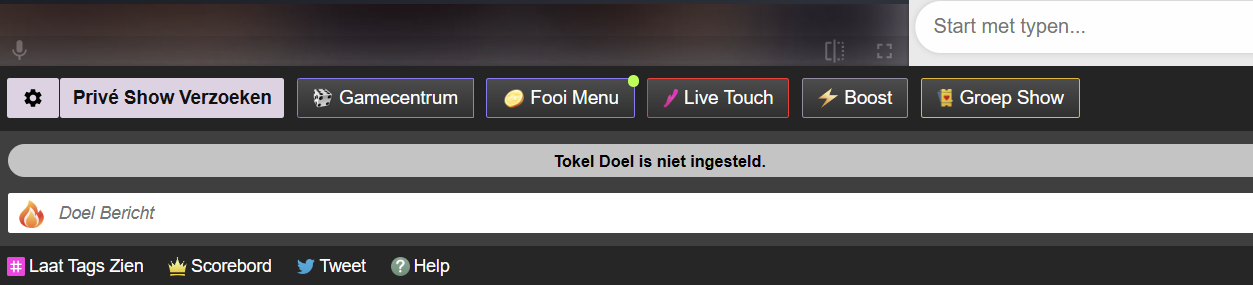
Find the Tip Menu near the Game Center and add your actions with the required tip amount.

Note: you must enter at least four (4) actions to activate your tip menu for viewers.

Setting up the tip menu

Manage & notifications

You can add up to 12 options. Use the trash icon to delete/update. Ready? Click SAVE to activate.

Once a tip menu is activated, you can’t remove it from your live show.

Your tip menu is automatically promoted in your chat so viewers know it’s active. When someone purchases an item, a special notification appears in chat.

Tip menu notifications in chat

Room Goal

Besides individual actions, you can also add goals. Goals are a joint challenge: viewers tip together to reach your target — once it’s hit, you perform the action.

Use goals for bigger actions, but start with micro-goals to maintain tension and give quick wins.

How to set it up

Once live, set your Goal! Click the white bar (right of the fire emoji) at the bottom of the broadcast window. Type the name of the action you will perform when the room goal is hit.

Then set the price: find the “Goal” box to the right of the grey bar that says “Token Goal not set” and add the amount in tokens.

Set your goal

Know your value

Think about what you want to do and how much you want to make before you go live. You don’t want goals that are too easy or too hard.

Example: want 1000 tokens (~$100 USD) per show? Split into four goals of 250 tokens.

  • Goal 1: 250 tokens = Naked
  • Goal 2: 250 tokens = Oil show
  • Goal 3: 250 tokens = Playing with yourself
  • Goal 4: 250 tokens = Cumming (only if you feel comfortable with that)

Pro tip: stick to your goals. If you keep changing them, it looks like you’re hesitating — viewers notice immediately.