Archivos de la categoría Do not use

Refer a Friend UK & AU

UK & AU ONLY


Invite your male and female friends to become broadcasters and both earn a bonus! Here’s how it works:

1. Assist your friend in creating a CAM4 account.
2. The new performer signs up with us and provides us with your username.
3. The new performer can also participate in our bonus program and can earn up to $600 USD in bonuses over 12 weeks!
4. Once the new performer has broadcasted for a minimum of 20 hours and earned at least $100 USD, you will receive a $50 USD bonus! (This does not mean they have to earn $100 within the first 20 hours)

Rules:

– The bonus is only awarded for new performers who have not been active on CAM4 before.
– The new performer must broadcast under a British flag and speak English.
– The new performer must provide your username to us to participate in the Friend Bonus. This can be done with Julia through the chatbox on the website or via julia@cam4.com.
– Any bonuses received do not count towards the new performer’s minimum earnings of $100 USD.
– You are welcome to give tokens to your friend, but these also do not count towards the minimum earnings of $100 USD.

Start-Up Program (USA & CAN Only)

Earn an additional $400 in the first 8 weeks on Cam4 – Signing up NOW for our Start-up Program.

We are making it easier for you to get started on CAM4.  This bonus is only available to NEW CREATORS in their first 8 weeks to help your earn more, while you build up your fan base. 

HOW DOES IT WORK? It’s super easy!
We will match your tips up to a max of $50 each week, that’s it!

Here’s how you can take part:
Step 1: Send an email to join@cam4.com, include «START-UP PROGRAM in the subject your CAM4 Username.

Step 2: CAM4 staff will confirm your start date and add you to the program will be supporting you through your 8 weeks.

Important! Requirements for participation:

  1. Your ID on file with is is North American
  2. New to CAM4 in the last 60 days. Having multiple accounts will disqualify you.
  3. You have not blocked Canada or the USA (you can block your own province/state)
  4. You acknowledge that attempted fraud can lead to immediate exclusion from the this program and possibly even from CAM4 as a whole.
  5. Moving tokens back and forth between accounts to achieve your bonus is not allowed and you will be removed from the program if you are caught doing it.
  6. Only tips earned from viewers will be counted towards the weekly total that we will match.
  7. You can only be a part of one incentive program at a time.

Bonuses will be credited to accounts no later then end-of-day Tuesday the following week. 

PRO TIP
CAM4  offers FREE live coaching in North Americia every Tuesday & Thursday at 12pm EST. Join one of our classes with Coach Vanna Faye so she can teach you how to make the most of our platform and answer any questions you may have.

Los colores de avatar en el chat de Cam4

Como modelo de webcam siempre es bueno poder hacerte a la idea del tipo de espectadores con los que estás chateando y a los que les estás dedicando tu precioso tiempo. Por este motivo, CAM4 ha incorporado un sistema para que puedas identificar a los espectadores en base a las fichas que gastan en la página. Veamos como funciona:

Los colores de avatar en el chat de CAM4:

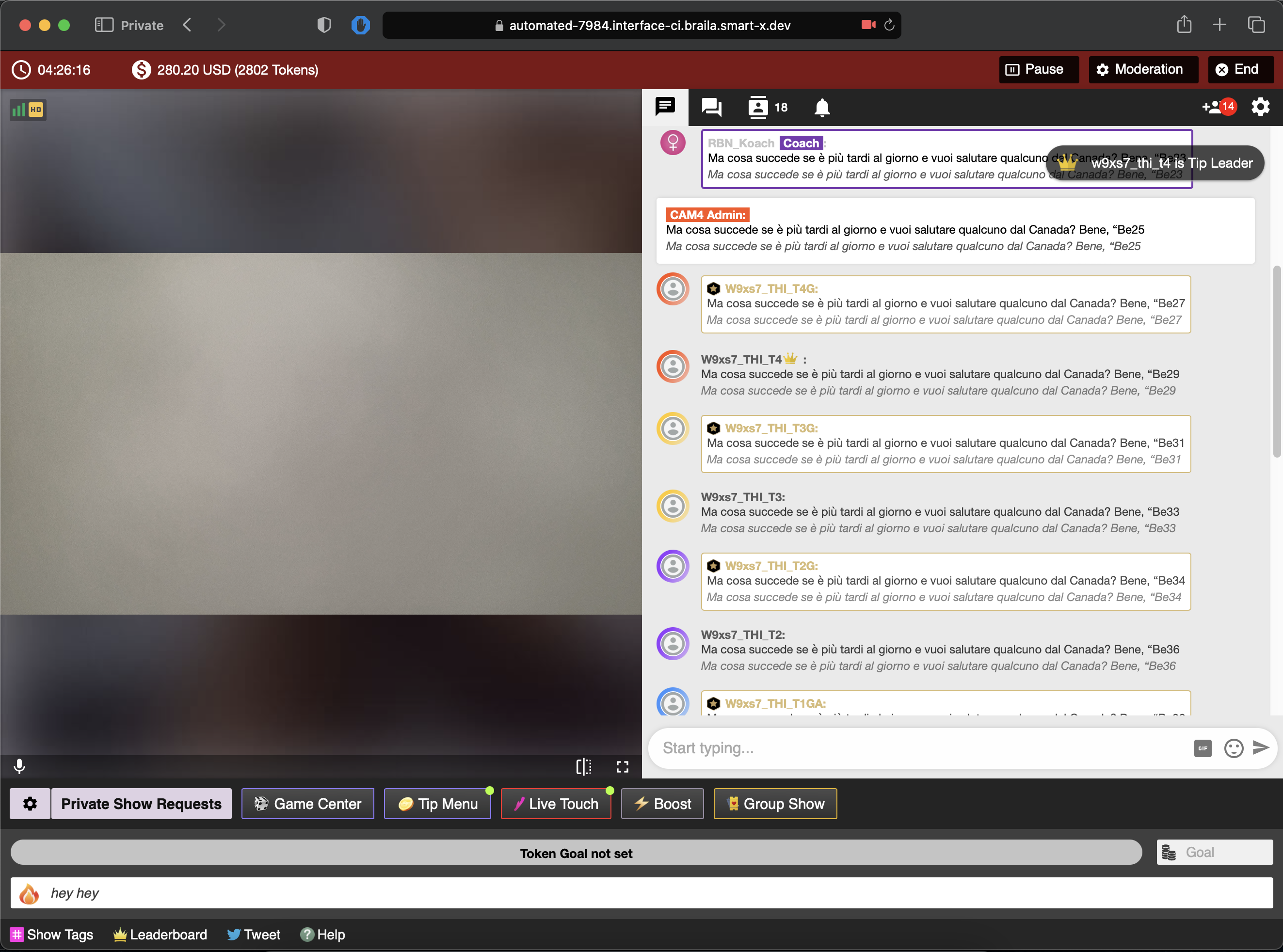
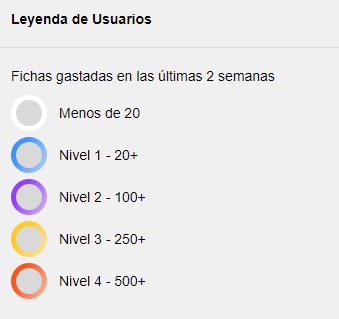
Cada espectador de tu sala aparecerá con un color alrededor de su avatar (círculo que aparece junto a su nombre de usuario). Los colores son 4, y varían según la cantidad de fichas enviadas a las modelos de la página en las últimas dos semanas.

Nivel 1 – AZUL: el usuario ha gastado más de 20 fichas
Nivel – VIOLETA: el usuario ha gastado más de 100 fichas
Nivel 3 – AMARILLO: el usuario ha gastado más de 250 fichas
Nivel – ROJO: el usuario ha gastado más de 500 fichas

Finalmente, un usuario que en las últimas dos semanas haya gastado menos de 20 fichas, no tendrá ningún color.

Así es como aparecerán en tu chat durante la transmisión:

Los colores son visibles solo para las/los modelos, y solo dentro de tu propia ventana de transmisión.

Nota: Recuerda que los colores indican solo el estado actual de los espectadores, no deberías usarlos para discriminar o ignorar basándote solo en este elemento. Un nuevo usuario de la página por ejemplo puede aparecer en blanco, pero siempre puede ser un potencial buen tipper. El poder de convertirlo en el mejor de los tippers siempre está en tus manos 😉

¿Quieres saber qué significan todos los iconos y colores del chat de Cam4? Haz clic aquí

¡Buen Camming!
CAM4

Lovense Stream Master – Tutorial paso a paso

Sigue los siguientes pasos para configurar Lovense Stream Master.

Stream Master es la forma más fiable y cómoda de utilizar los juguetes Lovense en tus transmisiones en Cam4 para asegurarte de poder utilizar todas las funciones correctamente durante tus shows.

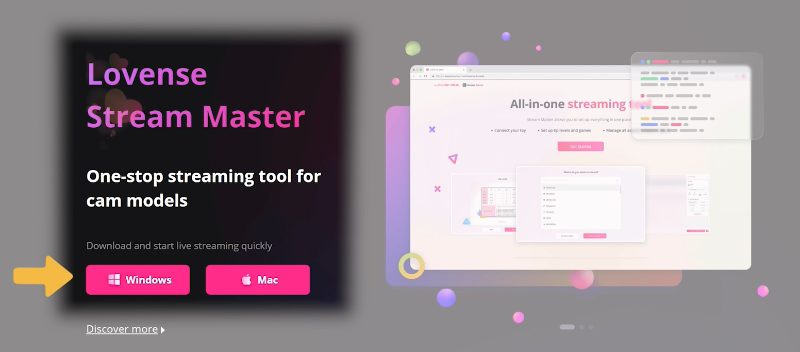
Visita la página web oficial Lovense.com, y allí haz clic en Camming y después en Download o >> haz clic aquí <<

Elige la versión compatible con tu equipo (Windows o Mac) y haz clic para iniciar la descarga.
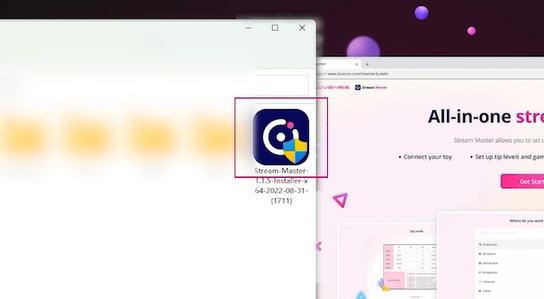
Al acabar la descarga, haz doble clic en el archivo descargado para instalarlo.
 

Al acabar la instalación, en tu escritorio verás un enlace a Lovense Stream Master.

Al arrancar Lovense Stream Master llegarás a la página de inicio de sesión.

Si no tienes una cuenta Lovense, haz clic en «Regístrate» (Sign Up) para registrarte.
Si ya tienes una cuenta Lovense, inicia sesión.
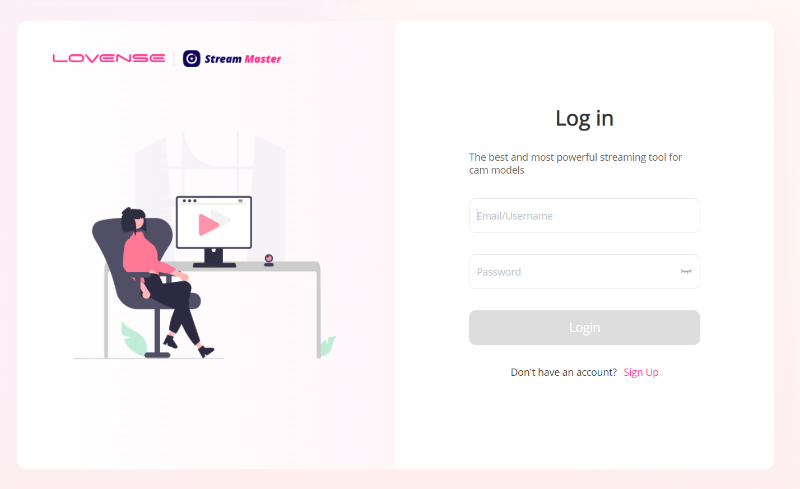
 

Una vez iniciada sesión, sigue las instrucciones siguientes:

1. Asocia tu juguete Lovense a Stream Master

Puedes conectarlo a través de PC o de tu smartphone.
Nota: Si no has descargado la app Lovense Connect, descárgala desde «Google Play» o «App Store».

Abre Lovense Connect en tu equipo o teléfono y conecta tu juguete Lovense. Si estás usando un smartphone escanéa el código QR que verás en la pantalla de tu ordenador.

2. Selecciona CAM4 como página para transmitir.
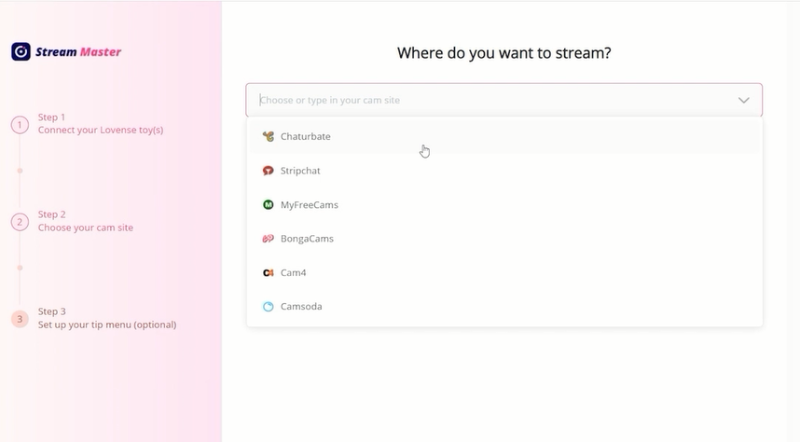
 

3. Configura tu menú de propinas y ajustes.

Finalmente encontrarás los ajustes de vibración y el Menú de Propinas. Puedes utilizar los ajustes predefinidos o personalizarlos.

Podrás modificar tu Menú de Propinas cuando quieras. Ahora puedes comenzar a transmitir.
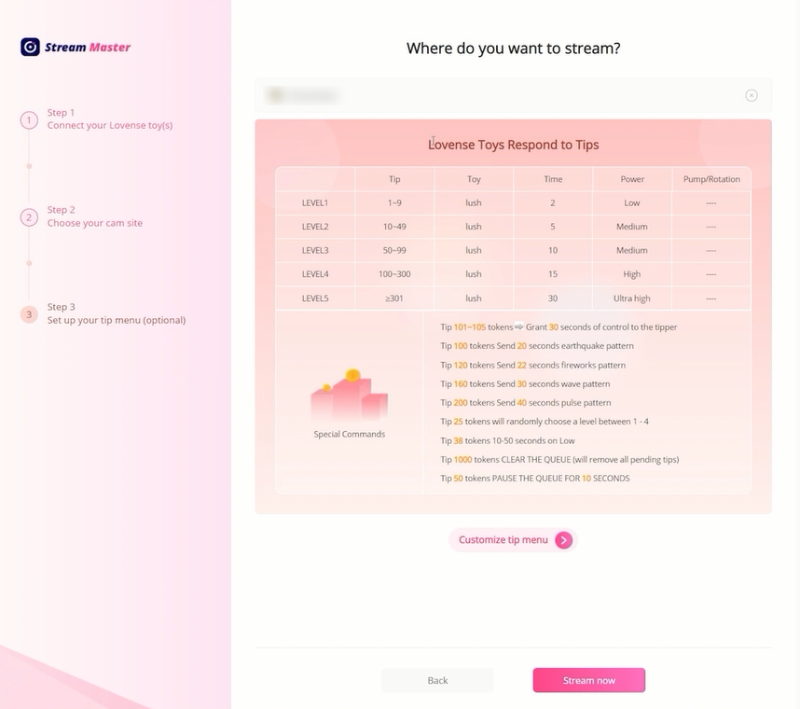
 

Haz clic en Stream Now (Transmitir Ahora) y se te redirigirá a CAM4.com
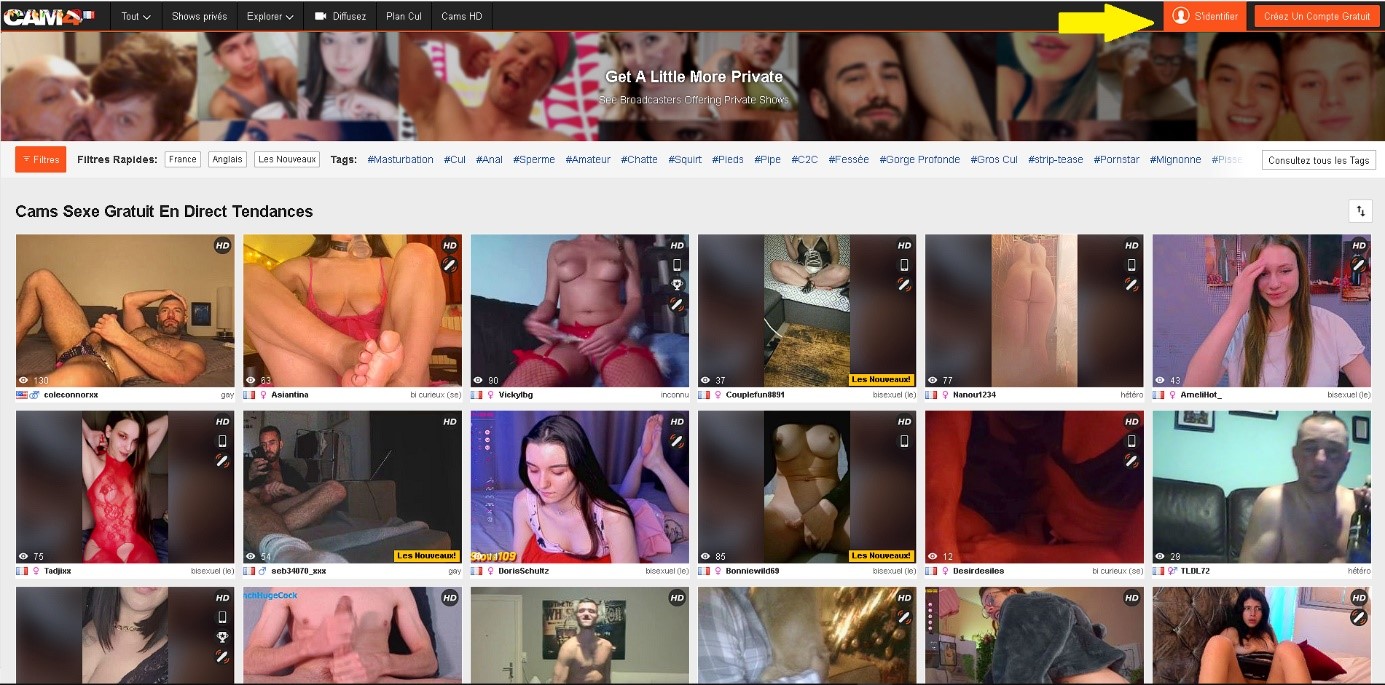
Inicia la transmisión.
Cuando inicies la transmisión, un asistente de configuración te guiará a través del proceso. Simplemente sigue las instrucciones detalladas o los últimos pasos a continuación.
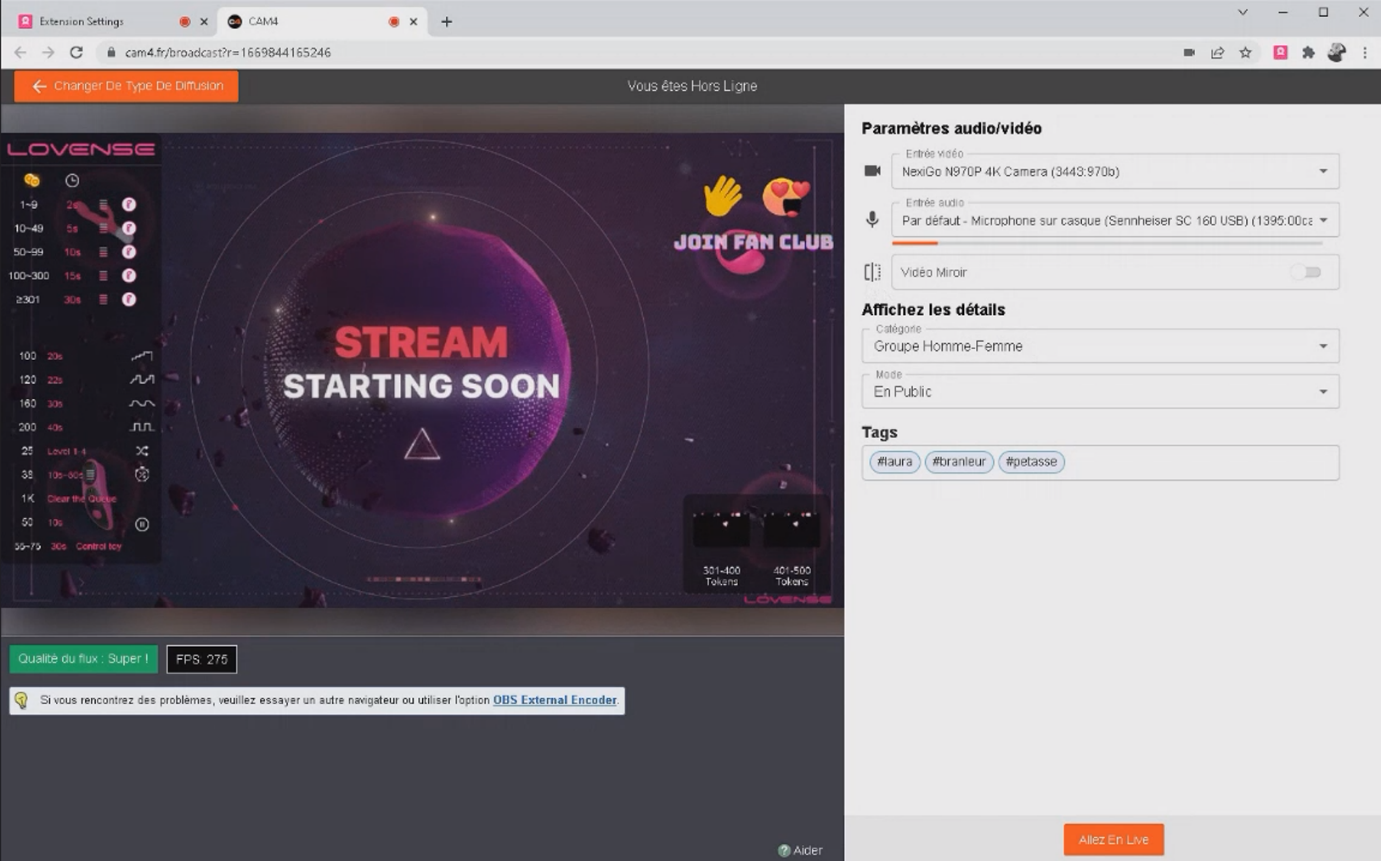
 

Elije una escena de transmisión
Selecciona una escena de las disponibles. Puedes hacer click en «ver mi feed de OBS» para ver una previsualización de tu feed en cualquier momento.
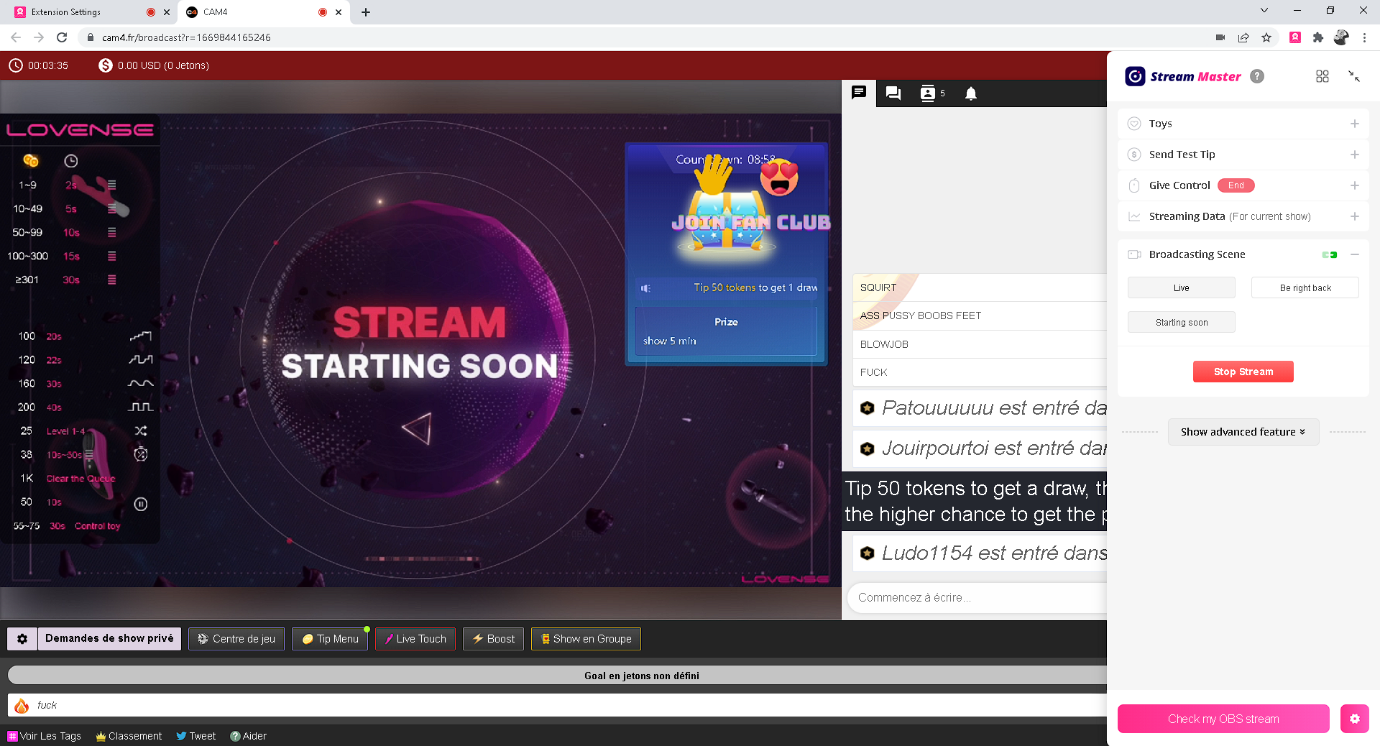
 

Prueba tu juguete
Selecciona «Enviar propina de prueba» y haz click en el botón «enviar propina» (send tip). Tu juguete reaccionará en base a los ajustes de tu menú si está conectado correctamente.
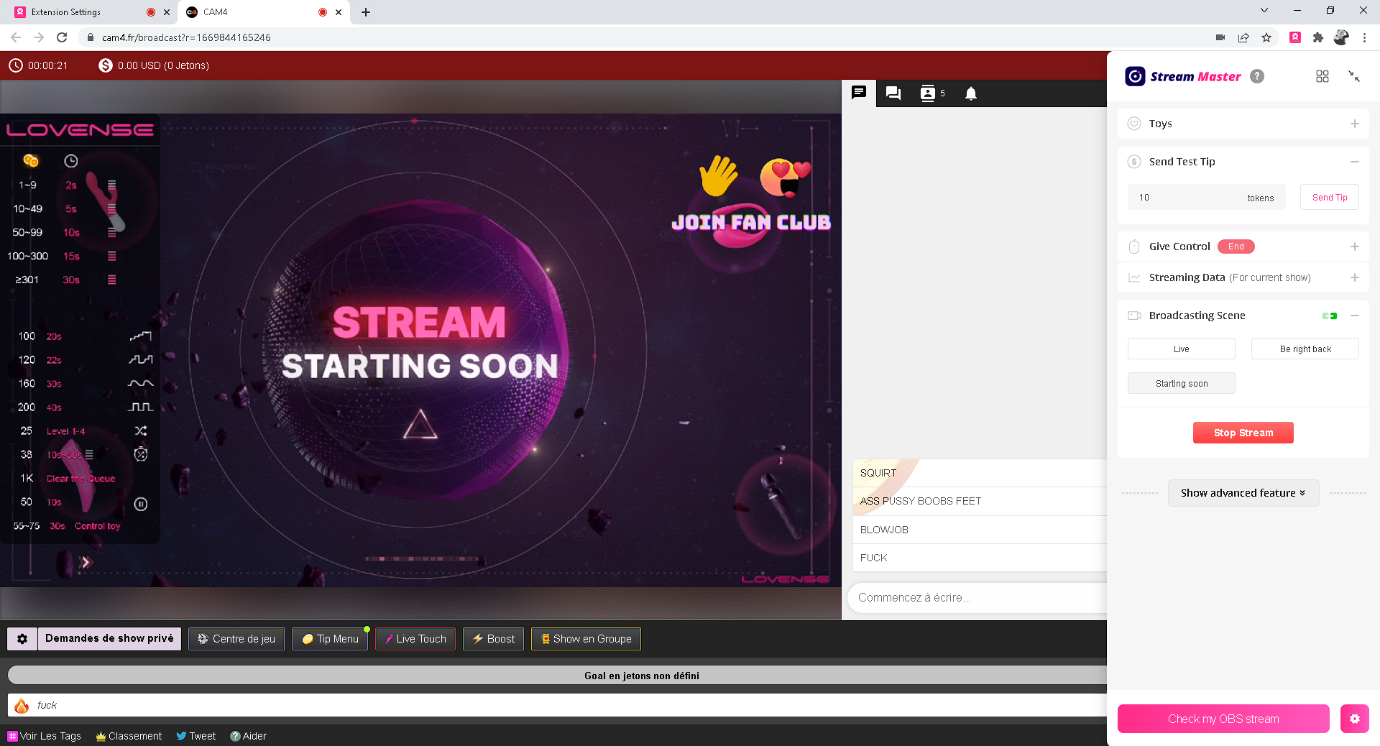
 

Agregar una App de streaming puede hacer tu show ún más interesante y ayudarte a ganar más. Elige una app de la galería para comenzar.


Ahora conoces lo básico para transmitir usando Stream Master y tus juguetes Lovense. ¡Diviértete!


¡Eso es todo para esta clase!

Sigue al día con consejos añadiéndo a Lila, la coach de CAM4 en Español a tu lista de amigos y suscribiéndote a sus clases semanales.

Puedes enviar un email con cualquier duda a lila@cam4.com

Nos vemos en tu cam!

 

Cómo usar la función «Give Control» de Lovense


La función «Give Control» (Dar el control) de Lovense te acerca aún más a tus espectadores ofreciéndoles 2 nuevas formas de controlar tu juguete con sus propinas.

Conecta tu juguete – Guia de Instalación

 DESCARGA DIRECTA

Cómo Funciona

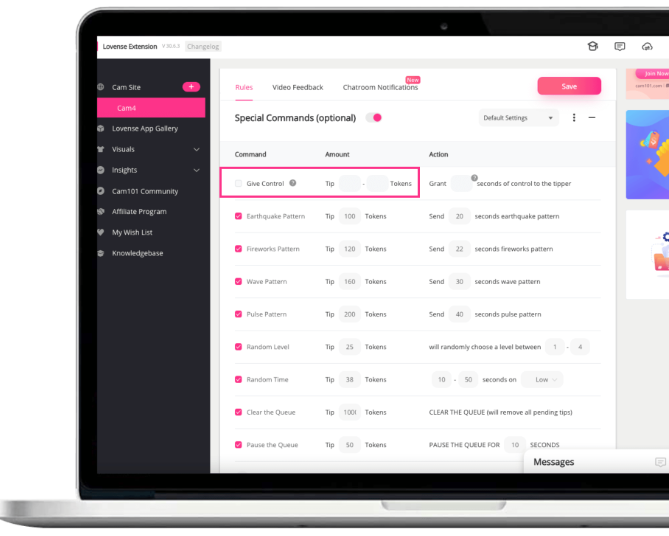
Paso 1: En la Extensión Lovense, selecciona CAM4 (arriba a la izquierda) y después Activa «Give Control» en la página de ajustes de la extensión Lovense Cam. Establece el precio y la duración del control.


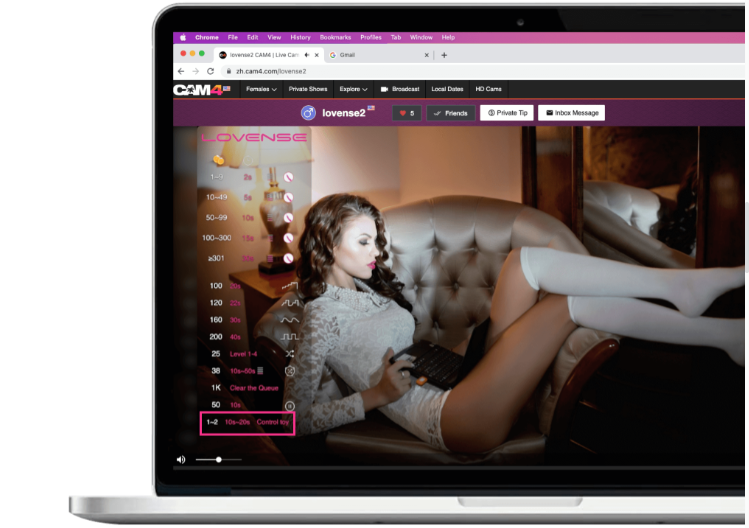
Paso 2: Give Control aparecerá en tu menú de propinas dentro de tu pantalla de transmisión.


Cuando un espectador te envíe el número de fichas requerido, automáticamente verá una ventana para controlar tu juguete con una de las dos opciones de debajo:

A. Deslizar en la pantalla.

B. Usar un Lovense Max 2/Calor/Nora.


Conecta tu juguete – Guia de Instalación

 DESCARGA DIRECTA

Juguetes Recomendados


¡Ahora también a la venta desde la Swag Store de Cam4!

Haz Click aquí para comprar tu juguete compatible


MÁS INFORMACIÓN

Guias para Modelos – Página oficial Lovense


¡Eso es todo para esta clase!

Sigue al día con consejos añadiéndo a Lila, la coach de CAM4 en Español a tu lista de amigos y suscribiéndote a sus clases semanales.

Puedes enviar un email con cualquier duda a lila@cam4.com

Nos vemos en tu cam!



Level UP Program

GAME ON !!!

Grab onto your joysticks and get ready to Level Up each month!

This program will have you feeling like a boss… From the 1st of each month we are challenging YOU with the opportunity to make an extra $2K+.

ACHIEVEMENT LEVELS

LEVEL 1 – $100 = $10
LEVEL 2 – $200 = $20
LEVEL 3 – $300 = $30 + Bonus CAM4 Shirt
LEVEL 4 – $400 = $40
LEVEL 5 – $500 = $50 + Bonus Creator Pack
LEVEL 6- $750 = $50
LEVEL 7 – $1000 = $100
LEVEL 8 – $1500 = $100 + Lovense Toy
LEVEL 9 – $2000 = $100
LEVEL 10 – $3000 = $200
LEVEL 11 – $4000 = $300
LEVEL 12 – $5000 = $1000

UNLOCK EACH  BONUS AS YOU GO!

The more you earn >> the more levels you unlock >> the more bonuses you collect along the way!  

Creator Pack from the Swag Store
Female Swag ($100 Value)


Male Swag ($100 Value)

Please note: The creator pack changes monthly. The swag shown in the images above does not reflect the exact products available to you. 

BUT WAIT… THERE’S MORE

As you unlock each $$$ level there are additional prizes and stretch goals that can be achieved along the way, from CAM4 Swag to LIVE TOUCH connected toys by Lovense .

BONUS ROUND
«Top Up’s»

Creators who earn $300+ can win 1 of 5 additional randomly selected  “top ups” that range between $20 – $100  each month.

Choose your destiny on your quest to beat your best score with the NEW CAM4 Level-Up Program !!!

RULES

  • Creators MUST be 2257 approved
  • Creators MUST live in North America
  • Creators MUST broadcast a min of4 hours
  • Transferring tokens between accounts is not allowed
  • Earnings are counted from 12:00am ET the first day of the month till 11:59pm ET on the last day of the month
  • Creators MUST sign up each month to take part in the program
  • Top Up’s are rewarded through random draw
  • Each Swag Store Prize can only be redeemed ONCE.
  • You can only be a part of one incentive program at a time.

Any bonuses will be credited to the creators account within the first 7 days of the following month.

¿Qué es Cam2Cam?

Cam2Cam

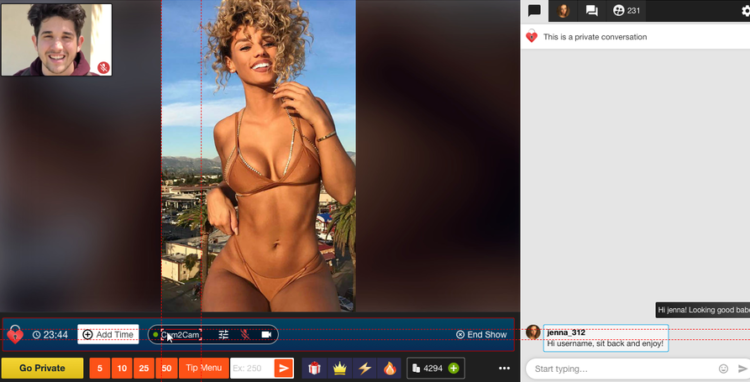
Cam2Cam es una opción de Show Privado que permite a los Espectadores mostrarse en su webcam a l@s modelos.

Al contrario que los Shows Privados tradicionales en los que solo el espectador puede ver al/la modelo.

Cam2Cam ofrece baja latencia tanto para audio como para video, con un precio personalizable que puede ser diferente al precio del Show Privado normal.

Más información:

– Ahora mismo Cam2Cam funciona para todos los dispositivos y con todos los navegadores excepto Firefox. También es ya compatible con el codificador externo OBS.

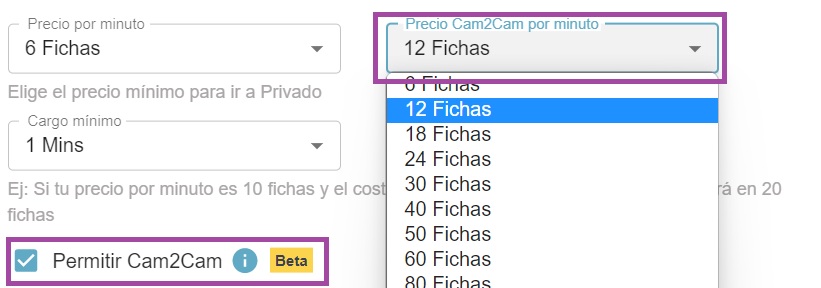
– El precio por minuto para Cam2Cam es usualmente 1.25 veces el precio por minuto para un show privado normal

Accede a las opciones de Show Privado haciendo clic en el engranaje al lado del botón de Show Privado. Podrás elegir el precio para tus shows Cam2Cam si marcas la opción «Permitir Cam2Cam2» y después salvar los ajustes.


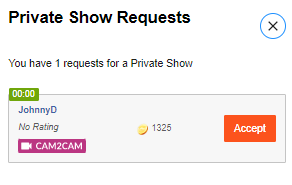
Una vez tu espectador haya activado su webcam en Cam4 verás la solicitud de Show Privado. Abre tus solicitudes y verás si han activado Cam2Cam para ese show.


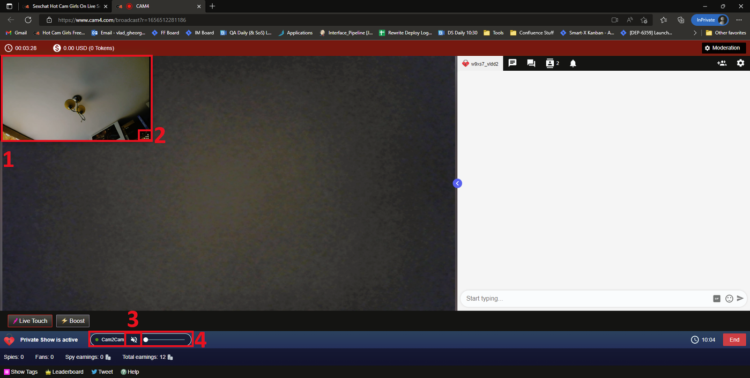
Qué verás después de aceptar el Show Privado Cam2Cam:

  1. La Webcam del Espectador. Por defecto aparecerá en un pequeño rectángulo en la esquina superior izquierda de tu pantalla.

  2. El indicador de cambio de tamaño que permite a los usuarios saber que se puede cambiar el tamaño de la ventana. También puedes mover la ventana donde quieras de tu pantalla.

  3. Controles de Cam2Cam, verás dos elementos (3 y 4). 3 es el botón de “Silenciar Audio” que desactiva (o activa) el audio del espectador. Al pulsarlo cambiará para reflejar el cambio.

  4. El 4 es el ajuste de volumen que permite al / la modelo ajustar el volumen del espectador.


Añadir Cam2Cam a tus Shows Privados es una forma genial de ganar más y dar a tus espectadores una experiencia más íntima. Haciendo tus shows en la plataforma Cam4 te aseguras no solo de que sea una experiencia fácil, sino de mantener tu seguridad y la de tus ganancias.

¿Cómo decidir qué precio establecer?

El precio por tus shows privados es algo personal y varía en base a lo que ofreces a tus espectadores diferente respecto a lo que pueden obtener en un show público y al tipo de privado (precio por minuto o precio por un bloque de tiempo).

¿Eres principiante y no sabes qué precio elegir?

El precio medio más elegido por l@s modelos de CAM4 está entre 12 y 18 fichas por minuto.
Sin embargo, modelos con más experiencia y seguidores eligen precios entre 30 y 60 fichas por minuto.

Recuerda que el espectador, al solicitar el show privado, verá en la pantalla de confirmación el precio total por minuto

Elige el precio por minuto que ponga en valor tu show privado, teniendo en cuenta que para el usuario el precio de las fichas es superior!

Por ejemplo, para un usuario, un show de 40 fichas por minuto tendrá un coste equivalente a 8-9 euros por minuto. Un privado de 18 fichas por minuto tendrá un coste equivalente a cerca de 4 euros por minuto para el usuario.


¡Eso es todo para esta clase!

Sigue al día con consejos añadiéndo a Lila, la coach de CAM4 en Español a tu lista de amigos y suscribiéndote a sus clases semanales.

Puedes enviar un email con cualquier duda a lila@cam4.com

Nos vemos en tu cam!
 

Connecting a Wishlist to your Profile

Let your fans SPOIL you!

Fans are always looking for ways that they can help and spoil their favorite broadcasters. Create a Wishlist on one of these great sites and let your fans know exactly what you need!

What do I need to Do?

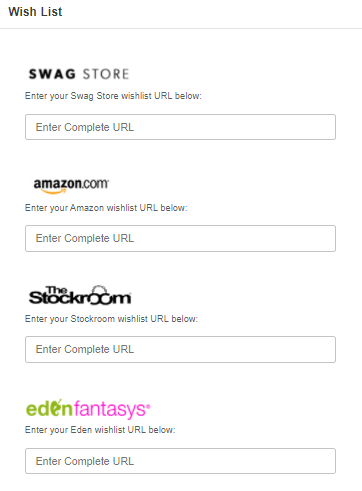
  1. Visit the website of one of the CAM4 supported stores listed above.
  2. Create an account on their site and use their registry or Wishlist function to start building your list.

    If you are having issues, please contact the store you are building your Wishlist on. CAM4 does not provide support these platforms.

  1. Once your list is complete copy the Registry or Wishlist URL that they provide you and go to CAM4.com.
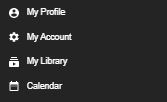
  1. Login into your CAM4 and hover your mouse over your profile icon on the top right-hand side of the homepage. From the menu click on “My Account”.


5. Click on “Wishlist” and add the URL below the logo for the store you used and click “Save”

When you visit your profile on CAM4 you will see your wish list appear on the bottom left under you “Detailed Bio”.


To add a list for another CAM4 supported store, just repeat the process and you will see the logo linking you viewer to your list appear under “Wishlist” as well.

PRO TIP: When creating your Wishlist, DO NOT use your real name. All Wishlist will hide your mailing info but some will show the owners name when viewing the list. If you want to hide your legal identity, always use your fake name.


~That’s all for this lesson!

Happy Camming!
Love, Your Coaching Team!


Your Tip Menu

Launch Your Very Own Custom Tip Menu to Improve Engagement and Increase Earnings!

Tell your fans what to tip for and earn more tokens, set up yours now!

What Is It?
The CAM4 Tip Menu is a fun tool that allows you to create a customized list of actions with the corresponding token amount a viewer needs to tip for you to perform the action during your performance. We’ve recently upgraded our tipping menu functionality to allow for simple set up and easy viewer access. Performers who’ve launched their own tip menus have reported heightened activity and ultimately an increase in show earnings! 

Benefits of Creating a Tip Menu:

  • The tip menu is an easily customizable list that you control and can change / update at any time
  • Your viewers know exactly what they can tip for each performance action without having to ask
  • You won’t need to set up an HTML bio
  • The tip menu is easily accessible via your profile during every show
  • Less chatty viewers are more likely to engage

Quick & Easy Tip Menu Set Up
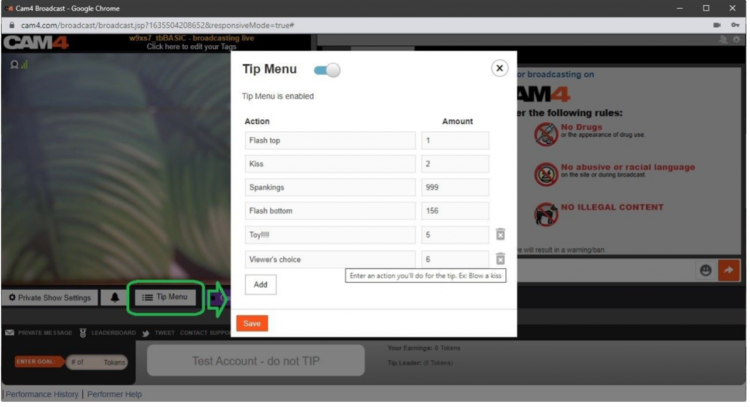
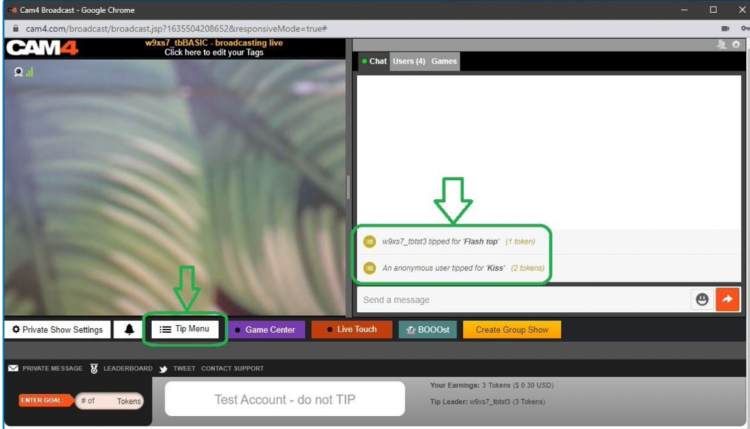
Locate the Tip Menu feature near the Game Center and enter each action and the required tipping amount. *Please note you must enter at least four (4) actions to activate your tipping menu for viewers

You can add up to 12 tip menu options; click the trash can icon to the right of each option to delete and update. Once you’ve completed your list, click SAVE to activate.

You will receive a special notification in your chat window every time a viewer selects an item in your tip menu


Tip Menu Ideas
What you include on your tip menu is completely up to you, and the great thing is you can add and update the menu as you learn what your viewers want and need in your shows!  Here are some sample tip menu options to get you started:

  • Blow kisses
  • Custom shout out message
  • Flash boobs
  • Oil rubdown
  • Spanking
  • Twerk
  • Insert toy for 15 seconds

Get creative here – the sky really is the limit!

The Key to Tip Menu Success
Our best advice for making the tip menu work for you is to keep your list of options fresh and creative while continuously directing viewers to it during your show.

We’re Here to Help You Win!
If you need help setting up your tip menu or are looking for ways to maximize this fun tool, please reach out to support@CAM4.com at any time and one of our experts will guide you.


~That’s all for this lesson!

Happy Camming!
Love, Your Coaching Team!

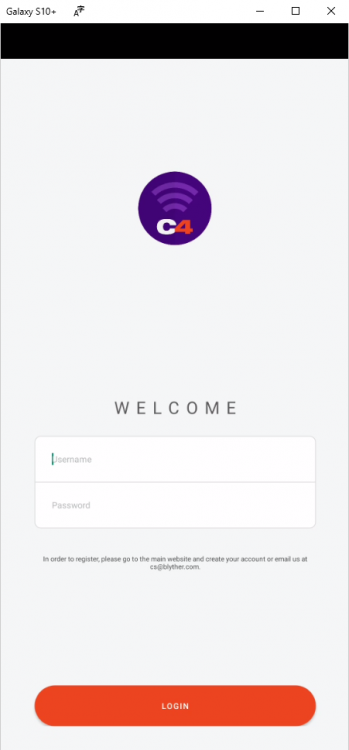
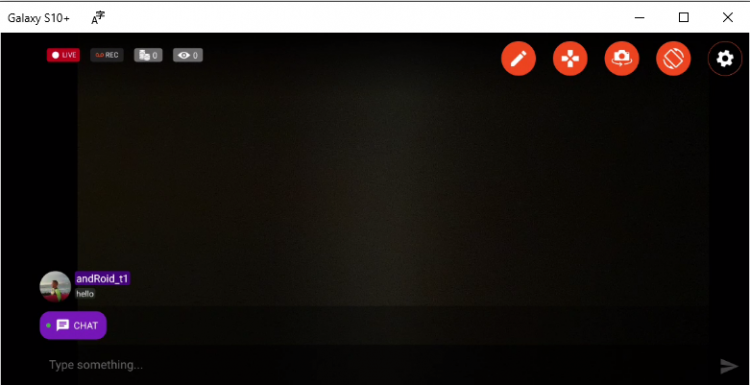
Use C4Broadcaster on your Windows Browser

If you’re using both Windows on your computer and a Samsung device for streaming with C4Broadcaster, you can now mirror your phone through wi-fi and enjoy the app directly onto your PC.

REQUIREMENTS:
1. Windows 10
(running the Windows 10 May 2019 Update) 

2. Samsung device
(listed below in the supported devices list running Android 9.0 or above)

Follow these simple steps to set it up:

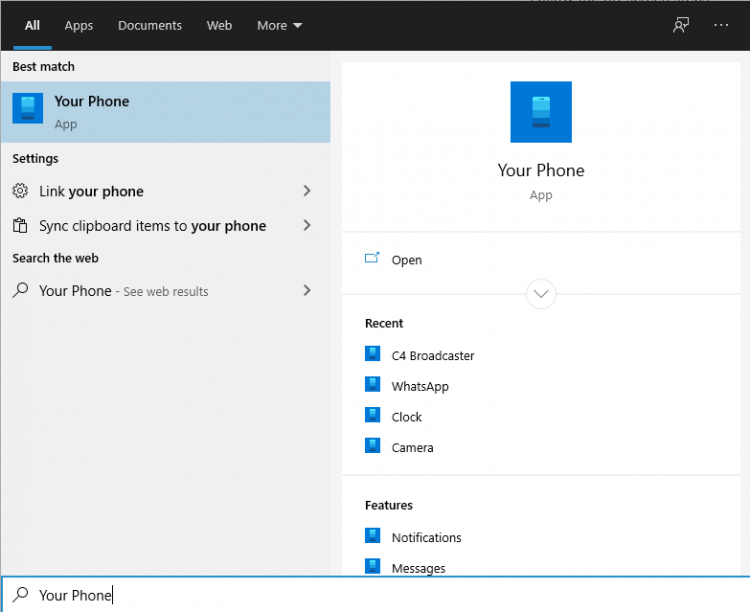
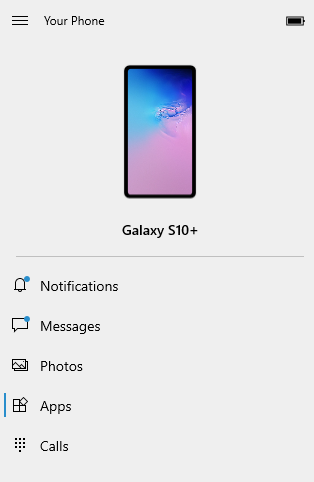
On your PC: Go to > Start and search for Your Phone
Windows 10 users with running the Windows 10 May 2019 Update will have the abillity to mirror their screen through wi-fi.

Log in with your Microsoft account in the application.
Follow the on-screen steps.

ON YOUR PHONE:

Check if the device you’re using is listed below as one of the supporting devices.

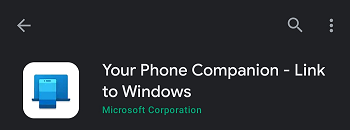
If yes, then check if you already have preinstalled on your Samsung device, “Your Phone Companion – Link to Windows” application. If not, it can be found on the Google Play Store and be downloaded from there.

Follow the on-screen steps

Make sure your phone and your PC are both connected to the same wi-fi network

After the initial setup, you can access C4Broadcaster from the Apps button in the Your Phone menu.

Accept the request on your phone and voila, you can now use C4broadcaster on your PC.

The experience is the same as on mobile, you can switch the camera, rotate the device, play tipping games and apply image filters like you did when using solely your phone


~That’s all for this lesson!

Happy Camming!
Love, Your Coaching Team!