All posts by Dennis Beentjes

Pay per Text

Earn from DMs: with Pay-Per-Text (PPT), you get tokens for messages and media — set it up, test it, and let your inbox work for you.

Pay‑Per‑Text on CAM4: Get Paid for Messages and Media

Set a fixed price on DMs and uploads, prioritize Fanclub members, and earn through — even when you’re not live.

Tip: communicate your PPT‑rates in your bio or Feed and pin a post with “how it works”.

Short Demo

Why Pay‑Per‑Text Works

  1. Get paid for your time — every message or media file can earn tokens, even that quick “hello”.
  2. Build your inner circle — give Fanclub members free or discounted DMs/media and charge a higher rate for the public — this builds loyalty.
  3. Full control — you determine prices and what counts (messages, media) and who you prioritize.
  4. Premium feel — paying fans get guaranteed attention and exclusive connection.
  5. Insight — see exactly what PPT yields and adjust your strategy.

Setup: Super Simple

Step 1: Basics

Make sure you are Broadcast Approved and enable Pay‑Per‑Text in your settings.

Step 2: While Streaming
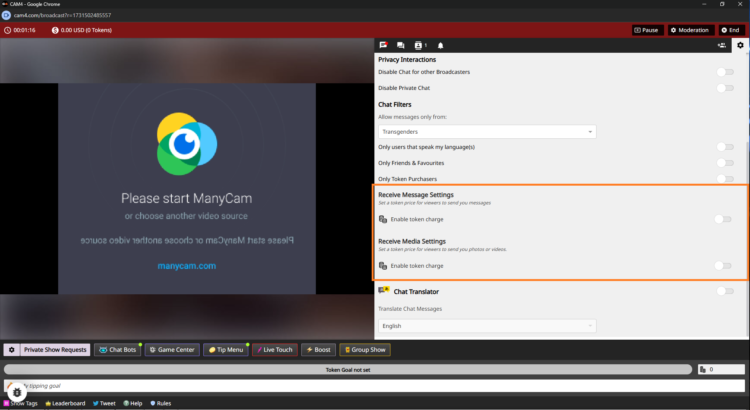
PPT instellingen tijdens stream

  1. Go live — log in and start your broadcast.
  2. Open chat‑settings — click on the gear (top right in your broadcast window) and scroll to the PPT‑section.
  3. Turn on pay per message — activate “Receive Message” and set amounts.
    Example: 5 tokens for public, 1 token for Fanclub (or free to stimulate sign-ups).
  4. Turn on pay for media — activate “Receive Media” with separate amounts.
    Example: 10 tokens for public uploads, 2 tokens for Fanclub‑uploads.
  5. No ‘Save’ needed — changes are applied immediately.

Step 3: Set Up in Messenger in Advance

Want to get everything ready before you go live? Open the Messenger via the chat‑icon on your profile and set your PPT‑settings there. Everything is synchronized platform‑wide.
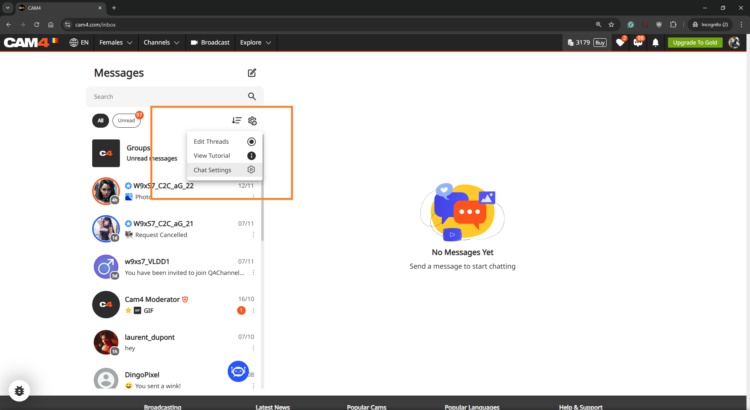
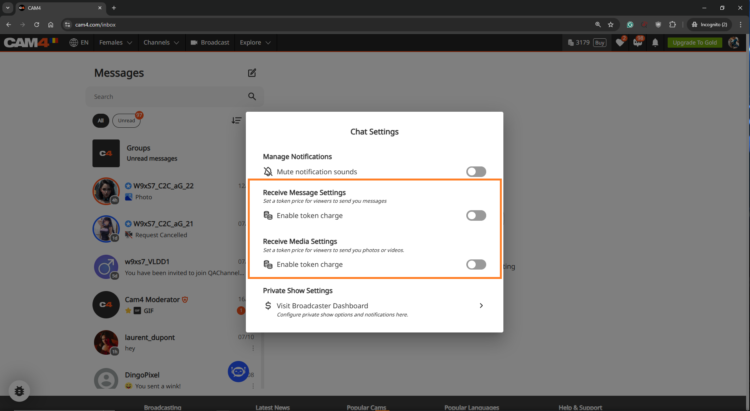
PPT in Messenger instellen
Messenger instellingen overzicht

Get the Most Out of Pay‑Per‑Text

Treat Fanclub as VIP

Give Fanclub free or discounted DMs/media and charge a higher rate for the public — this builds loyalty.

Experiment with Prices

Test different token amounts; find the sweet spot where income rises and fans remain engaged.

Test & Communicate

Check with a test account or ask a regular fan to test. Communicate your rates clearly to avoid surprises.

View Your Results

In your Broadcaster Dashboard, you can see per day what DMs and media yield. Check the Tip History tab and compare strategies: does media work better, or Fanclub‑messages?

Frequently Asked Questions

  • Can I only charge for media? — Yes. You choose whether to charge for messages, media or both.
  • What if a viewer has too few tokens? — They will receive a notification to buy tokens before the message or media is sent.
  • Are Fanclub‑messages free by default? — Yes, but you can adjust that. Set a few tokens or leave it free for conversion.

Summary: turn on PPT, distinguish between public and Fanclub, test prices, communicate clearly, and monitor your results. Consequence wins — every interaction becomes a chance to earn.
Goals & Tip Menu

Your guide to tipping options on CAM4

Tip menu and room goals — earn more by guiding your viewers

Earn more tokens by giving your viewers exactly what they want!
Your fans need to know what you’re willing to do and how to get you to do it. Keep your tip menu and your room goal separate by offering different things.

Pro tip: quick, fun actions keep energy high while tips also contribute to your larger goal.

Tip Menu — what is it?

The Tip Menu is a simple way to boost engagement. Create a list of actions with their token values so viewers know exactly how much it costs to see that action.

Broadcasters using a clear tip menu often see more interaction and higher show revenue.

Tip menu ideas

What you include is up to you — adjust based on what your audience likes.

  • Kiss-hands
  • Mention the viewer’s name or write it on your body
  • Flash breasts
  • Oil massage
  • Spanking
  • Twerk
  • Use toy for 15 seconds
  • Be creative — the sky is the limit!

Set up your Tip Menu

How to set it up

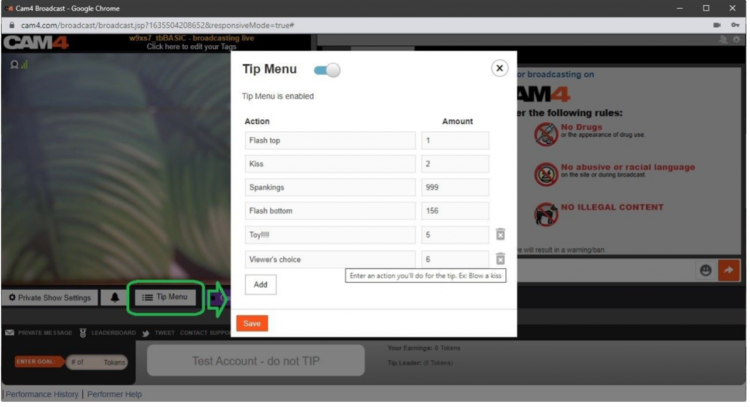
Find the Tip Menu near the Game Center and add your actions with the required tip amount.

Note: you must enter at least four (4) actions to activate your tip menu for viewers.

Setting up the tip menu

Manage & notifications

You can add up to 12 options. Use the trash icon to delete/update. Ready? Click SAVE to activate.

Once a tip menu is activated, you can’t remove it from your live show.

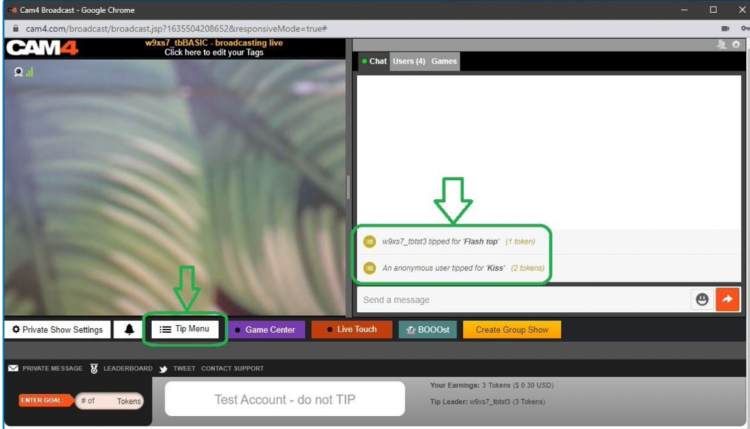
Your tip menu is automatically promoted in your chat so viewers know it’s active. When someone purchases an item, a special notification appears in chat.

Tip menu notifications in chat

Room Goal

Besides individual actions, you can also add goals. Goals are a joint challenge: viewers tip together to reach your target — once it’s hit, you perform the action.

Use goals for bigger actions, but start with micro-goals to maintain tension and give quick wins.

How to set it up

Once live, set your Goal! Click the white bar (right of the fire emoji) at the bottom of the broadcast window. Type the name of the action you will perform when the room goal is hit.

Then set the price: find the “Goal” box to the right of the grey bar that says “Token Goal not set” and add the amount in tokens.

Set your goal

Know your value

Think about what you want to do and how much you want to make before you go live. You don’t want goals that are too easy or too hard.

Example: want 1000 tokens (~$100 USD) per show? Split into four goals of 250 tokens.

  • Goal 1: 250 tokens = Naked
  • Goal 2: 250 tokens = Oil show
  • Goal 3: 250 tokens = Playing with yourself
  • Goal 4: 250 tokens = Cumming (only if you feel comfortable with that)

Pro tip: stick to your goals. If you keep changing them, it looks like you’re hesitating — viewers notice immediately.

Messenger & Inbox

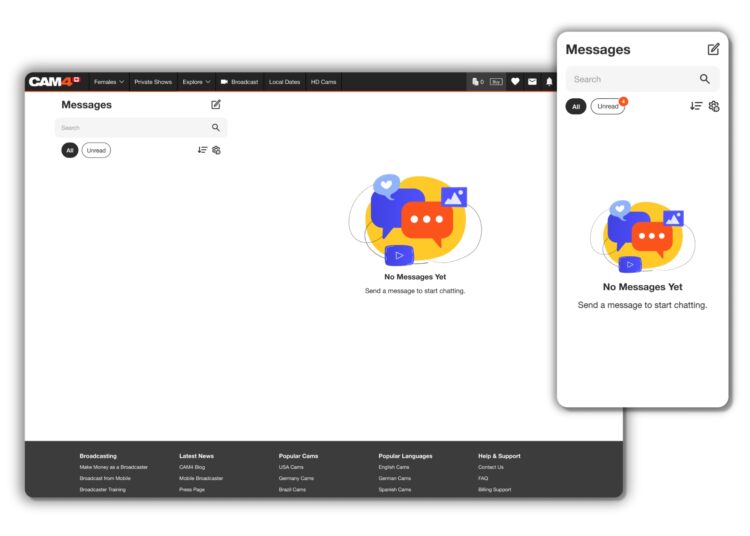
Discover all Messenger features in one overview.

CAM4 Messenger: improved DM experience

Easier to use and much more powerful than just chatting. This guide shows you all the chat and media features, plus how to earn with them.

Tip: Start using Pay‑Per‑Text to get paid for messages and media.

Quick introduction

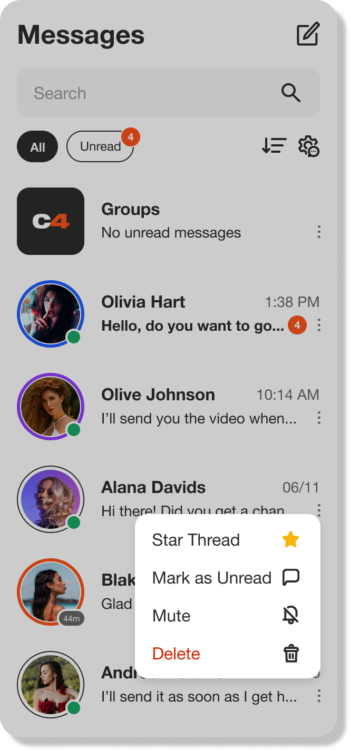
Overview Messenger features

Overview Messenger features

Benefits of CAM4 Messenger

Messenger mobile example

Increased privacy

Make connections with viewers you choose, via chat and private shows.

Filter options

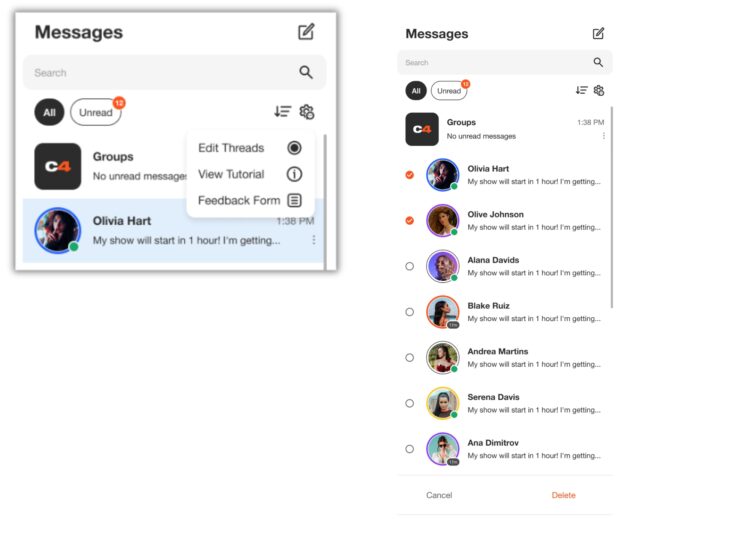
Remove unwanted chat sessions in bulk so your inbox isn’t cluttered with old DMs.

Make money

Earn tokens with tips, pay-per-text, content sales, gifts and private shows.

Mobile friendly

The Messenger works smoothly and clearly on the go.

Chat upgrades

Chat features

Save, reply, delete, GIFs and emojis — plus extra control over who can message you.

  • Reply and save per message
  • Message management (delete, report)
  • GIFs, emojis and media previews
  • Who can approach you: tighter control

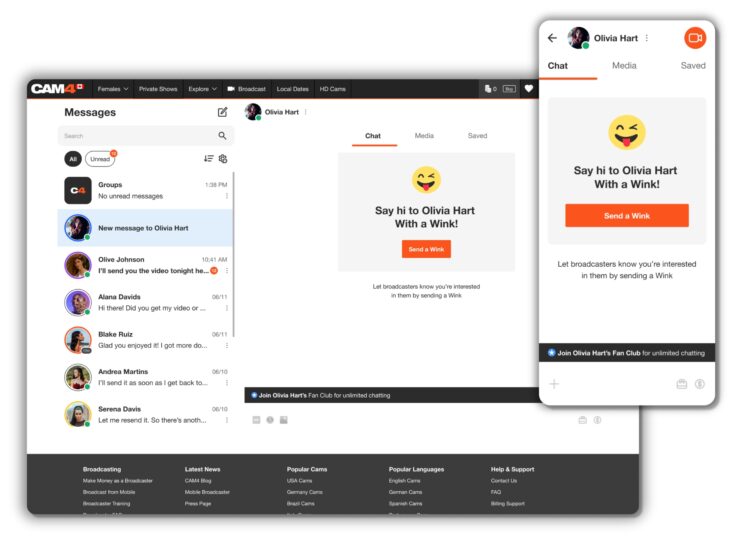
Winks

Wink’s are sent from Non-gold users who would like to chat with you. The ability to type in the chat will only be enabled once you reply to their wink.

Gold users can message anyone they want – No winks needed!

Wink and chatflow

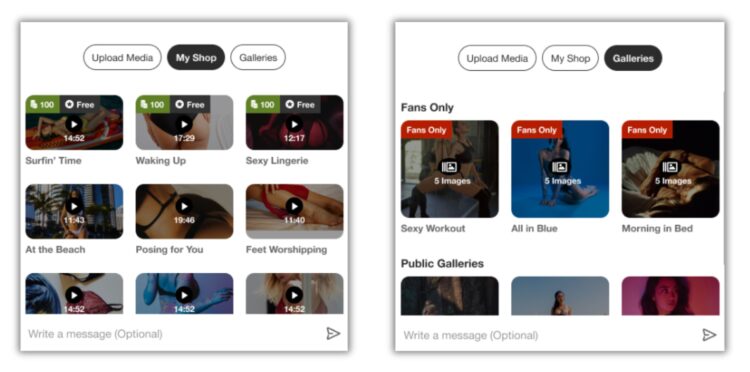
Sell content (directly in DM)

Sell content in chat

Add your content directly in the chat so viewers can buy it and watch it immediately.

Sell content in chat

Share Fan Clubs

Promote your Fanclub via DM. The viewer clicks through, becomes a member and then can access your content in the chat.

Fanclub link example

Host a private show via Messenger

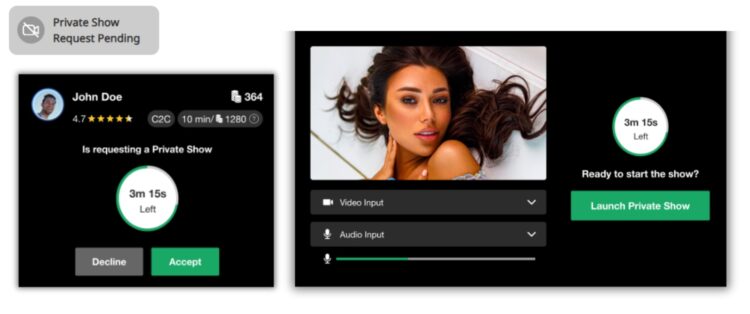
Offer private shows at any time, without having to go live from your profile.

  • Choose: Cam2Cam or standard private show
  • Start via the camera icon in the top right of the chat window
  • Earnings appear directly in the chat afterwards

Tip: Add a Private show schedule so viewers know you’re ready to go!

Camera icon private show

Example screens

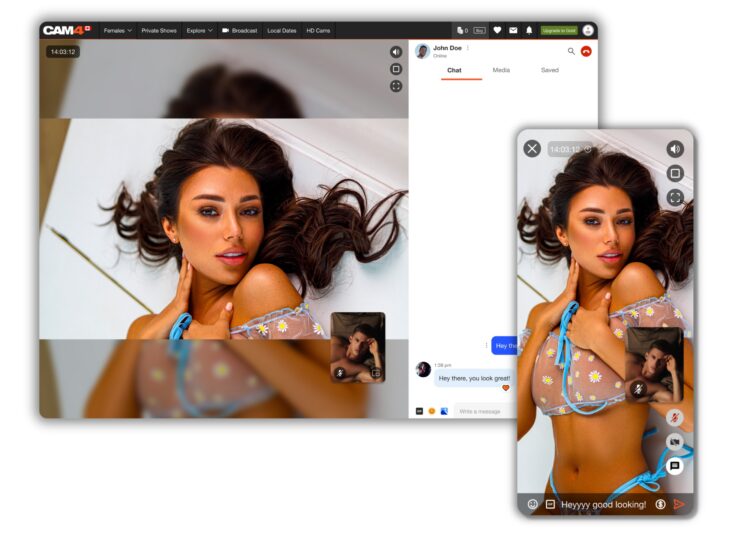
Start private show from chat Review and earnings in chat

Afterwards, the viewer can rate the show; you will see your earnings immediately.

Safety and information

Report users

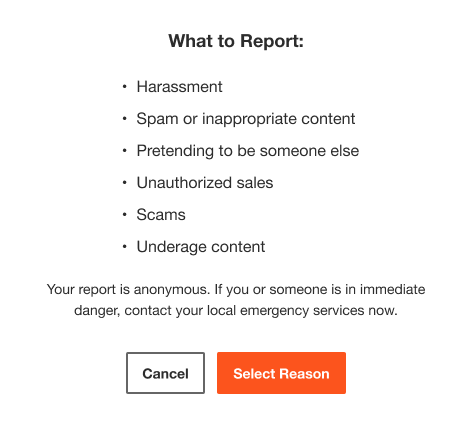
Submit a report for our support team to investigate. Note: this will not remove the user’s ability to contact you.

Report user

Ban users

Ban removes the user from your chat and shows; your name disappears from his/her search results.

Chat Bot

Our chat Bot provides direct answers to questions about Messenger, shows and rules.

Organize with filters

Inbox management

Filter conversations, group and save important messages. Manage your inbox quickly with bulk delete.

Filters and inbox management

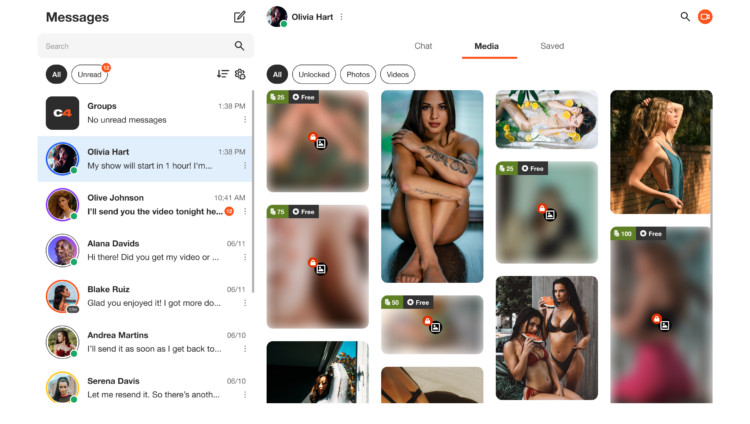
Media tab

All of the media you send or receive in the chat will appear in the Media Tab and can be sorted by ‘Unlocked’, ‘Photos’ and ‘Videos’, making it super easy to find!

Media tab overview

Save

Find important info later? Use the “Saved” tab per conversation. Everything is shown chronologically.

Extra promotion? UK only

Want to be in the spotlight? Upload your photos with your permission and let CAM4 promote you through our official channels.

Let CAM4 Promote You: Upload Your Photos (With Consent)

With your photos, we can promote you through our official channels — so you can reach more viewers faster and build a loyal fanbase.

Tip: upload multiple photos with different angles and poses for the best match with our channels.

How Does It Work?

Simply upload your latest photos via the form. We review them and prepare them for promotion. Do you have new content? Feel free to upload again. Want to switch faster? Send us a message.

Short Checklist

  • Recent, sharp images (good lighting, quiet background).
  • Mix of close-ups and full-body.
  • Indicate in the form where you want to be visible (opt-in/opt-out).

Where Will You Be Promoted?

Twitter / X

Optional — you choose whether you want to be visible here (adjustable in the form).

Telegram

For direct fans and followers who want to quickly see when you are online.

Push Notifications

Directly to CAM4 users for maximum visibility.

This way we ensure that your name and content reach as many people as possible.

Consent is Key

Nothing is shared without your permission. In the upload form, you indicate yourself what may and may not be used. You keep control — including a separate choice for Twitter/X.

You Decide

  • Choose per channel whether you want to be visible.
  • Adjust your preferences whenever you want by uploading again.

Respect for Boundaries

We only work with material that you have explicitly allowed and that falls within the platform rules.

Ready to Shine?

Click below to upload your photos and indicate how we may promote you:

➡ Upload Your Photos Here

We look forward to sharing your content and giving you even more visibility!

Please note: by submitting you agree to review and use according to your specified preferences. You can always change your preferences by uploading again.

Regional Block

Block regions or countries: hide your profile from specific locations — here’s how to set it up (and when it is or isn’t smart).

Block Regions/Countries on CAM4

Hide your profile from visitors from selected provinces or countries. Please note: not watertight (mobile IP/VPN can bypass blockades).

Tip: It’s better to block your province than an entire country — most of your income often comes from your own region.

What Does Region Blocking Do?

If you block a province or country, visitors with an IP address from that region cannot find your profile. If they search for your username, it will appear as if your profile does not exist.

Good to Know

  • Blockades do not work on all mobile IP addresses.
  • Proxy/VPN users can bypass blockades.
  • Blocking too broadly can reduce your reach and income.

Advice

  • Use blocking sparingly.
  • If possible, choose to block at the province level.
  • Regularly evaluate whether the blockade is still necessary.

How to Set Up a Block

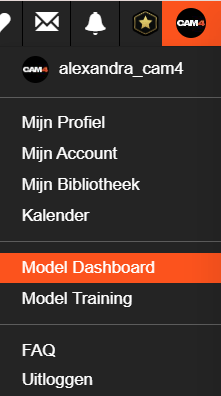
  1. Go to your Broadcaster Dashboard by selecting your profile picture in the top right corner (drop-down opens).
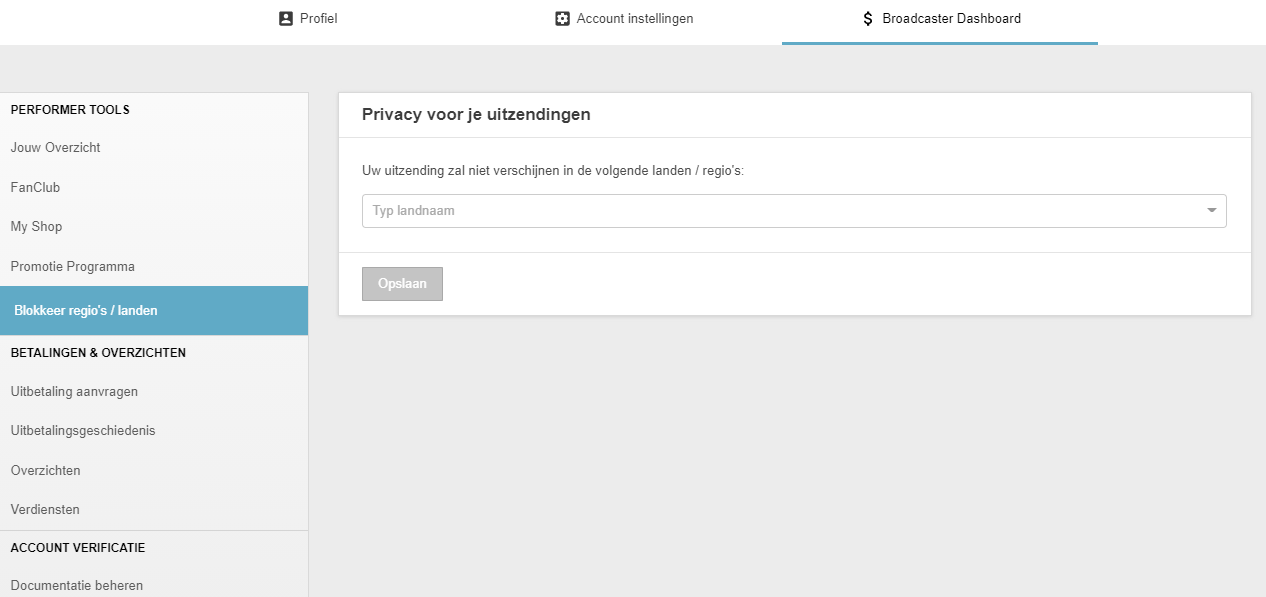
  2. Choose ‘Block Regions / Countries’ under Performer Tools in the sidebar.
  3. Select the country or region you want to block and click ‘Save’.

Landen/regio’s blokkeren

After saving, your profile is not visible in the chosen province or countries.

Undo Blockade

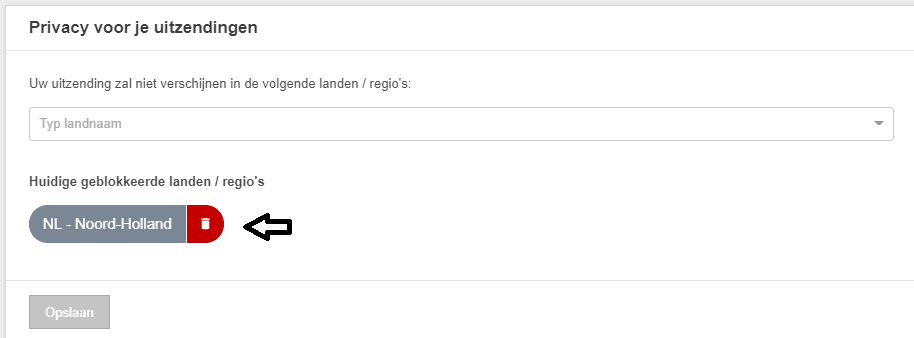
Want to remove the blockade? Click the trash can icon behind the country or region.

Blokkade verwijderen

Make a Conscious Choice

Reach vs. Privacy

Most performers earn the most from viewers from their own country. Blocking too much can slow your growth. Weigh your privacy wish against visibility and income.

Summary: block specifically (preferably province), remember that mobile/VPN can bypass blockades, and check periodically whether your settings are still correct.

UK DAC7 – Important Information on Data Collection for Payments

Although the UK is not subject to DAC7, we are updating our processes to align with global standards, including similar European regulations like DAC7. These changes mean we need to collect additional information from broadcasters/creators to process payments. Providing accurate information is essential to avoid issues with payouts.

Why are we collecting this information?

To comply with international transparency standards, we are required to gather specific details from our users. These regulations aim to prevent tax fraud and ensure payments are processed correctly. While DAC7 applies to the EU, aligning with these standards allows us to maintain a consistent and secure platform for all users, including those in the UK.

What information do we collect?

We may request details such as:

  • Your full name
  • Your address
  • Your National Insurance Number (NIN)

These details are necessary for compliance with tax regulations and transparency standards. Your information will only be used for these purposes and shared with tax authorities as legally required.

What is a National Insurance Number, and where can you find it?

Your National Insurance Number (NIN) is a unique identifier issued by the UK government for tax and social security purposes.

You can find it on:

  • Payslips
  • Tax return documents
  • Your personal tax account on the HMRC website
  • National Insurance card (if issued)
  • Official letters about tax, pensions, or benefits

What if you don’t have a fixed address?

If you’re traveling or don’t have a permanent residence, determining your tax residency can be more complex. Generally, your tax residency is the country where you spend more than six months (183 days) in a year. We recommend reviewing the tax laws of the countries where you’ve stayed to identify your tax residency.

Does this mean authorities will know what you do on the platform?

No. We only report payment transactions based on the information you provide. The nature of your activities on the platform will not be disclosed.

What happens if you don’t provide the required information?

Starting January 2025, providing this information will be mandatory to continue receiving payments. If the required details aren’t submitted, we won’t be able to process your payouts. Submit your information on time to avoid any interruptions.

When and how do you submit your information?

We will begin collecting this information in December. Once you log in, you’ll receive instructions on how to securely submit your details.

What happens to your information?

Your information will be used exclusively to comply with regulations like DAC7 and similar global standards. It will be shared with relevant tax authorities as required by law and handled in accordance with applicable privacy laws.

Questions?

If you have any questions or need assistance, contact our support team at payments@cam4.com or consult the UK government.