Archiwum kategorii: Do not use

Connecting a Wishlist to your Profile

Let your fans SPOIL you!

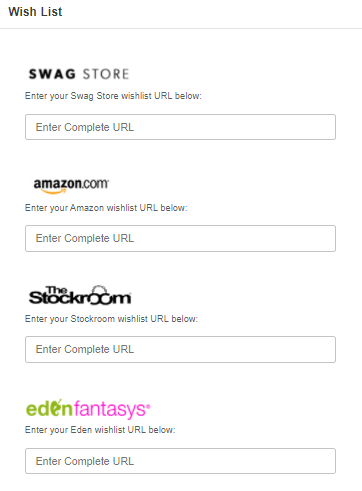
Fans are always looking for ways that they can help and spoil their favorite broadcasters. Create a Wishlist on one of these great sites and let your fans know exactly what you need!
What do I need to Do?

  1. Visit the website of one of the CAM4 supported stores listed above.
  2. Create an account on their site and use their registry or Wishlist function to start building your list.

    If you are having issues, please contact the store you are building your Wishlist on. CAM4 does not provide support these platforms.

  1. Once your list is complete copy the Registry or Wishlist URL that they provide you and go to CAM4.com.
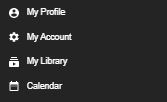
  1. Login into your CAM4 and hover your mouse over your profile icon on the top right-hand side of the homepage. From the menu click on “My Account”.


5. Click on “Wishlist” and add the URL below the logo for the store you used and click “Save”

When you visit your profile on CAM4 you will see your wish list appear on the bottom left under you “Detailed Bio”.
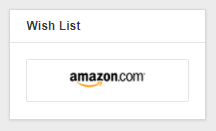


To add a list for another CAM4 supported store, just repeat the process and you will see the logo linking you viewer to your list appear under “Wishlist” as well.

PRO TIP: When creating your Wishlist, DO NOT use your real name. All Wishlist will hide your mailing info but some will show the owners name when viewing the list. If you want to hide your legal identity, always use your fake name.


~That’s all for this lesson!

Happy Camming!
Love, Your Coaching Team!
 

Your Tip Menu

Launch Your Very Own Custom Tip Menu to Improve Engagement and Increase Earnings!

Tell your fans what to tip for and earn more tokens, set up yours now!

What Is It?
The CAM4 Tip Menu is a fun tool that allows you to create a customized list of actions with the corresponding token amount a viewer needs to tip for you to perform the action during your performance. We’ve recently upgraded our tipping menu functionality to allow for simple set up and easy viewer access. Performers who’ve launched their own tip menus have reported heightened activity and ultimately an increase in show earnings! 

Benefits of Creating a Tip Menu:

  • The tip menu is an easily customizable list that you control and can change / update at any time
  • Your viewers know exactly what they can tip for each performance action without having to ask
  • You won’t need to set up an HTML bio
  • The tip menu is easily accessible via your profile during every show
  • Less chatty viewers are more likely to engage

Quick & Easy Tip Menu Set Up
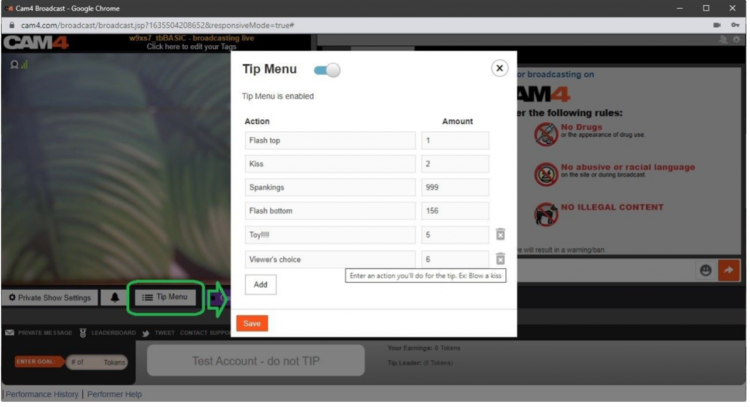
Locate the Tip Menu feature near the Game Center and enter each action and the required tipping amount. *Please note you must enter at least four (4) actions to activate your tipping menu for viewers

You can add up to 12 tip menu options; click the trash can icon to the right of each option to delete and update. Once you’ve completed your list, click SAVE to activate.

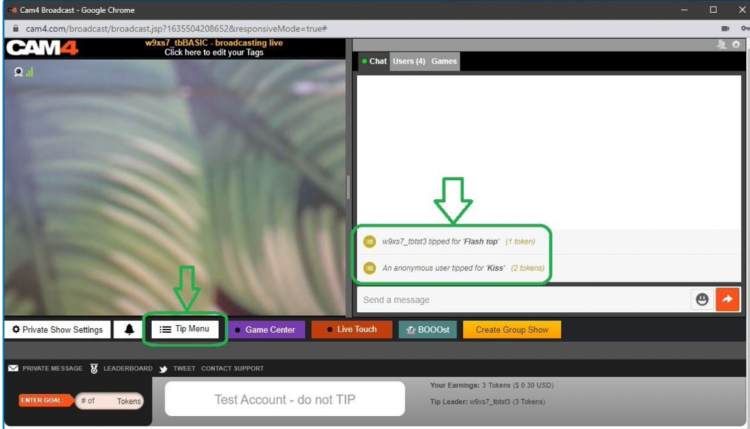
You will receive a special notification in your chat window every time a viewer selects an item in your tip menu


Tip Menu Ideas
What you include on your tip menu is completely up to you, and the great thing is you can add and update the menu as you learn what your viewers want and need in your shows!  Here are some sample tip menu options to get you started:

  • Blow kisses
  • Custom shout out message
  • Flash boobs
  • Oil rubdown
  • Spanking
  • Twerk
  • Insert toy for 15 seconds

Get creative here – the sky really is the limit!

The Key to Tip Menu Success
Our best advice for making the tip menu work for you is to keep your list of options fresh and creative while continuously directing viewers to it during your show.

We’re Here to Help You Win!
If you need help setting up your tip menu or are looking for ways to maximize this fun tool, please reach out to support@CAM4.com at any time and one of our experts will guide you.


~That’s all for this lesson!

Happy Camming!
Love, Your Coaching Team!
Use C4Broadcaster on your Windows Browser

If you’re using both Windows on your computer and a Samsung device for streaming with C4Broadcaster, you can now mirror your phone through wi-fi and enjoy the app directly onto your PC.

REQUIREMENTS:
1. Windows 10
(running the Windows 10 May 2019 Update) 

2. Samsung device
(listed below in the supported devices list running Android 9.0 or above)

Follow these simple steps to set it up:

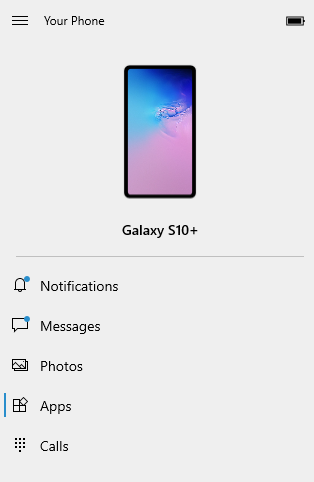
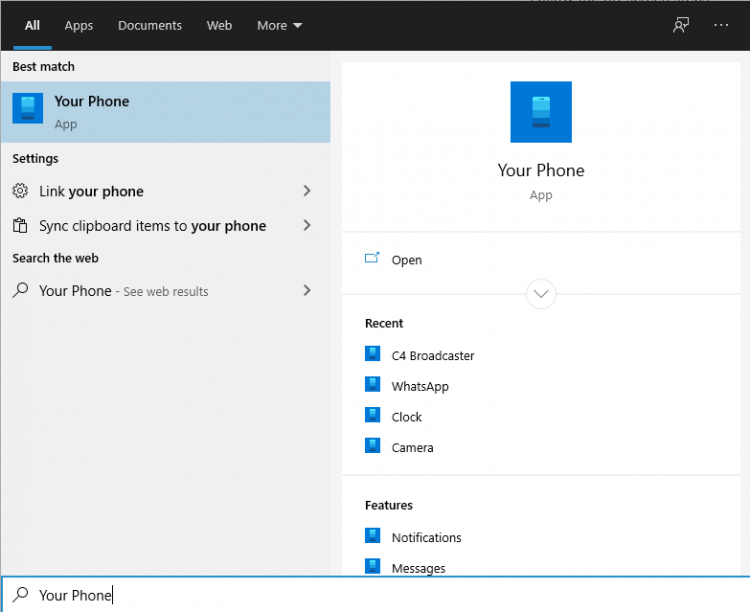
On your PC: Go to > Start and search for Your Phone. 
Windows 10 users with running the Windows 10 May 2019 Update will have the abillity to mirror their screen through wi-fi.

Log in with your Microsoft account in the application.
Follow the on-screen steps.

ON YOUR PHONE:

Check if the device you’re using is listed below as one of the supporting devices.

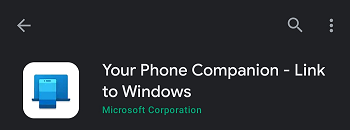
If yes, then check if you already have preinstalled on your Samsung device, “Your Phone Companion – Link to Windows” application. If not, it can be found on the Google Play Store and be downloaded from there.

Follow the on-screen steps

Make sure your phone and your PC are both connected to the same wi-fi network

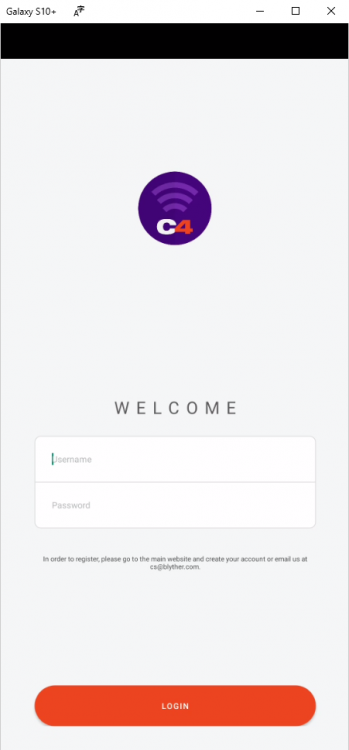
After the initial setup, you can access C4Broadcaster from the Apps button in the Your Phone menu.

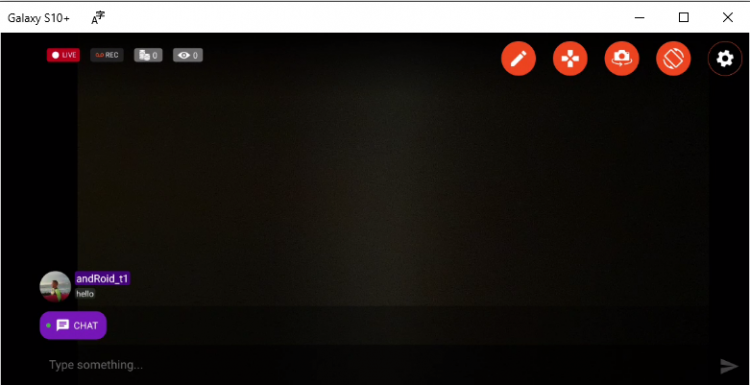
Accept the request on your phone and voila, you can now use C4broadcaster on your PC.

The experience is the same as on mobile, you can switch the camera, rotate the device, play tipping games and apply image filters like you did when using solely your phone


~That’s all for this lesson!

Happy Camming!
Love, Your Coaching Team!
Attract Spies with a Solo Private Show

Make It Easier To Stream On More Than One Cam Site 

If you broadcast on CAM4 and another site (or sites!) at the same time, it can be hard to pay attention to the chat in all of them at once – especially if you go private with a viewer!

Sometimes going private on one cam site even means pausing your streams on the others, and losing your viewers.

Now, you can use the Solo Private Show feature to help maintain your audience on all the sites at once. If you go private with a viewer while you’re on another cam site, start a Solo Private Show on CAM4. Your audience will see that you are in Private and can spy on your CAM4 broadcast as usual, but you can focus on the viewer paying you to go private.

HOW TO SET IT UP

When you are live on CAM4 select „Private Show Settings” on the bottom left side of the broadcast window.

This allows you to start a private show with no viewer which

  • Gives you privacy for the show.
  • Keeps your directory position and viewers in CAM4.
  • Offers an increase in your revenue by having spy viewers.

You will find a new tab under your private show settings called Solo to set this up

Once you have picked all your settings and pressed the „Start” button you will see some changes to you menu below your broadcast image. This allows you to see how long you have been hosting a solo show and what you have gained from your „Spy” viewers.



  • # of Spies
  • Fan Club Spies
  • Show earnings
  • Spy earnings
  • End Show


~That’s all for this lesson!

Happy Camming!
Love, Your Coaching Team!

Open Broadcaster Software (OBS)

CAM4 is an official streaming platform on OBS! This means OBS will auto configure your exact setting needs for optimal streaming on CAM4.

Here’s how it works:

  1. Login to Cam4.com > Select Broadcast
  2. Select > External Encoder
  3. Select > Get Stream Key
  4. Highlight Stream Key and Copy key as it will be pasted into OBS
  5. Open > OBS
  6. Select > Tools. Then select > Auto Configuration Wizard
  7. Select > Optimize for streaming, recording is secondary
  8. Click > Next
  9. Base (Canvas) Resolution select: Use Current

** Base canvas = your primary monitor’s resolution**

  1. FPS: Select 30
  2. Click > Next
  3. Stream Type: Streaming Services
  4. Service: Cam4 (show all if Cam4 is not listed)
  5. Stream Key: (clear if populated; paste key previously copied from your Cam4 broadcast window)
  6. Estimate bitrate with bandwidth test: CHECKED
  7. Prefer Hardware Encoding (if an option): UNCHECKED
  8. Click > Next
  9. Stream Warning pop up box: Select YES and wait while settings are configured
  10. OBS then shows Final Results for your settings.

              Select Apply to use the new settings.

              Settings will not be applied if you select Cancel

Other Article to check out:

What Is External Encoding?

How Do I Improve My Broadcast Quality?

How To Use Lightstream Studio


~That’s all for this lesson!

Happy Camming!

Love, Your CAM4 Coaching TEAM

Auto Pause after a Private or Group Show

Auto-Pause is designed to give you time to prepare to be in front of your regular viewers again after your Private or Group show ends.

Go grab some food or something to drink, clean up, use the washroom, or change your outfit. You have 5 minutes to do whatever you need to do before going live on cam for your viewers again.

HOW DOES IT WORK?

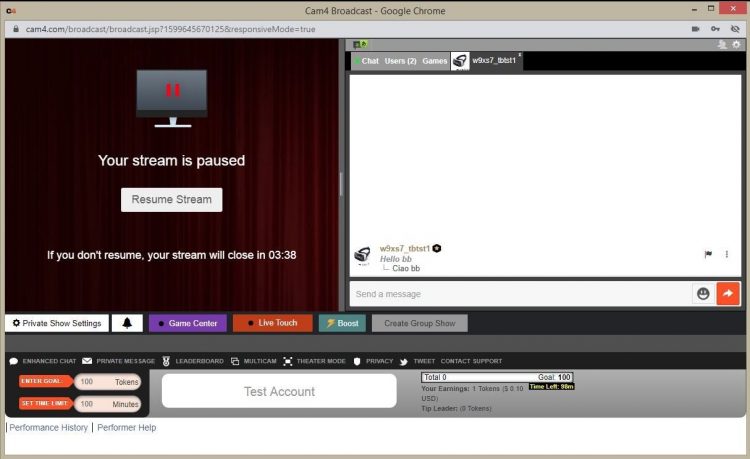
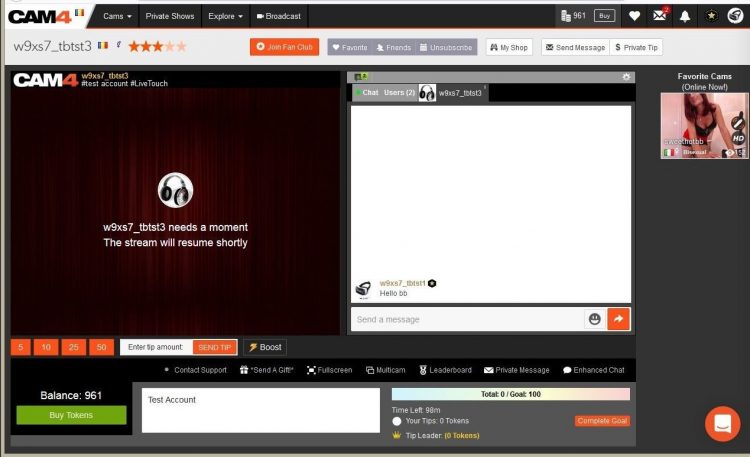
Start your Private or Group show as you normally would.  At the end of the show, your stream will pause for a maximum of 5 minutes .

What YOU will see:


What your VIEWERS will see:

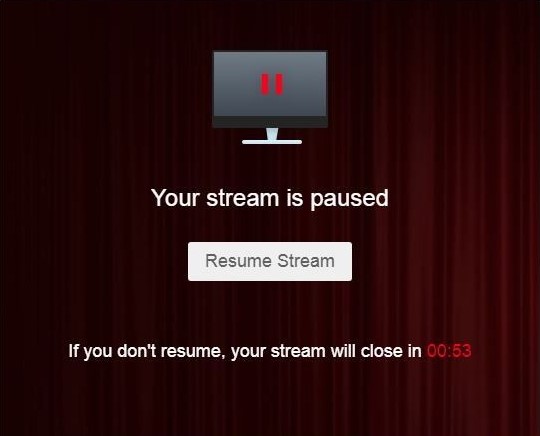
The stream is resumable at any time by clicking on the „Resume Stream” button. 

If you do not resume the stream during the first 5 minutes, the stream ends automatically. 

Private Show requests are not available while your show is paused. 

~That’s all for this lesson!

Happy Camming!
Love, Your Coaching Team!

BOOST: The Ultimate Way to Grow your Audience

CAM4 BOOST — Grow your audience

BOOST: The Ultimate Way to Grow Your Audience

Struggling to build an audience? Just logged on and want to kickstart your show?

You can BOOST your room higher in the directory for just 25 tokens!

CAM4 puts YOU in the driver’s seat, giving you the ability to move higher in the directory so more people can discover your show!

How It Works

The BOOST button appears on your screen once you start a live stream and is visible to you and your fans.

Once purchased, this feature positions your room among the top cams currently on the site for the duration of the boost.

  1. Click the BOOST button to get started.
  2. It costs 25 tokens to boost your cam for 5 minutes, or until you have gained 10 new people in your room, up to a maximum of 30 minutes.
  3. Click Proceed to confirm. The cost will be deducted from your CAM4 account, and your cam will be repositioned in the directory.

What Happens When BOOST Starts?

  • A message appears in your chat letting you know who purchased the boost.
  • A bar on your broadcast window slowly fills as the time runs out.
  • The button changes to Boost Active and includes a countdown. It becomes inactive, so you cannot click it while your boost is running.

Pro Tip

When your boost is active, more people will see your thumbnail. This is your moment to attract more fans to your show! Switch things up with an alluring pose, a sexy striptease, a wet T-shirt show, or close-ups. Make the most of the opportunity to catch your new audience’s attention.

What Happens When BOOST Ends?

  • The button changes back to BOOST and becomes active again, allowing you to click it to start another boost.
  • A message in your chat confirms that the boost has ended and shows how many viewers you gained during it.
  • Your directory position changes, but you may not return to your original spot. Your new position will reflect increases in your viewers gained during the boost.

Viewers Can BOOST You Too!

Fans are always looking for ways to support their favorite models. Why not encourage them to use the BOOST feature on your room?

With their help, boosting can make a difference in your show and exposure on CAM4.

Konkurs Kamera Miesiąca


Nasz konkurs CAM-Miesiąca jest otwarty dla WSZYSTKICH nadawców CAM4, w ramach których można przyznać 20 nagród o łącznej wartości 15 000 USD każdego miesiąca.

CAM DNIA
Każdego dnia CAM4 rozpoznaje 20 nadawców, którzy mają najwięcej zalogowanych widzów w swoim pokoju podczas jednej transmisji. Oprócz nagrody, każdy z 20 nadawców otrzymuje punkty w zależności od zajmowanego miejsca.

PODZIAŁ PUNKTÓW CODZIENNYCH

1st                    7 punktów

2nd                   6 punktów

3rd                   5 punktów

4th                   4 punkty

5th – 9th          3 punkty

10th – 14th     2 punkty

15th – 20th     1 punkt

CAM MIESIACA
Pod koniec miesiąca 20 najlepszych wykonawców z największą liczbą punktów z konkursu CAM DNIA , którzy spełniają wymagania dotyczące minimalnych zarobków i spełniają wytyczne określone w zasadach, mogą wygrać nagrodę pieniężną!

PODZIAŁ NAGRÓD

1st                    $2,500

2nd                   $2,000

3rd                   $1,500

4th                   $1,000

5th – 9th           $750

10th – 14th      $500

15th – 20th      $250

ZASADY

  • Musi zarobić co najmniej 250 USD podczas każdego miesiąca trwania konkursu. Bonusy i nagrody konkursowe są wykluczone.
  • Napiwki od innych wykonawców / studiów nie wliczają się do minimalnych wymaganych zarobków.
  • Tylko zalogowani widzowie liczą się do łącznej liczby widzów *.
  • Nadawca może wygrać tylko raz dziennie / raz w miesiącu
  • Prawidłowy adres e-mail musi być zapisany, abyśmy mogli skontaktować się z Tobą, jeśli wygrasz.
  • Pracownicy, wykonawcy i trenerzy CAM4 nie kwalifikują się do udziału.
  • Transmisje naruszające nasze warunki korzystania z usługi zostaną automatycznie zdyskwalifikowane.
  • Oszuści zostaną zdyskwalifikowani na ten miesiąc. Powtarzający się oszuści zostaną trwale usunięci z konkursu.
  • Wszelkiego rodzaju nękanie pracowników lub członków CAM4 nie będzie tolerowane i spowoduje usunięcie z konkursu.
  • Decyzja administratora CAM4 jest ostateczna.

Zasady konkursu można znaleźć tutaj:  http://www.cam4.com/contest/rules/

Uzyskanie zatwierdzenia

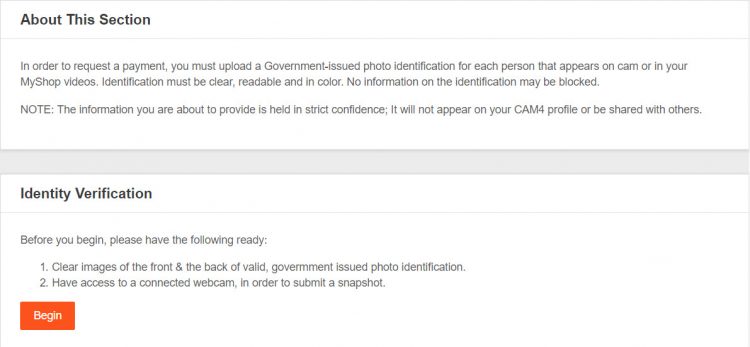
Za każdym razem, gdy transmitujesz na CAM4, możesz zarobić pieniądze.Podczas swoich występow możesz otrzymywać napiwki,  wirtualne prezenty CAM4 o wartości tokenów , akceptować prośby o prywatny pokaz, oraz  zamieszczać ogłoszenia o swoim płatnym prywatnym pokazie . Kiedy będziesz gotów dokonać pierwszej wypłaty, zostaniesz poproszony o przesłanie swojego dokumentu tożsamości i przejście przez proces zatwierdzania w „Pulpicie dla wykonawców”.


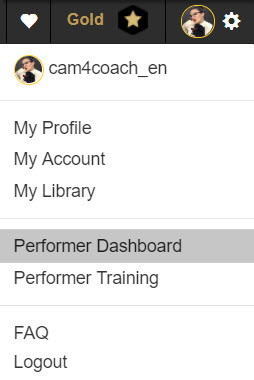
*Możesz również uzyskać dostęp do pulpitu wykonawcy w „Moim koncie”. Jest wymieniony w sekcji „Narzędzia wykonawcy” w lewej dolnej części ekranu
 

Znalezienie miejsca, w którym można przesłać swój identyfikator, jest łatwe dzięki temu przydatnemu powiadomieniu, które zobaczysz na swoim profilu na stronie głównej. 


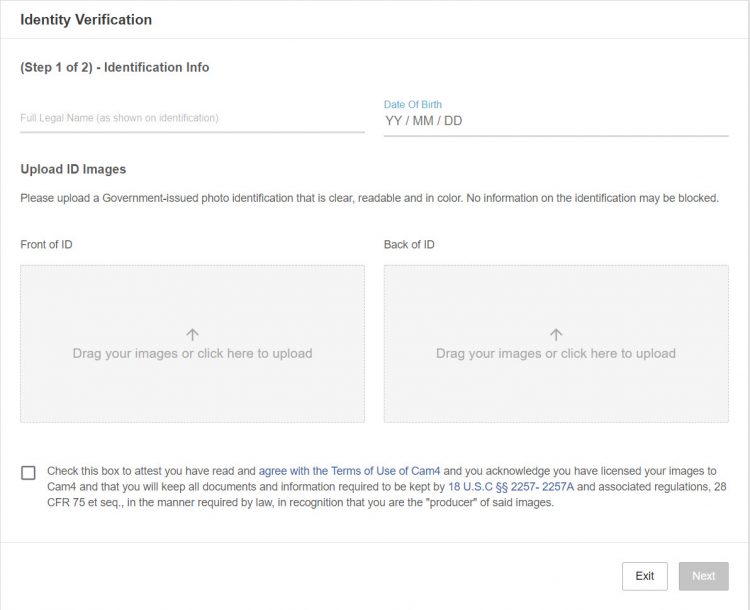
Wymagania dotyczące identyfikatorów:

• Ważny dowód tożsamości z aktualnym zdjęciem profilowym  wydany  przez urząd ( wygasły dowód tożsamości nie będzie akceptowany)
• Dowód tożsamości musi być w przyzwoitym, czytelnym stanie, bez fałszerstwa lub widocznych uszkodzeń, które mogłyby blokować informacje.

Wymagania dotyczące przesyłania:

• Wyraźny, wysokiej jakości, kolorowy obraz. * Zalecana rozdzielczość 240 dpi
• Żadna część dowodu tożsamości nie może być zablokowana, zakryta lub wycinona ze zdjęcia.


Następnie, wymagamy, aby zaznaczyć pole u dołu strony, co oznacza, że zgadzasz się na następujące:

• Przeczytałeś i rozumiesz zasady witryny CAM4.
• Pozwalasz CAM4 pokazywać swój wizerunek na żywo na stronie.
• Jesteś jedynym właścicielem/twórcą wszystkich treści, które udostępniasz na CAM4.
• Będziesz gromadzić i przechowywać dane identyfikacyjne WSZYSTKICH wykonawców, którzy są widoczni w transmisji na żywo lub w treściach, które sprzedajesz na CAM4. Zobowiązujesz się również do udostępnienia  zachowanych danych w razie takiej potrzeby. 


Aby zapewnić dodatkową ochronę, prosimy o wykonanie migawki na żywo z Twojej twarzy w celu zweryfikowania Twojego ID.Upewnij się, że znajdujesz się w dobrze oświetlonym pokoju, oraz nie masz na sobie szalika, czapki, oraz włosy nie zasłaniają ci twarzy, nic niepowiunno blokować widocznościTwojej twarzy.


Teraz czas wrócić do pokazu 🙂

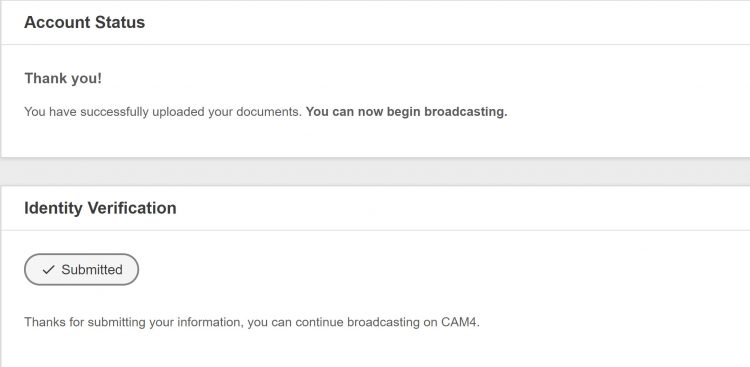
Czas zatwierdzenia może być różny, ale wykonawcy, którzy wracają do trybu online, aby normalnie występować, mogą oczekiwać od 24-48 godzin.
*Czas zatwierdzenia może być różny, ale wykonawcy, którzy wracają do trybu online, aby normalnie występować, mogą oczekiwać od 24-48 godzin.


~To tyle na tą lekcje!

Miłego Camowania!

Twój Zespół Coachingowy!