Tutti gli articoli di Ashley Maule

Your Tip Menu

Launch Your Very Own Custom Tip Menu to Improve Engagement and Increase Earnings!

Tell your fans what to tip for and earn more tokens, set up yours now!

What Is It?
The CAM4 Tip Menu is a fun tool that allows you to create a customized list of actions with the corresponding token amount a viewer needs to tip for you to perform the action during your performance. We’ve recently upgraded our tipping menu functionality to allow for simple set up and easy viewer access. Performers who’ve launched their own tip menus have reported heightened activity and ultimately an increase in show earnings! 

Benefits of Creating a Tip Menu:

  • The tip menu is an easily customizable list that you control and can change / update at any time
  • Your viewers know exactly what they can tip for each performance action without having to ask
  • You won’t need to set up an HTML bio
  • The tip menu is easily accessible via your profile during every show
  • Less chatty viewers are more likely to engage

Quick & Easy Tip Menu Set Up
Locate the Tip Menu feature near the Game Center and enter each action and the required tipping amount. *Please note you must enter at least four (4) actions to activate your tipping menu for viewers

You can add up to 12 tip menu options; click the trash can icon to the right of each option to delete and update. Once you’ve completed your list, click SAVE to activate.

You will receive a special notification in your chat window every time a viewer selects an item in your tip menu


Tip Menu Ideas
What you include on your tip menu is completely up to you, and the great thing is you can add and update the menu as you learn what your viewers want and need in your shows!  Here are some sample tip menu options to get you started:

  • Blow kisses
  • Custom shout out message
  • Flash boobs
  • Oil rubdown
  • Spanking
  • Twerk
  • Insert toy for 15 seconds

Get creative here – the sky really is the limit!

The Key to Tip Menu Success
Our best advice for making the tip menu work for you is to keep your list of options fresh and creative while continuously directing viewers to it during your show.

We’re Here to Help You Win!
If you need help setting up your tip menu or are looking for ways to maximize this fun tool, please reach out to support@CAM4.com at any time and one of our experts will guide you.


~That’s all for this lesson!

Happy Camming!
Love, Your Coaching Team!

Use C4Broadcaster on your Windows Browser

If you’re using both Windows on your computer and a Samsung device for streaming with C4Broadcaster, you can now mirror your phone through wi-fi and enjoy the app directly onto your PC.

REQUIREMENTS:
1. Windows 10
(running the Windows 10 May 2019 Update) 

2. Samsung device
(listed below in the supported devices list running Android 9.0 or above)

Follow these simple steps to set it up:

On your PC: Go to > Start and search for Your Phone
Windows 10 users with running the Windows 10 May 2019 Update will have the abillity to mirror their screen through wi-fi.

Log in with your Microsoft account in the application.
Follow the on-screen steps.

ON YOUR PHONE:

Check if the device you’re using is listed below as one of the supporting devices.

If yes, then check if you already have preinstalled on your Samsung device, “Your Phone Companion – Link to Windows” application. If not, it can be found on the Google Play Store and be downloaded from there.

Follow the on-screen steps

Make sure your phone and your PC are both connected to the same wi-fi network

After the initial setup, you can access C4Broadcaster from the Apps button in the Your Phone menu.

Accept the request on your phone and voila, you can now use C4broadcaster on your PC.

The experience is the same as on mobile, you can switch the camera, rotate the device, play tipping games and apply image filters like you did when using solely your phone


~That’s all for this lesson!

Happy Camming!
Love, Your Coaching Team!

Open Broadcaster Software (OBS)

CAM4 is an official streaming platform on OBS! This means OBS will auto configure your exact setting needs for optimal streaming on CAM4.

Here’s how it works:

  1. Login to Cam4.com > Select Broadcast
  2. Select > External Encoder
  3. Select > Get Stream Key
  4. Highlight Stream Key and Copy key as it will be pasted into OBS
  5. Open > OBS
  6. Select > Tools. Then select > Auto Configuration Wizard
  7. Select > Optimize for streaming, recording is secondary
  8. Click > Next
  9. Base (Canvas) Resolution select: Use Current

** Base canvas = your primary monitor’s resolution**

  1. FPS: Select 30
  2. Click > Next
  3. Stream Type: Streaming Services
  4. Service: Cam4 (show all if Cam4 is not listed)
  5. Stream Key: (clear if populated; paste key previously copied from your Cam4 broadcast window)
  6. Estimate bitrate with bandwidth test: CHECKED
  7. Prefer Hardware Encoding (if an option): UNCHECKED
  8. Click > Next
  9. Stream Warning pop up box: Select YES and wait while settings are configured
  10. OBS then shows Final Results for your settings.

              Select Apply to use the new settings.

              Settings will not be applied if you select Cancel

Other Article to check out:

What Is External Encoding?

How Do I Improve My Broadcast Quality?

How To Use Lightstream Studio


~That’s all for this lesson!

Happy Camming!

Love, Your CAM4 Coaching TEAM

Submit a Share-able Image

Do YOU want to be promoted on one of CAM4’s Official social-media accounts? Even be our monthly Cover Model on X.com?


Well, CAM4 needs YOUR help… Send us any of your best quality SFW (Safe For Work / Non Nude) images below, and your X.com or Instagram info so we can tag you.

USA/ Canada:
Click HERE to upload your SFW images now!!!!


United Kingdom/ Australia:
Upload for UK/AU 

Or contact: julia@cam4.com

And don’t forget, give us a follow


How to Improve Your CAM4 Rankings!

We all have one major goal on CAM4 – to rank high and get that hard-earned cash! But how do you climb your way to the top? And who can help you get there? WE CAN! We want all of our performers to rise to cam stardom,  which is why we’re offering all performers the chance to check out our performer articles, how-to videos and cam coaching, only on CAM4!

Improve Your Broadcasting!

Getting started on cam isn’t as easy-peasy as it looks. Before you can start filming yourself on CAM4, you have to find out how you can impress your new followers, and how to keep them in your room! Check out our articles on our Performer Training page to find tips on how you can improve your shows and get more viewers!

You can learn about getting started, our CAM4 coaching sessions, and how to schedule and promote your shows! Click HERE.

Want to know how lighting can help you in your cam shows? Watch this video, LIGHTING 101 to find out!

Want to see more How-To videos on performing on CAM4? Subscribe to our official YouTube channel by clicking HERE!

Get Technical!

Before you begin to show off your new skills on CAM4, make sure that all your computer, your internet connection, your webcam, lighting and microphone are all top notch!

Having terrible Internet connection or poor webcam quality can greatly affect your cam shows and viewership. Before filming your live show, make sure to test your Internet connection – is the connection glitchy? How is it affecting your webcam quality?

Find out how you can test your Internet and webcam connection HERE!

Click here to see more tips on filming great videos for fans on CAM4!

Engage with your viewers!

Our most important tip for all performers to rank higher CAM4 is this – ENGAGE WITH YOUR VIEWERS! You have to make your fans and viewers feel excited, comfortable and at-home when they enter your room. It’s your job to keep them entertained and glued to your page whenever you enter your live shows. Follow our advice and the tips will come rolling in!

Here are some tips on how you can engage with viewers:

  • Broadcast regularly, and make it known to viewers that you’re going on cam. You can do this through your CAM4 camming schedules, or on your own Twitter account! (Make sure to include the hashtag #CAM4)
  • Enable tipping games! Playing games like Roll-the-Dice (RTD) with your viewers is a fantastic way to get everyone in your room excited and engaged in your show (including you!). Check out our CAM4 games HERE!
  • Change up your routine! You can rank higher by trying out new toys or outfits during your shows. Check out our huge number of show ideas for all cam shows HERE!
  • Promote yourself on our CAM4 social media accounts (Instagram Takeover anyone?!). Message CAM4 on Twitter and Instagram to find out how you can do a takeover on our Snapchat or Instagram! 

If you ever need help in improving your rankings, our team at CAM4 is always here to help! 


Broadcast on CAM4 from your iPhone!

We’re excited to announce the launch of our official iOS Broadcaster! Now you can cam for your fans from the palm of your hand on your iPhone!

iPhone users, ever since we launched our Mobile Broadcasting Appfor Android, we know you wanted to join the fun! Well great news: we’ve officially released a mobile broadcasting solution for you to use too! Introducing the CAM4 IOS Broadcaster!

You’re the Appleof our eye, darling, and we can’t wait to see your gorgeous face on CAM4 from the comfort of your iPhone. You don’t even need to download an application! Just log in to CAM4 on your iphone, click broadcast, and you’re good to go. You can set a status message, a tip message and a tip goal when you sign on, and you can chat with your viewers while you cam.

Here at CAM4 we want you to Cam Without Limits. With the new CAM4 iOS Broadcaster, you can cut the cord and expand the reach of your cam life, taking your viewers places you never could before. We can’t wait to see what you show the world from your iPhone.

Android users can download the C4 Broadcaster App from the Play Store here: https://play.google.com/store/apps/details?id=com.heftlab.c4b&hl=en_CA

For more information, check out our FAQ Page!

~That’s all for this lesson!

Happy Camming!

Love, Your CAM4 Coaching TEAM

Opzioni di pagamento disponibili

A differenza degli altri siti di webcam, su CAM4 i pagamenti potranno essere richiesti in qualunque momento lo desideri
(eccetto nei giorni festivi in USA e Canada).
Quando ricevi dei token dai tuoi spettatori questi vengono automaticamente convertiti in dollari (USD) all’interno del tuo Pannello Performer e finiscono nei “Guadagni Riservati”. Dopo circa 3 giorni, una volta verificati e completata la conversione,  i tuoi guadagni diventano “Guadagni disponibili” e potrai richiederne il pagamento secondo la modalità che preferisci.
Sul pagamento non ci sarà alcun riferimento a CAM4!
Solo gli account verificati potranno effettuare una richiesta di pagamento dal proprio Pannello Performer. Per verificare l’account carica una foto chiara dei tuoi documenti nel tuo Pannello Performer in Gestisci Documentazione. (clicca qui per info).Ricorda che NON è consentito dal regolamento richiedere un pagamento per conto di altri performer o ricevere token da un performer con il fine di incassare il denaro per suo conto. Pena la chiusura e ban degli account interessati. 

Selezionare un Metodo di Pagamento

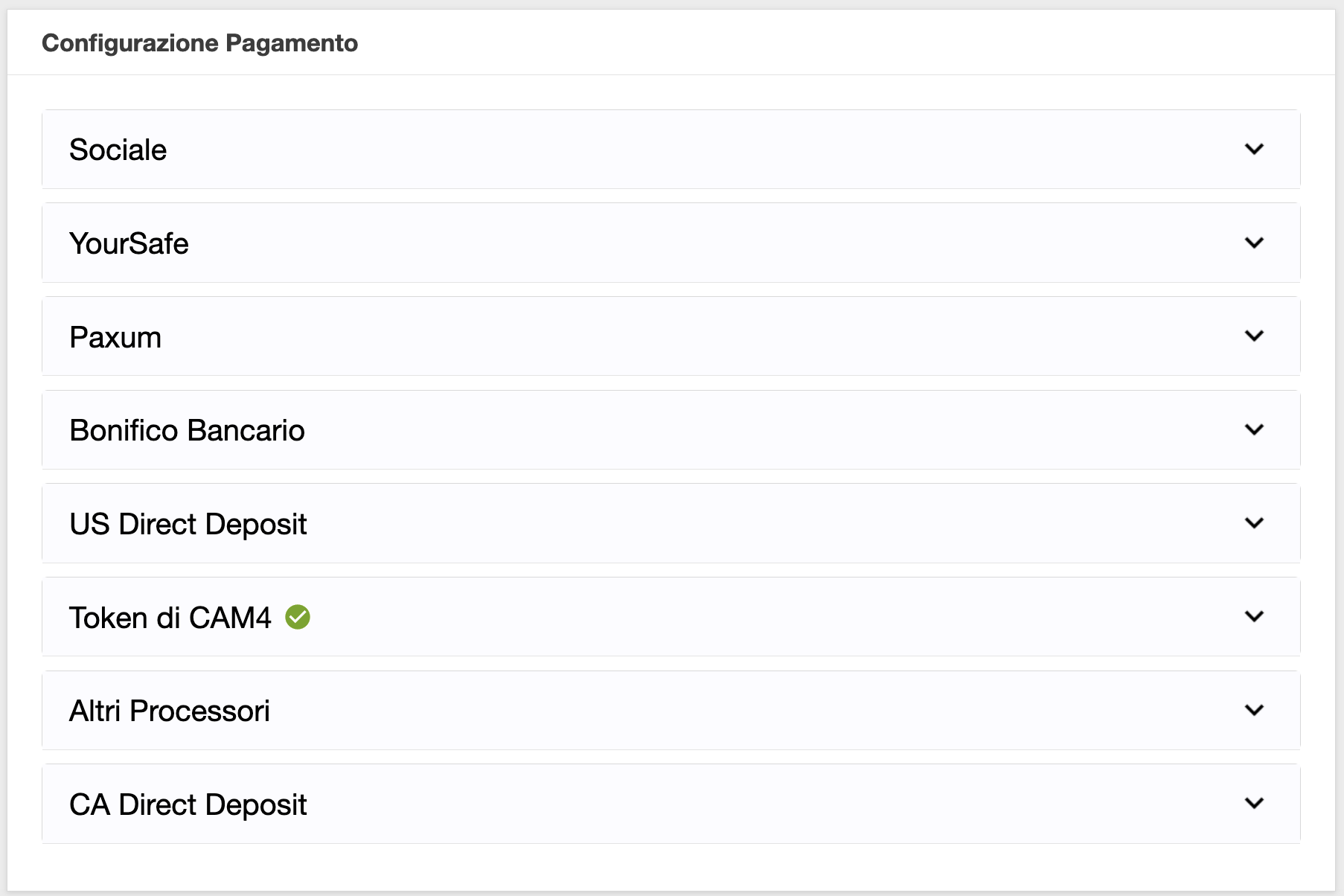
Puoi configurare una modalità di pagamento direttamente dal tuo Pannello Performer.

  • Accedi al tuo Pannello Performer dal tuo Profilo CAM4
  • Quindi seleziona dal menu a sinista l’opzione Richiedi un Pagamento e troverai le seguenti opzioni di pagamento disponibili:

1. Converti in Token CAM4

Converti la quantità desiderata di dollari disponibili  così da poter tippare gli altri performer oppure utilizzarli come pagamento per diventare un membro Gold.

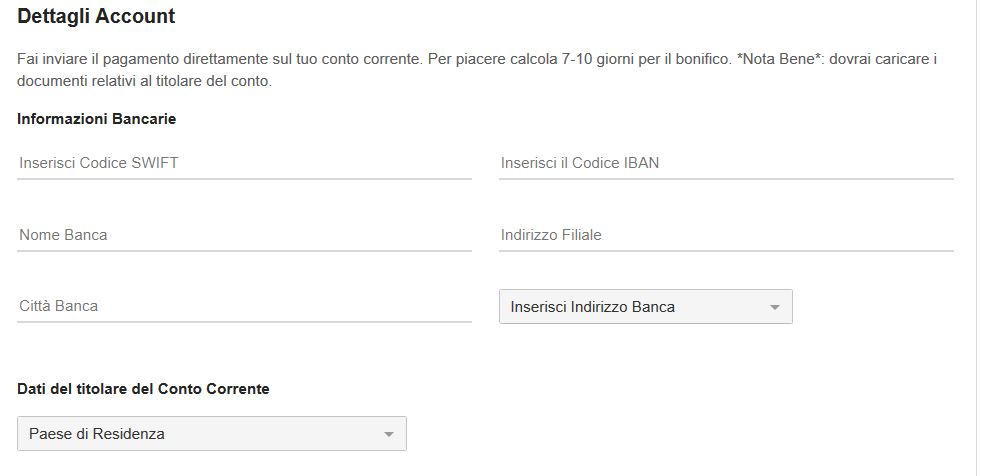
2. Bonifico Gratuito in Euro

Selezionando questo metodo di pagamento nel tuo Pannello Performer riceverai un bonifico in Euro direttamente sul tuo conto bancario. Le richieste di pagamento tramite bonifico bancario sono approvate il giorno (lavorativo) successivo GRATUITAMENTE!

– Costo: Gratuito
– Pagamento minimo: 50$
– Tempo di trasferimento del denaro sul tuo conto: 7-10 giorni lavorativi

– Cosa ti occorre: numero IBAN, codice SWIFT e il nome dell’intestatario*
(i documenti dell’intestatario dovranno esser stati caricati nel Pannello Performer.

Per configurare il Bonifico in €uro come pagamento

  • Accedi al tuo Pannello Performer dal Mio Profilo CAM4.
  • Quindi seleziona dal menu a sinista l’opzione Richiedi un Pagamento e clicca su l’opzione Bonifico in Euro.
  • Inserisci il tuo IBAN, il codice SWIFT della tua banca (se non lo consosci chiedi alla tua banca), nome intestatario, Paese del conto e il tuo numero di cellulare comprensivo di prefisso internazione (+39 per i numeri italiani). Un volta inserite tutte le info clicca su Invia.

3. YourSafe

YourSafe (precedentemente BitSafe) è un metodo di pagamento che offre un E-wallet ed una carta MASTERCARD di debito ricaricabile utilizzabile presso gli ATM (prelievo di contanti) e POS (acquisti nei negozi).

Importo minimo per le richieste di pagamento: $50

Giorni per l’invio dei Pagamenti: Quotidianamente

Costi per ricevere i pagamenti sull’account YourSafe da CAM4: nessuno

In seguito, il costo di mantenimento della carta YourSafe sara’ di 29.5€ annuali.

Costi per il prelievo di contante da qualsiasi ATM in EURO: €2

Costi per trasferimento da Yoursafe ad un conto corrente bancario europeo (EUR SEPA): €0.75

*CLICCA QUI PER LA GUIDA (VIDEO) SU COME RICHIEDERE LA TUA YourSafe DAL PANNELLO PERFORMER E RICEVERE LA PROMO!*

NOTA: Per usufruire della Promo CAM4 inserisci il nome e cognome  dell’intestatario del nuovo account YourSafe  (l’intestario dovrà aver caricato i suoi documenti nel pannello performer) quindi clicca in basso per richiedere una nuova carta e creare il tuo account. Completa la registrazione sul sito YourSafe.com per completare la creazione del tuo account.

Supporto: email accounthelp@yoursafe.com

4. PAXUM

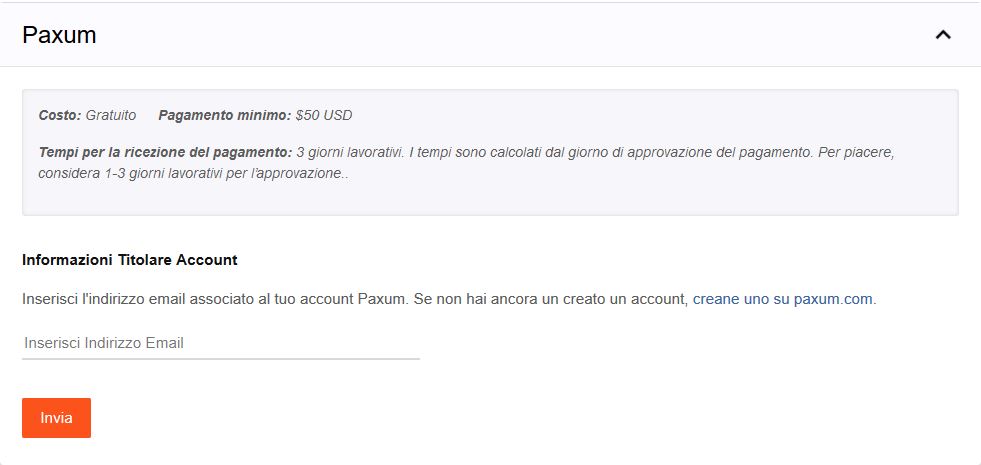
Tramite un account Paxum puoi richiedere un pagamento sul tuo account Paxum, un bonifico sul tuo conto o su una tua carta di credito o debito (incluse carte del circuito VISA).

  • Costo richiesta pagamento: Gratuito
  • Pagamento minimo: $ 50
  • Tempi di ricezione del pagamento: dall’invio della richiesta alla banca, saranno necessari da 3 a 5 giorni lavorativi.Vantaggi PAXUM:

    – Il pagamento una volta approvato nel tuo Pannello Performer sarà disponibile sul tuo account Paxum in meno di 24 ore (rapido e gratuito).
    -Potrai inviare dal tuo account Paxum denaro su carte di credito, debito o prepagate (trasferimento rapido)
    – Potrai richiedere una carta prepagata Paxum in dollari su cui versare i tuoi fondi (trasferimento molto rapido).

Per utilizzare questo metodo di pagamento ti basterà collegare il tuo account Paxum, se ne possiedi già uno, inseriendo il tuo indirizzo email associato a paxum e cliccare su Invia.

  • Come creare un account Paxum
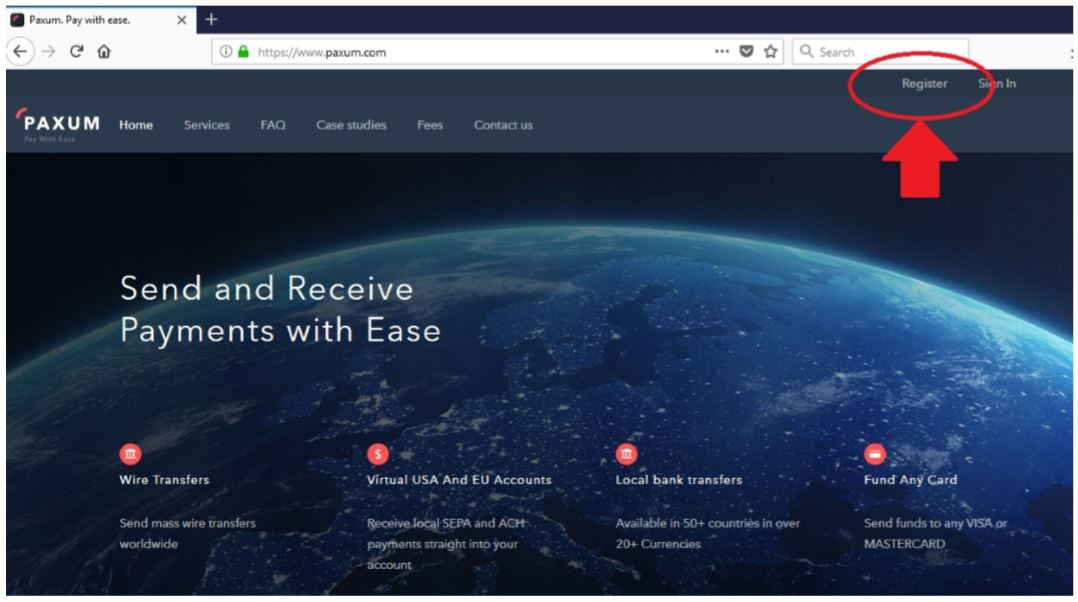
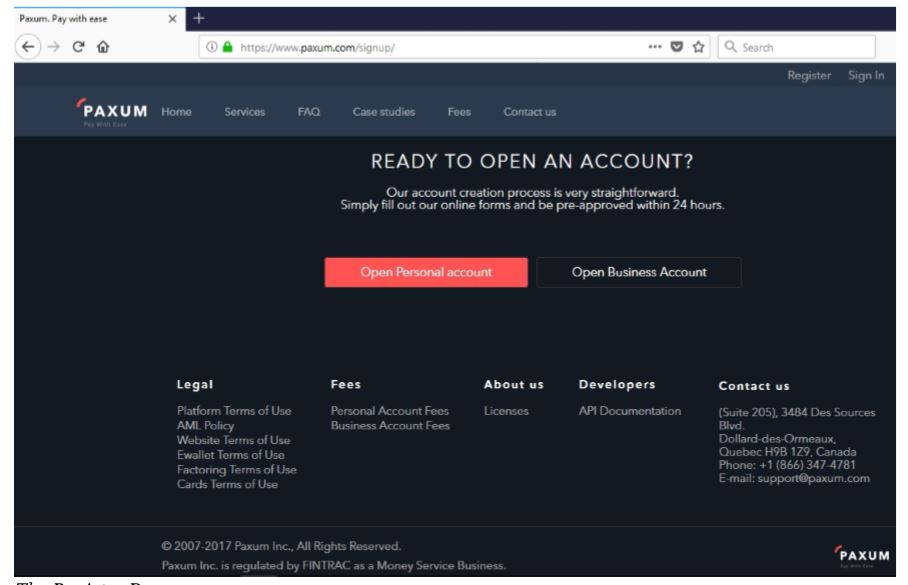
    Per creare un account Paxum vai su www.paxum.com oppure clicca qui!Una volta sul sito Paxum.com clicca su Register e quindi su “Open Personal Account

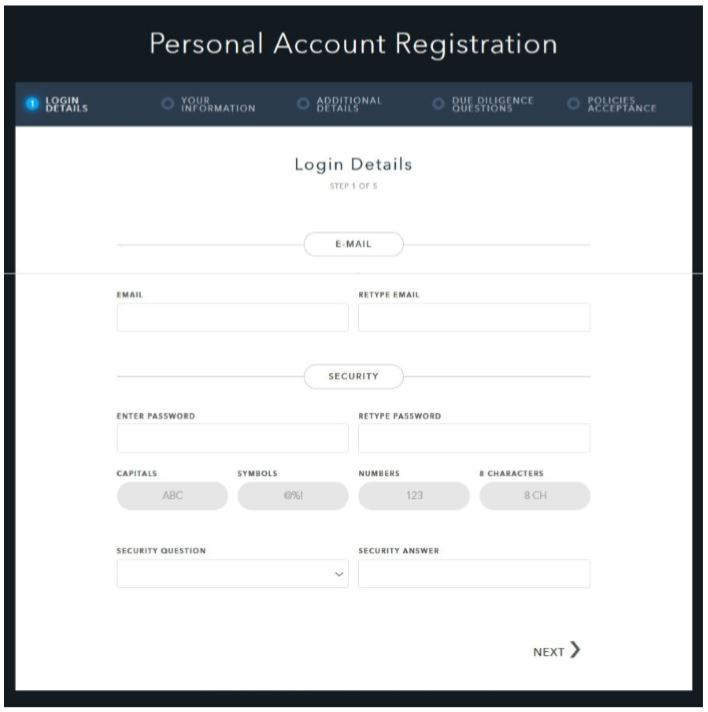
    Inserisci quindi i tuoi dati, partendo dalla tua email da associare allo username Paxum. Quindi imposta una password euna domanda & risposta di sicurezza. Dovrai successivamente inserire delle informazioni, come nome, indirizzo, ecc.

    Inserisci tutte le informazioni richieste per la registrazione.
    Al ternine ti sarà chiesto di verificare il tuo numero di telefono e il tuo indirizzo email.

    Dopo aver fatto clic sul link di conferma, verrai reindirizzato al tuo account Paxum dove potrai caricare i tuoi documenti necessari per la revisione da parte del team di verifica Paxum.

    Avrai bisogno di una foto chiara in buona risoluzione di un documento d’identità valido e una prova di verifica di indirizzo.

    Una volta che avrai ricevuto conferma dell’attivazione del tuo account Paxum (può richiedere fino a una settimana) potrai collegarlo al CAM4.

Clicca qui per la guida completa alla creazione e verifica di un account Paxum!

Non appena la tua richiesta di pagamento sarà accettata da CAM4 e inviata a Paxum, l’importo sarà disponibile e visibile sul account online di Paxum. Potrai sempre accedere al tuo account Paxum online, il tuo controllare il tuo saldo e i pagamenti ricevuti . Potrai quindi trasferire l’importo che desideri dal tuo account Paxum a un tuo conto bancario (tramite bonifico sepa) oppure versarlo su una tua carta visa o mastercard.

Clicca qui per leggere la radida guida su come richiedere un pagamento dal tuo account PAXUM!

Potrai anche inviare direttamente del denaro a un altro utente di Paxum.

Paxum supporta pagamenti su carte del circuito MasterCard. Ti consigliamo di richiedere pagamenti di importi non elevati su carte prepagate, per evitare che le banche/ poste blocchino il pagamento richiesto.

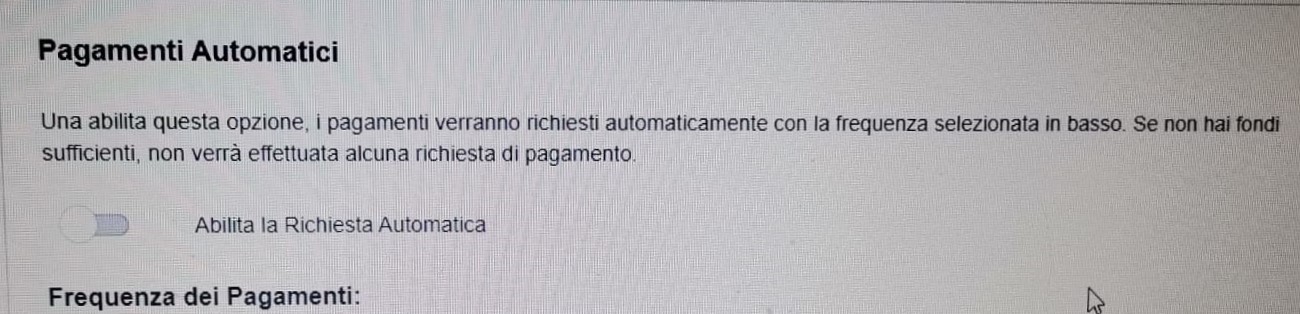
Scegli il metodo più adatto alle tue esigenze e comincia a guadagnare con CAM4! Puoi anche impostare un pagamento automatico che con la frequenza indicata sara’ inviato nel caso disponi di fondi necessari. Se desideri usufruire di questa modalita’ di pagamento ricorrente ti basta abilitare la richiesta e inserire la frequenza di invio dei pagamenti.

Puoi sempre farci domande via email a payments@cam4.com

5. Altri Processori (solo Sud America)

6. US Deposit e CA Direct Deposit (solo Nord America)

Social Media 101

Talking all things social media. Lean some tricks and tips to making the best posts.

TWITTER 

1. Keep Your Profile and Cover Images Clean

Performers are able to show more sensitive and R-rated content, but this is not true for every area in Twitter. In your profile picture and your banner you can’t show any nudity, nothing sexy! Keep it SFW. This helps to keep your profile active and away from the dreaded bans. 

2. Keep Twitter Live Streams Clean

The same rules apply to your live broadcasts on Twitter, make sure there’s no nudity. Though this is an awesome way to tease viewers into your shows, it’s not the place to get explicit. 

3. Keep Nudity in Your Posts

Your tweets can include nudity, so you’re free to be as explicit as you want. 

4. Am I Shadowbanned?

Twitter will “shadowban” accounts that violate these rules. This means that your profile won’t appear in searches, making it hard for fans to find you. 

5. Tagging People in Photos

If you’re uploading a picture, click on the “Who’s in this photo?” button and you can tag up to 10 users in the photo. This is a cleaner option than tagging followers in the tweet itself.

6. Use Twitter Analytics!

 If you’re on your desktop on your Twitter profile page, look at “statistics” on the sidebar.  You can get a lot of information about when’s the best time to send your tweets, who’s following you, their interests etc. If you go through that data, you’ll have a better understanding of when you can make money and gain followers.

Why Should I Tweet?

1. Promote yourself! Social media is the cheapest, easiest, and fastest way you can promote your Cam4 shows!

2. More social media followers = more viewers = more money in your pocket. Loyal viewers spend more, and when people know what you’re offering, they can spend more. You can achieve both with Twitter.

3. Reach new fans! How else can you find new people who want what you’ve got? Using Twitter hashtags and the Cam4 social media community you can reach tons of viewers who are looking for you!

4. Interact with existing fans in a whole new way. Extend their Cam4 experience way beyond your shows. It’s a win-win for everyone 😉

Like all good things, you need a billboard to help people find you. Treat social media as your billboard! Tweet from anywhere with your mobile device, and tweet while you’re live from the web.

Ok… I got Twitter… now what?

When I signed up for Twitter, I sat there with an empty news feed and no clue where to start. There’s millions of users, so how do you find the ones who are into you? How do you get people to follow you? It’s not as hard as you think, take a breathe and get started with these easy steps:

1. Share your Cam4 link when you’re live


2. Use hashtags like #tittietuesday #asswednesday and #friskyfriday along with #CAM4 and pics to find new fans. 

 

3. Send @CAM4 a tweet and I will personally help you along the way
**Don’t be scared to show your personality, that’s what viewers love!**



INSTAGRAM

  1. Keep it all Clean!

Everything has to be SFW! Instagram can take down any pictures that are reported as, or are NSFW. Tease viewers, or show off your personality and style. 

2. We Recommend no More Than Bikini Photos

Take some bikini pics and keep them on hand for Instagram. It’s also good to take some seductive pics without any nudity or explicit content.

3. Where Can I Link?

Try not to post links to porn sites in your posts – instead, post your Twitter link so your followers can get links to your cam shows directly there. 


Getting Your Posts RT’d by your Cam Company

To get retweeted by a camming platform, there’s some key things you have to do: 

Include your URL – we want followers to click on your links!

Use hashtag (#) or ‘@’ your cam company – #cam4, for example. 

Post a HOT visual! (videos are a huge preference though) People love to see visuals. You can add up to 4 photos in a post.

If you want people on Twitter to watch your live shows, the Twitter picture should show them what that show’s going to be like. Example: if you’re doing a show from your bath tub, take pics/video of you in the tub!

Separate posts if you’re tagging separate cam companies! One post for one site, that way each site has the opportunity to retweet you

PRO TIP: Use videos from your Snapchat to post on Twitter!

CAM4 COACHING

CAM4 provides users with Training every Tuesday & Thursday with cam coach, Vannafaye


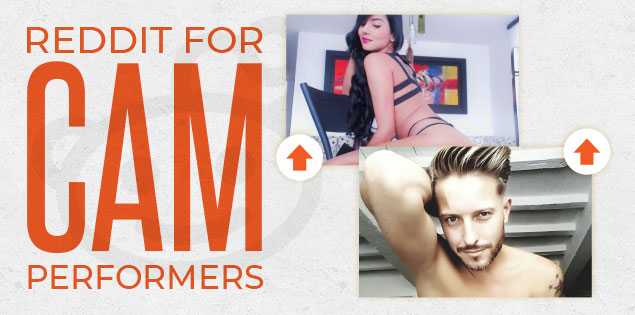
Reddit for Cam Performers (video)

Promoting yourself on Reddit gives you access to thousands of people who are searching for cam performer content. 

Reddit is basically a massive forum where people can discuss pretty much anything. It’s divided up by subreddit, and just for camshows alone there’s over 50 threads you could post on. 

Getting started

It’s so easy to sign up and make your first post that we promise it’ll take you less than 5 minutes. There’s no profile to design, no account info to edit, just make your username and password, and start posting!

  1. Chose a username that’s identical to or similar to your CAM4 name. Short and memorable names will help people remember you, Lala Capri, Lil Jezebel, Aqua Angel are a few examples of this.
  2. Follow threads that are related to your interests or content.

Reddit is hugely different from the other social media platforms we’ve covered, so watch this video from our resident cam girl and social media expert Sammy Strips or keep reading!


Posting on Reddit

Now you’re ready to start posting your best content! But, let’s review the guidelines before you begin posting:

  1. You have to wait 7 minutes in between postings
  2. Link to your images and videos via Imgur, ManyVids, PornHub, CAM4, YouTube, etc.
  3. Don’t post content into subreddits that aren’t related
  4. Read all of the rules of each subreddit 
  5. Don’t post the same content on multiple subreddits

Then it’s time to hit up the subreddits for Camgirls: 

r/CamGirl

r/CamGirls

r/CamModels

r/CumSluts

r/camshow

r/camshows

r/fuckmeat

r/girlskissing

r/FapFolders

r/GoneWildCurvy

r/JizzedToThis

r/NSFW_Ass

r/HungryButts

r/CumTributes

This isn’t even the tip of the iceberg. You could spend hours collecting all of the camgirl-related subreddits. Cha-ching!

A word of caution: Reddit is a community and they work hard to keep the content unbiased, helpful, and honest. Always read each thread’s rules and guidelines. For example, some threads require you to message the moderator before posting.


The best approach is to collect your content and make sure it’s varied – cumshots, lesbian, BDSM, spanking, wearing glasses, tattoos, or cum tributes will enable you to post on the more specific threads. 

Stop by r/CAM4Live and leave us a pic ❤️ And remember, follow our official accounts!

Follow CAM4

 @CAM4   @CAM4_Gay

 @CAM4_Official    @CAM4Gay

     CAM4snaps     CAM4gay 


Increase your earnings and viewers with PornHub

How to create a profile on PornHub to get more viewers and earn more on CAM4!

PornHub is the largest adult portal in the world. Millions access it daily providing visibility that no other site can give you. You can create a free PornHub account and use it to upload your photos and videos to lure more users and turn them into potential fans and tippers on CAM4! But not only that … by entering your CAM4 Referral Program link in your profile bio you will earn $2 for each user who click’s on your affiliate link register’s on CAM4!

I guess you’re wondering how long it takes to create a free PornHub profile and connect it to CAM4 … well, it takes less than 5 minutes!
Here’s a quick guide on how to create your Brand Ambassador profile, how to upload your videos, how to use your affiliate link and start earning more!

– How to create a FREE profile on PornHub … in 5 minutes

Go to PornHub’s homepage and select Sign Up (on the top – right) … or just click on this link!

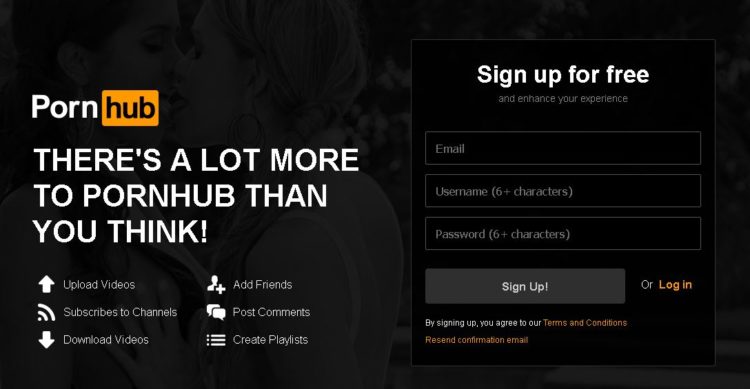
Click on Sign Up for Free. Then enter your e-mail address and choose a PornHub username (you can use the same on CAM4 if available) and finally choose a password.

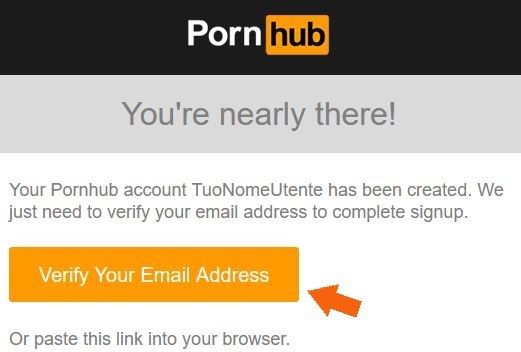
Check your email address and activate your PornHub account by clicking Verify Your Email Address.
Done! Now you’ve created a PornHub profile and you just have to configure it according to your liking 🙂


– How to configure your PornHub account with images, video and your CAM4 affiliate link!

Once verified your mail PornHub will ask you for basic information to confine your profile. What do you like, What channels you want to see and Basic Information (the most important ones to promote you!)

In the Basic Information section you can select the country, city, and nickname that you prefer. Be sure to write a short description in the ABOUT entry. You can use this space as a showcase to promote you as a web cam model on CAM4.

The most effective tool is to enter your CAM4 referral link to bring them to your CAM4 page and earn even from each subscription! If you do not know how to get your affiliate link (always found in My Accunt > Profile Options, bottom left> Referral Program)!!

For example, enter your next scheduled show on CAM4 or find other videos on your CAM4 profile. Or click the link below to see more videos #fetish, #outdoor.

Then click on Complete and Have fun on Pornhub! Once the configuration is finished you will be able to edit your profile and enter profile, cover, galleries, gifs and VIDEOs!

On your profile click on the profile image and cover photo and select upload photos to get you noticed! Note. you may decide not to show your face or use masked photos 🙂

– How to UPLOAD VIDEOs on PORNHUB:

In your profile page, you can view a preview of your basic information to the left: Make sure your referral link is correct and have a captivating description to push users to click on the link! 🙂
At the top click the Video section and then click Add Now! Then drag the video you want to upload and wait for the upload to complete.

Remember to include details on your video (eg. orientation, privacy, amateur production) and carefully choose an alluring title (you can also add translations in other languages). Finally, select the tags to describe your video and bring users with ease.

 PRO TIP:  Post quite often to keep users up to date on your next CAM4 shows and  promote your new videos on your MyShop, but make sure each message always contains your referral link!


~That’s all for this lesson!

Happy Camming!
Love, Your Coaching Team!