Category Archives: Débutez sur Cam4

C’est vos premiers pas sur Cam4 et vous avez besoins d’aide pour bien débuter ? Pas de soucis, cette rubrique est faite pour vous. Vous trouverez ici tous les trucs & astuces qui vous permettront de commencer votre carrière sur des chapeaux de roue !
N’oubliez pas de suivre les séances de notre Coach pour en savoir plus

Online Safety Tips

Protect yourself and your income: simple, practical tips for online safety that you can apply today.

Online safety: simple tips for everyone

Working online is great: you choose your own hours and you’re your own boss. Protect yourself and your income at the same time with these practical basics.

Tip: make safety part of your routine — small habits, big effect.

Passwords and 2FA

Strong passwords

  • Make them long (at least 12 characters).
  • Mix letters, numbers and symbols.
  • No personal info (social security number, date of birth, PIN).
  • A different password for each site.

Two-step verification (2FA)

  • Turn on 2FA for your most important accounts.
  • Preferably use an authenticator app.
  • Store backup codes safely (not in your email).


Phishing and suspicious links

Don’t fall for fake emails

  • Real companies never ask for your password via email/DM.
  • Don’t click on “log in here” links from messages.
  • Are you in doubt? Go to the website yourself and log in there.

Watch out where you click

  • Don’t open unknown links, files or photos.
  • Also pay attention in Skype/WhatsApp and other chat apps.
  • Stay within the platform where possible.


Recognizing scams

Too good to be true

  • “Free money”, “super fast opportunities”, “exclusive deals” = usually scams.
  • Ignore and delete. Do not respond.


Privacy: what you never share

Keep it private

  • Don’t put your real name on screen.
  • Don’t share photos/videos of family or children.
  • Remove location data from photos (turn off location on your phone/camera).

Separate work and private

  • Use a stage name.
  • Use a separate email address and (where possible) separate phone number.
  • Never share your real name or address — not even with other models; keep it professional.


Physical safety

What you show

  • Use a neutral background; no documents or outside view in the picture.
  • Avoid recognizable places, license plates or unique furniture.

Location & mail

  • Don’t share your location or schedule live.
  • Preferably use a PO box for mail.


Mental well-being and boundaries

Boundaries

  • Set clear rules (what you do/don’t do).
  • Block or mute anyone who crosses your boundary — without feeling guilty.

Self-care

  • Take breaks. Sleep and eat well.
  • Talk to someone if something is bothering you.


Collaboration and consent

Clear agreements

  • Only work with adults (18+).
  • Discuss in advance what is/is not okay. “Yes is yes, no is no.”
  • Record agreements briefly (chat/message). Do not share data from others.

Quick checklist: strong passwords + 2FA on, never click on login links from messages, don’t share private info/location, separate work and private, keep boundaries — and update your security settings regularly.
Cam Setup, Lightning and Internet

Small tweaks, big difference: with a smart cam setup, good lighting, and stable internet, your show immediately looks more professional.

Cam Setup, Lighting & Internet — How to Improve Your Show

Authenticity sells: you don’t need a studio. With a few smart adjustments, your stream immediately looks and feels better for fans.

Tip: test shortly before you go live (cam, light, sound, upload speed) and adjust if necessary.

Cam Setup

Keep it Real

Viewers don’t want an ultra-polished TV show, but a pleasant, stable experience. Simple = effective.

Background

Remove personal items (family photos, papers, addresses). Quiet decor = nicer viewing + better privacy.

Cam Placement

Camera at eye level, neat framing. Do a quick test to see if you are well in the picture and lit.

Lighting & Sound

Lighting

  • Use multiple light sources for even light.
  • Soft, warm ambiance — not too dark.
  • Light behind the camera, not behind you (avoid silhouette).
  • Same color temperature (e.g., all warm white).
  • Reflect light off wall/ceiling for soft look.

Sound

  • Test your microphone before you go live.
  • Simple USB microphone > built-in laptop mic.
  • Minimize background noise (TV, traffic, housemates).

Internet & Connection

Speed & Stability

Check upload via speedtest.net (upload is more important than download).

  • 600–800 kbps = low quality possible
  • 1.5 Mbps = average quality
  • 4 Mbps+ = high quality (HD)

Practical

  • Wired if wifi is not stable.
  • Close unnecessary apps, give your stream the bandwidth.
  • Troubleshoot: refresh stream; limit other devices (phone/tablet/smart TV) on wifi.

Practicing & Testing Before You Go Live

Practice Safely

First try in a safe setting how camera, light, and sound work together.

Tip: Offline Practice Before Your First LIVE Broadcast

Pre-Live Checklist

  • Short test run with cam, light, and audio.
  • Also view your show on mobile (many fans watch via phone).
  • Adjust position or lighting where necessary.

Privacy & Safety • Comfort

Privacy & Safety

  • Remove documents/mail/photos from view.
  • Check mirrors/windows for reflections.
  • Use room divider or move the cam if in doubt.

Comfort for Yourself

  • Have a drink ready.
  • Make sure you are sitting/lying comfortably (less shifting).
  • Keep the room temperature pleasant (especially for longer shows).

In short: keep your setup simple but thoughtful, choose warm, soft lighting, check your upload, pay attention to sound and privacy, and make sure you are comfortable. Practice offline if necessary — this makes your show feel real, look good, and run smoothly for your fans.

Offline Private shows Setup

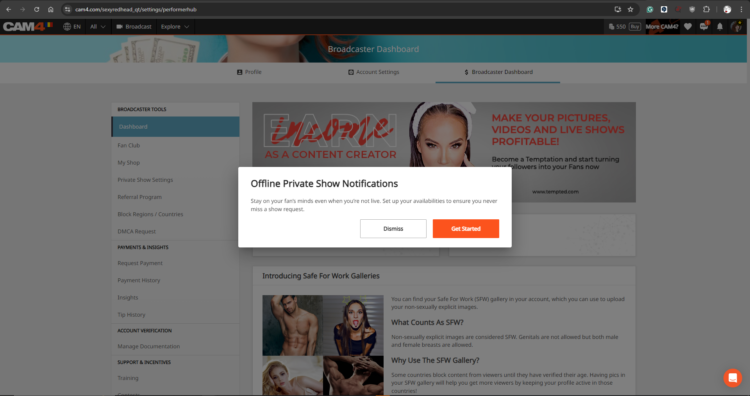
Never miss a private show request again: with Offline Private Show (OPS) notifications, fans can book at any time and you choose how you are alerted.

Offline Private Show (OPS) Notifications on CAM4

Receive private requests when you are offline, show your availability, set your rates, and choose notification channels: browser, app, email, or SMS.

Tip: activate multiple channels at the same time and put your calendar visibly on your profile for more bookings.

What is OPS and Why Use It?

With OPS, viewers can always make private show requests and view your schedule — you get notifications on the channels you choose. Perfect for keeping your audience engaged, even outside your regular show times.

OPS overzicht

Notification Preferences

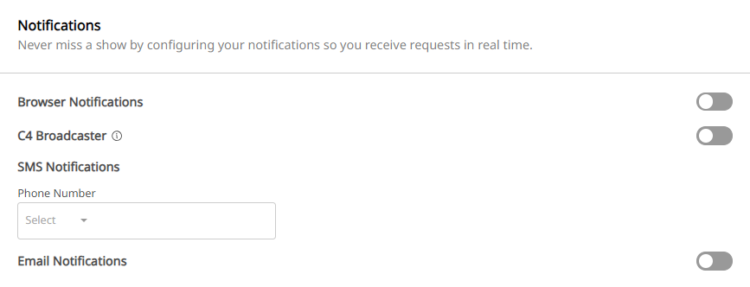
Personalize real-time notifications per channel: Browser, C4 Broadcaster App, Email, and SMS.

Personal Rates

Determine your Private Rates, set up Cam2Cam and Spying as you want.

Visible Calendar

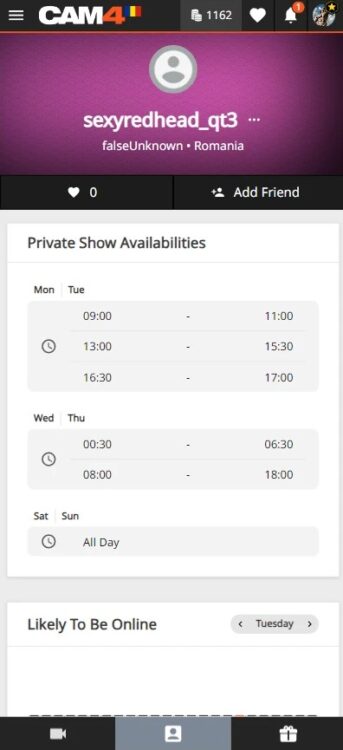
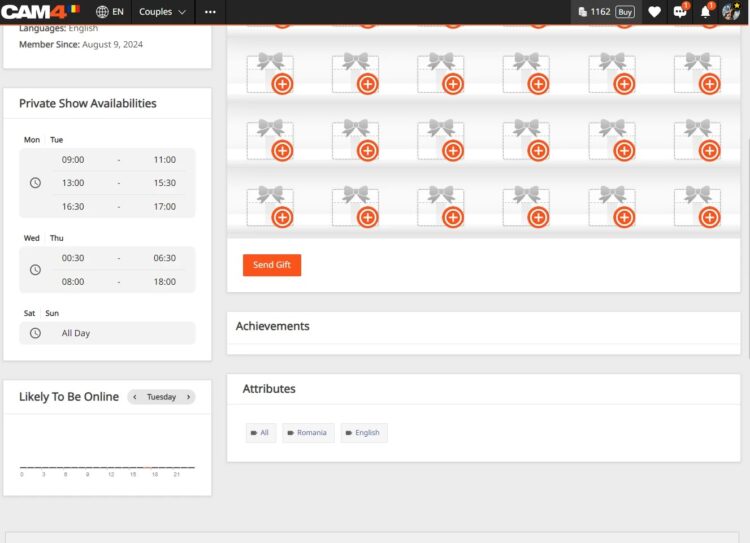
Publish up to 3 time slots; your schedule appears directly on your profile and in Messenger.

Kalender/zichtbaarheid

Setting Up OPS: How to Find the Options

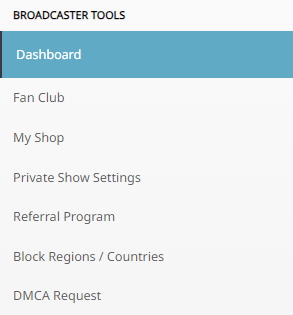
Log in, click on MENU (top right) → Performer DashboardPrivate Show Settings.

Navigatie naar instellingen

Important: OPS notifications are set to OFF by default. Set the switch to ON to activate.

OPS aanzetten

Notification Channels

Browser Notifications

Pop-ups on your screen as long as your browser (Safari, Firefox, Chrome) is open. Set “Browser Notifications” to ON.

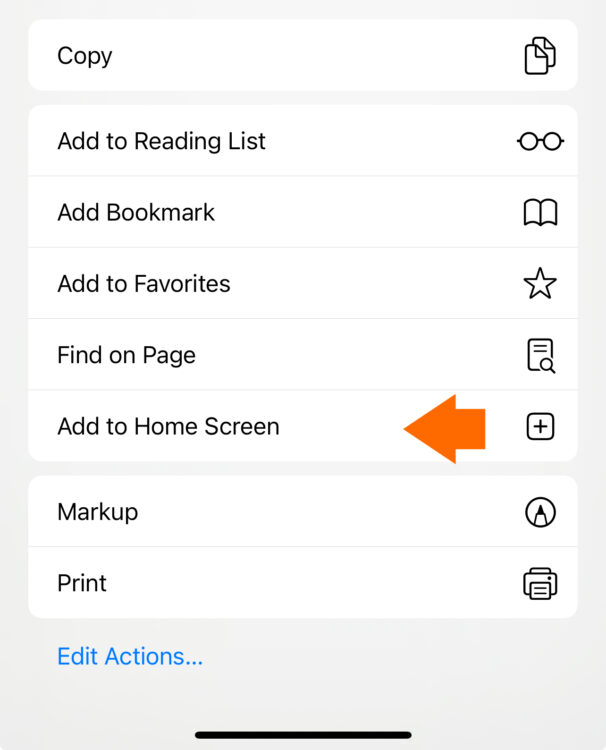
iOS Users: add the web app to your home screen and open it from there to receive notifications.

  1. Go to CAM4.com in your browser.
  2. Click on the download icon and choose “Add to Home Screen”. iOS icon
  3. Rename (optional) and confirm “Add”.
iOS add to homescreen C4 icoon

C4 Broadcaster App

Receive push notifications on your phone via the C4 Broadcaster App. Set “C4 Broadcaster” to ON in your OPS settings.

Email Notifications

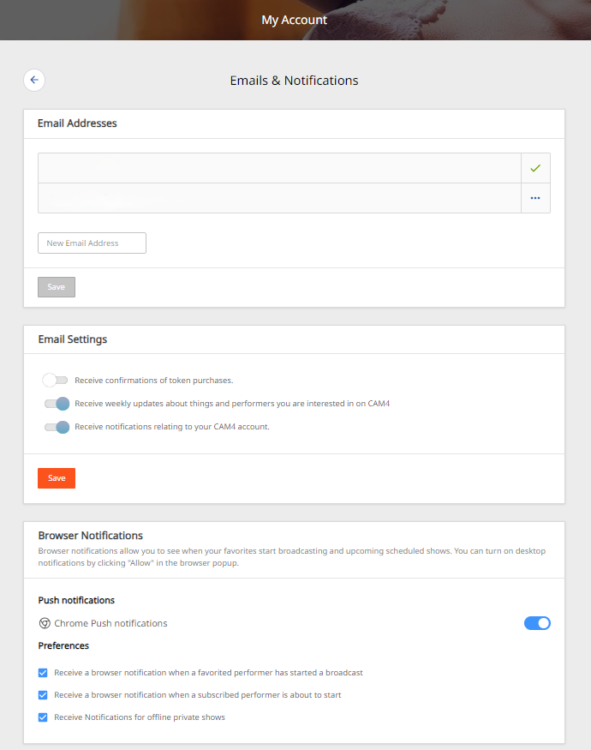
Keep a record in your inbox. In your email preferences, set “Receive notifications about your CAM4 account” to ON.

E-mailvoorkeuren

SMS Notifications

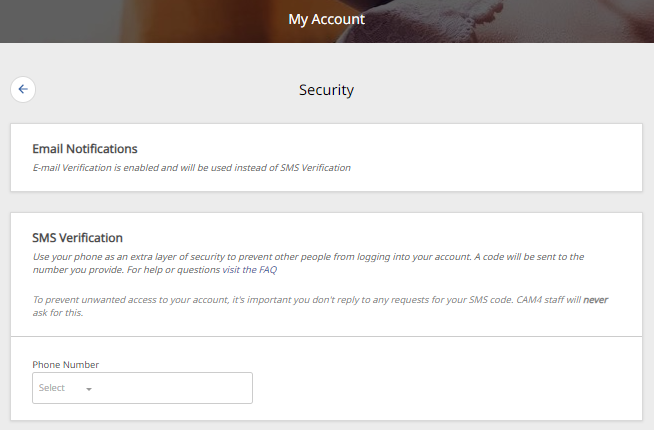
Receive an SMS with each private request. Add your mobile number in the settings.

Note: if 2FA is enabled, your SMS number must match the 2FA number.

SMS instelling

Price Settings for Private Shows

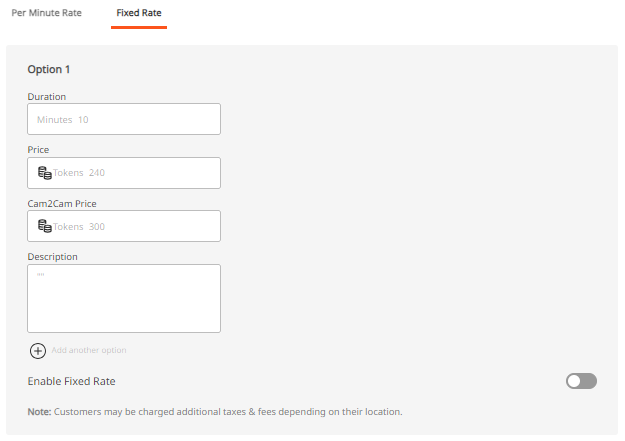
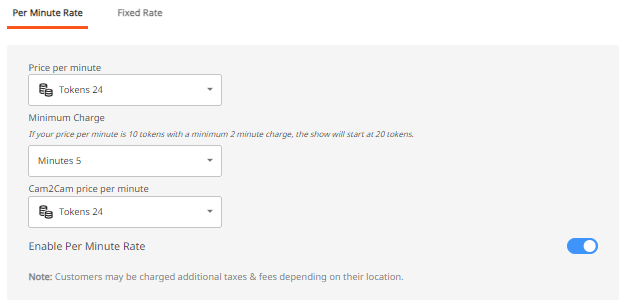
Set your prices as you want: per minute or as a fixed rate. Configure “Price Per Minute”, “Minimum Time Limit”, “Spy Per Minute Rate”, and “Cam2Cam”.

Prijsinstellingen 1
Prijsinstellingen 2

3 Useful Tips

  • Receive multiple notifications: activate more than one channel so you are always reached.
  • Adjust your availability: set time slots open when you accept private requests.
  • Show your schedule on profile & Messenger: increase the chance that fans will book when you are free.
Schema in Messenger Schema op profiel

With the right settings, your private show flow becomes more organized, responsive, and profitable.

GroupShows

Give an exclusive group show on CAM4: sell tickets, start on time, and stream only for paying viewers.

Group Shows on CAM4

A group show is an exclusive show for which viewers buy a ticket. Only ticket buyers see your stream — ideal for guaranteed, paying viewers.

Tip: announce your group show in advance and start no later than ~15 minutes after your intro.

What is a Group Show?

You sell tickets to viewers who want access. So it’s one performer for a group of paying viewers (not: multiple performers at the same time). Announce in time what happens in the show; the countdown shows when you start.

Groepshow instellen (voorbeeld)

How to Set Up Your Group Show

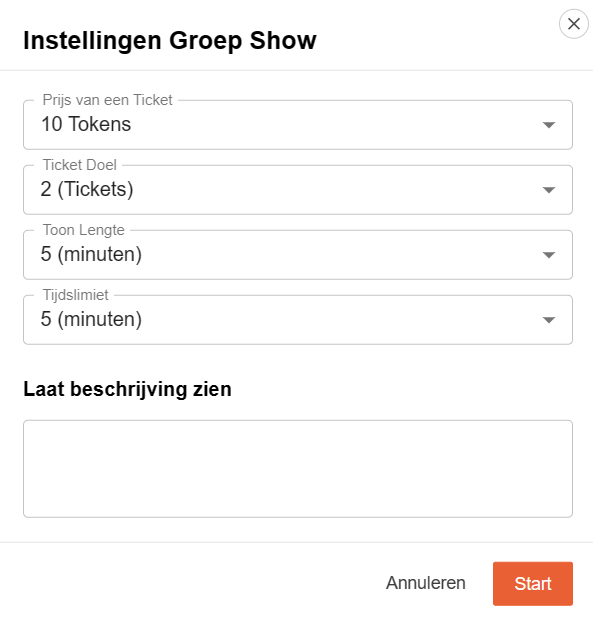
Settings in the Menu

  • Description: what can viewers expect?
  • Ticket price: your fixed price per access.
  • Minimum number of tickets for passage.
  • Duration of the show.
  • Countdown: how long people can still buy tickets.

Interface

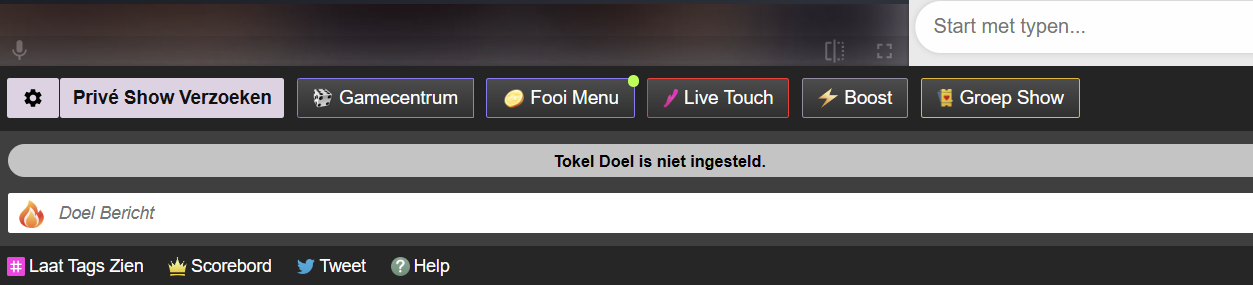
Find the Group Show options in your broadcast screen and set them as desired.

Groepshow menu

Don’t you sell the minimum? You can still start. If you don’t start, buyers will automatically get their tokens back.

Price & Expectations

Transparency to Viewers

The price viewers pay is higher than your token earnings; in many regions, VAT is added on top of that. Take this into account when setting your ticket price.

Regional differences (VAT/fees) are possible; viewers see a cost indication before purchase.

Quick Tips for Success

Tease & Announce

Use your Activity Feed to tease the show and mention time, duration, and highlights.

Clear Promise

Clearly describe what you are going to do. Clarity increases conversion.

Thank Buyers

Mention ticket buyers audibly/visibly and start on time to maintain trust.

Adding shows into your Calender

Let fans know when you go live: schedule your shows in your CAM4 calendar, gather followers, and increase the chance they’ll return.

Plan your shows with the CAM4 calendar

Fans can subscribe to your calendar via your profile and get a notification as soon as you go live. Easy to stay in touch, more returning viewers.

Tip: put themes, guests, and hashtags (#footfetish, #dominatrix) in your description for extra visibility.

Why planning works

Predictability

Fans know exactly when you’re live and can set a reminder.

More reach

Notifications to profile followers increase the chance they’ll return.

Flexible schedule

Plan up to 90 days in advance, a maximum of 5 shows per week.

How to schedule a show

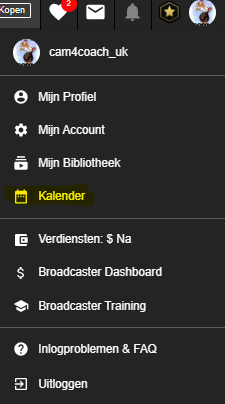
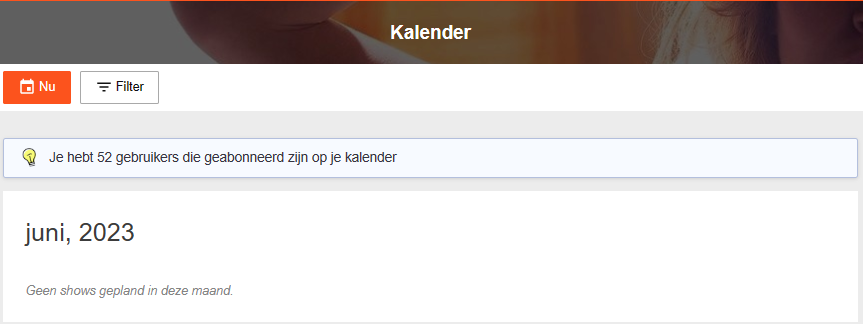
Log in to CAM4 and open your Avatar in the top left → Calendar. You’ll see your calendar, how many fans receive updates, and the “NOW” option.

Open calendar
Calendar details

Then the screen opens where you can schedule your show. Fill in:

  • Date — first month, then day, then year.
  • Start time — when does your show start?
  • Duration — how long will you broadcast?
  • Description — pitch your show: what can fans expect (theme, guest, goal)?

Click “Schedule New Broadcast” to confirm your scheduled show.

Make your announcement stronger

What do you mention?

  • Show type (tease, games, group show, private focus).
  • Goals or Tip Menu highlights (e.g. 25/50/150 tokens).
  • Hashtags for discoverability (#cam4, #liveshow + niche).

Timing

  • Schedule shows at fixed times (rhythm = recognition).
  • Post a reminder in your Activity Feed the same day.
  • Afterwards: thank you post with highlight (build loyalty).

Pro tip: announce special shows (guest/theme) a few days in advance and pin the post to the top of your Feed.

Lovense Toys

<section class=”cam4-article alignwide” lang=”nl”>
<p class=”preview-intro”>Make your shows more interactive: connect your toys to CAM4 and let tips feel real-time — the more tokens, the more intense the reaction.</p>

<style>
/* Basis */
.cam4-article{
–surface:#f5f6f8; –text:#1b1b1f; –muted:#6b6f7a; –brand:#ff7a00;
–radius:14px; –radius-sm:10px; –border:rgba(0,0,0,.08);
font-family:system-ui,-apple-system, Segoe UI, Roboto, Inter, Arial, sans-serif;
color:var(–text); line-height:1.6; background:transparent !important;
padding:0; margin:0; box-shadow:none !important; border:0 !important; border-radius:0 !important;
}
.cam4-article a{ color:var(–brand); text-decoration:none; }
.cam4-article a:hover{ text-decoration:underline; }
.cam4-article h1,.cam4-article h2,.cam4-article h3{ font-weight:800; color:#111; line-height:1.25; margin:0 0 12px; }
.cam4-article h1{ font-size:clamp(28px,4vw,40px); letter-spacing:-0.02em; }
.cam4-article h2{ font-size:clamp(20px,2.6vw,26px); margin-top:28px; padding-bottom:6px; border-bottom:2px solid rgba(255,122,0,.20); }
.cam4-article p{ margin:0 0 12px; }
.cam4-article ul, .cam4-article ol{ margin:6px 0 0 18px; }
.cam4-article .muted{ color:var(–muted); }
.cam4-article img{ max-width:100%; height:auto; border-radius:10px; display:block; }

/* Hero */
.cam4-article .hero{
background: radial-gradient(1200px 420px at 18% -10%, rgba(255,122,0,.10), transparent 60%),
linear-gradient(180deg, rgba(255,176,103,.06), transparent 40%);
border-left:6px solid var(–brand);
padding:clamp(16px,3.5vw,24px);
margin:0 0 18px;
}
.cam4-article .lead{ font-size:clamp(16px,2.2vw,18px); color:var(–muted); margin-bottom:8px; }
.cam4-article .stamp{ font-size:12px; color:var(–muted); display:block; margin-top:6px; }
.cam4-article .preview-intro{ margin:0 0 12px; }

/* Cards */
.cam4-article .cards{ display:grid; gap:12px; grid-template-columns:1fr; margin-top:10px; }
@media(min-width:720px){
.cam4-article .cards-2{ grid-template-columns:repeat(2,1fr); }
.cam4-article .cards-3{ grid-template-columns:repeat(3,1fr); }
}
.cam4-article .card{
background:var(–surface); border:1px solid var(–border);
border-radius:var(–radius-sm); padding:14px;
}
.cam4-article .card h3{
font-size:16px; margin-bottom:6px; position:relative; padding-left:10px;
}
.cam4-article .card h3::before{
content:””; position:absolute; left:0; top:8px; width:4px; height:14px;
background:var(–brand); border-radius:2px;
}

/* Note */
.cam4-article .note{
font-size:12px; color:var(–muted); border-top:1px solid var(–border);
padding-top:10px; margin-top:14px;
}

/* Failsafes */
.wp-block-group .cam4-article, .cam4-article.wp-block-group{
background:transparent !important; box-shadow:none !important; border:0 !important; border-radius:0 !important;
padding:0 !important; margin:0 !important;
}
</style>

<header class=”hero”>
<h1>Connect Lovense toys to CAM4</h1>
<p class=”lead”>Make your show more engaging and increase your tips: with every tip, your toy reacts directly — you determine the intensity per threshold.</p>
<span class=”stamp”>Tip: put your thresholds (e.g. 25/50/150 tokens) visibly in your description or Tip Menu.</span>
</header>

<section>
<p>Interactive toys make your shows more dynamic and give viewers direct feedback. You control the experience — they remember it.<br>
<b>Please note:</b> Live Touch/FeelConnect is <u>not</u> suitable for Lovense. Always use the official Lovense software.</p>
</section>

<section id=”lovense”>
<h2>Lovense integration</h2>
<p><b>Lovense</b> works great with CAM4. Use the <b>Lovense Browser Extension</b> or <b>Lovense Stream Master</b> to sync tips with your toy.</p>

<div class=”cards cards-3″>
<div class=”card”>
<h3>Step-by-step</h3>
<ul>
<li>Update Lovense app and firmware.</li>
<li>Install the extension or Stream Master.</li>
<li>Connect your toy and make a test tip (small amount).</li>
</ul>
</div>
<div class=”card”>
<h3>Tips for the show</h3>
<ul>
<li>Link thresholds to intensity/duration (e.g. 25/50/150 tokens).</li>
<li>Pin your thresholds visibly and repeat them aloud.</li>
<li>Use goals + Tip Menu for rhythm and transparency.</li>
</ul>
</div>
<div class=”card”>
<h3>Multiple toys</h3>
<p>You can use multiple Lovense toys at the same time. Test combinations in advance and keep an eye on the battery status.</p>
</div>
</div>

<h3 style=”margin-top:12px;”>Supported models (selection, 2025)</h3>
<div class=”cards cards-3″>
<div class=”card”>
<h3>Vibrators & wearables</h3>
<ul>
<li>Lush 4, Lush Mini, Lush 3</li>
<li>Ferri (panty vibrator)</li>
<li>Ambi, Exomoon (bullet/lipstick)</li>
<li>Mission 2, Osci 3, Dolce, Flexer</li>
<li>Tenera 2 (clitoral suction)</li>
</ul>
</div>
<div class=”card”>
<h3>Rabbit & G-spot</h3>
<ul>
<li>Nora (all generations)</li>
<li>Lapis (strapless strap‑on)</li>
</ul>
<h3 style=”margin-top:10px;”>Masturbators</h3>
<ul>
<li>Max 2 (and older Max)</li>
<li>Calor</li>
<li>Solace / Solace Pro</li>
</ul>
</div>
<div class=”card”>
<h3>Prostate & penis</h3>
<ul>
<li>Edge 2 (and older Edge)</li>
<li>Gush 2 (and older Gush)</li>
<li>Diamo (cockring)</li>
</ul>
<h3 style=”margin-top:10px;”>Anal / Wands / Specials</h3>
<ul>
<li>Hush 2 (all sizes), Hush (older gen.)</li>
<li>Domi 2 (and older Domi), Gravity, Hyphy</li>
<li>Gemini (nipple)</li>
<li>Lovense Sex Machine (mini & full)</li>
</ul>
</div>
</div>
<p class=”muted”><b>Disclaimer:</b> This list is a selection. Compatibility may change due to new firmware or models. Always consult the official <a href=”https://www.lovense.com” target=”_blank” rel=”noopener”>Lovense website</a> for the most up-to-date information.</p>
</section>

<section>
<h2>Best practices</h2>
<div class=”cards cards-3″>
<div class=”card”>
<h3>Test in advance</h3>
<p>Test connection, intensities and thresholds before you go live. Have a short demo tip ready to let your audience experience the effect.</p>
</div>
<div class=”card”>
<h3>Communicate clearly</h3>
<p>Keep thresholds short and visible. Repeat them to newcomers and thank them for each trigger (name + what happens).</p>
</div>
<div class=”card”>
<h3>Boundaries & rules</h3>
<p>Stay within your comfort zone and CAM4 rules. Set time-outs/cooldowns if you want to control the pace.</p>
</div>
</div>
</section>

<section>
<p class=”note”>Quick recap: always use Lovense software (extension or Stream Master), test in advance, set clear thresholds and communicate them. Update apps/firmware and keep batteries ready. Consistency = more experience and more tips.</p>
</section>
</section>

Token Indicators + user badges

Get direct insight into who’s in your room: with the CAM4 Token Indicator you recognize big tippers, read the chat smarter and steer your show more effectively.

More insight with the CAM4 Token Indicator

See at a glance who recently tipped, recognize big spenders and focus your energy where it pays off — directly in your chat.


Tip: link your goals and Tip Menu to what your “colored” viewers show for maximum conversion.

What is the Token Indicator?

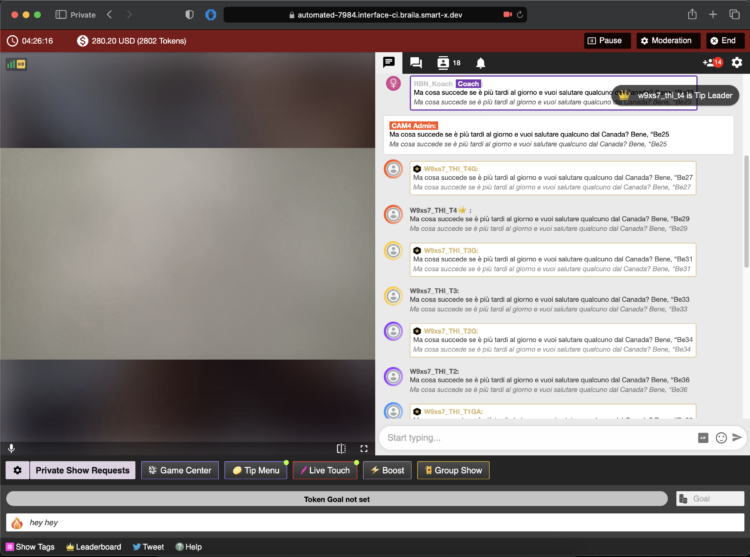
The Token Indicator shows in your CAM4-chat how much a viewer has spent in the last 14 days.
Color-coded names and badges (such as GOLD, Fanclub or Moderator) help you quickly assess how involved someone is.

CAM4 chat with token indicator

Colors based on spending

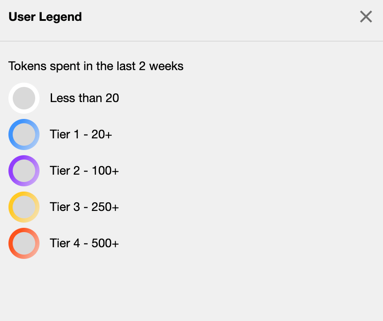
Everyone in your chat gets (if applicable) a color based on tokens spent in the last 14 days.

Color levels legend

Whatever color you see — greet these viewers warmly and involve them in your goals. Often regular visitors are your next top tippers.

Badges and roles in the chat

In addition to colors, you see different icons and labels. This way you know directly who is speaking:

Token icon

Indicates that a viewer currently has tokens available.

Token icoon

Your messages

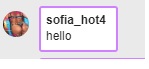
This is what your chat messages look like as a creator during the broadcast.

Creator in chat

GOLD member

Viewers with a Gold subscription and extra features. Their status is independent of their token balance.

Gold member icoon

Moderator

Helpers you designate with tools like mute, kick and ban (only in your room).

Moderator icoon

Regular member

A registered CAM4 user without a Gold subscription.

Normaal lid icoon

Admin (CAM4 Crew)

Official CAM4 staff who provide support and oversee the rules. They never ask for your password.

Admin icoon

Coach (CAM4 Crew)

Selected CAM4 coaches who support creators and provide training.

Coach icoon

Smart use of newcomers

Binnenkomer melding

You immediately see when someone enters your room (like this example of a Gold member). Use that info wisely: greet new “colored” viewers, link your goals (“120 more to Goal 2”) and highlight 1–2 popular Tip Menu items. This increases your chance of tips — without pushing.

Pro tip: have a few short sentences ready to name thresholds (“80 more to Goal 1”), thank them for each unlock and name 1–2 menu-suggestions (e.g. 25/50/150 tokens).

What is SFW

SFW profile photos: why they’re essential for your visibility and earnings on CAM4.

SFW Profile Photos: Maximum Visibility, Maximum Earnings

A Safe For Work (SFW) profile photo is the key to worldwide visibility. Without an SFW photo, you remain invisible in important markets and search engines.

SFW means: sexy and attractive, but not explicit. Suitable for all platforms and search engines.

What Does SFW Mean?

SFW stands for Safe For Work. This means your profile photo is suitable to be shown anywhere online — including on platforms and search engines with strict content rules.

SFW photo = sexy and attractive, but not explicit.

Think of it as an advertising photo: enticing enough to attract attention, but safe enough not to be blocked anywhere.

Why Is an SFW Photo So Important?

Very simple: no SFW photo means less visibility — and therefore less income.

Invisible in Many Countries

Without an SFW profile photo, you won’t be shown in search results in countries like the US, Canada, Australia, and large parts of Europe.

Blocked by Search Engines

Search engines block profiles without an SFW photo. This means you miss out on traffic from people actively searching online.

Stricter Regulations

Platforms must comply with international regulations. An SFW photo protects your own visibility.

What Is a Good SFW Photo?

✅ This Is Allowed

  • Swimsuit, lingerie, or bikini
  • Provocative pose, but fully clothed
  • Close-up of your face (optional)
  • Full body photo in a nice outfit
  • Suggestive close-up without explicit details
  • Good lighting and clear quality

Tip: A photo that’s just too explicit can often be made SFW with smart cropping.

❌ This Is Not Allowed

  • Full nudity (visible breasts or genitals)
  • Sexual acts
  • Toys in use
  • Underwear where everything is visible
  • Extreme close-ups of intimate body parts

Do You Have to Show Your Face?

No. You don’t have to be recognizable. Many models choose, for example:

From Behind

Body photo without face

Accessories

Hat, sunglasses, or shadow

Partially

Face partly out of frame

Focus on Body

Full body photo without face

As long as your photo is SFW, you are visible worldwide.

Examples of Good SFW Photos

  • A stylish dress or lingerie set
  • Swimsuit photo by the pool or beach
  • Artistic photo with beautiful lighting
  • Sexy pose, but fully clothed
  • Close-up of lips, shoulders, or neck

Example of an SFW profile photo

Summary

✅ With SFW Photo:

  • Visible worldwide
  • More viewers
  • More income

❌ Without SFW Photo:

  • Invisible in many countries
  • No viewers
  • No income

It’s really that simple: upload a good SFW photo today and immediately expand your reach.

Games

Games energize your show, break the ice, and often lead to more tips — here’s how to use Token Keno, Spin the Wheel, and Roll the Dice smartly.

Play Games in Your CAM4 Shows

Games are perfect for starting your show, creating atmosphere, getting to know your audience, and earning tokens.

Tip: Keep rules and prizes visible (overlay/board/description) and link them to your goal bar.

Token Keno

There are 12 boxes; for each box, you choose an action/prize and the price in tokens. Viewers choose a box live, and you perform the corresponding action.

Battleship Variant

Hide “ships” behind the 12 boxes and mix small and larger rewards. Viewers “fire” at coordinates until the ship “sinks.”

  • Small reward: compliment, 30-sec dance, close-up.
  • Larger reward: outfit change, prop/toy intensity up, mini-game of choice.

Duo Fun (Sets/Group)

Fill boxes with fun duo assignments (within your boundaries/rules):

  • Blindfold assignment with surprise objects (safe and visible).
  • Yoga/pose challenge for the partner.
  • Playful prop/toy interaction (within platform rules).
  • Audience chooses a fun challenge or compliment round.

Spin the Wheel

Fill 12 options and choose a fixed price per spin. Clear, short descriptions work best.

Hangman

Let viewers buy letters to guess a word/phrase. The winner gets a reward (e.g., shout-out, chosen song, mini-challenge).

  • Keep the puzzle visible (board/overlay).
  • Setting max rounds prevents overrun.

Roll the Dice

Viewers tip to roll; the number of eyes determines the action. You determine the 6 actions and the price per roll.

  1. Choose 6 actions (short, fun, achievable).
  2. Set the price per roll.
  3. Activate your cooldown (standard ~60 sec) to be able to perform actions neatly. You can give “Allow Roll” earlier to speed up.

POV Switch

Choose 6 cam angles (e.g., full, close-up, detail, wide, low, shoulder). The roll determines the next POV.

Mini-Sale

Make 1 outcome a 10-minute “sale” (temporarily lower prices). Put this visibly in the picture with the username of the trigger.

Chase

Hide one “big” reward behind a roll and move it after each hit. Tension guaranteed.

Wheel of Fortune (board/balloons)

Make rows with numbered boxes or balloons. The die determines from which row may be chosen; behind each box is a prize or action.

Game Variation

  • “Forbidden word”: chat chooses a word that you are not allowed to say for 5 min. Violation = fun counter-performance (e.g., dance, pose, tongue-twister).
  • Do/Dare/Truth (PG-friendly and within your boundaries).
  • Record short clip/boomerang and post later in your Activity Feed.
  • Talk 2–5 minutes in a funny accent or with a theme.
  • Start a 60-second dance party with chat countdown.
  • Players choose a prop for a playful assignment (safe/rules).
  • Small workout: 10 squats, 10 jumping jacks, 30-sec plank.
  • Acting challenge: over-the-top soap scene or film quote imitation.

Keep everything within your boundaries and the CAM4 rules. Small, clear, and quickly executable works best — and ensures flow in your room.

Social Media

Smart social media = more visibility, more viewers, and a stronger community around your CAM4 shows.

Social Media — Use it to Reach a Larger Audience

Reach new viewers, build a loyal community, and drive traffic to your CAM4 room with a simple, consistent social strategy.

Tip: Schedule regular posts around your shows (teaser beforehand, live notification, thank you afterward) and make your CAM4 link visible everywhere.

How to Use Social Media

Post consistently! Variety and regularity keep you top-of-mind. More interaction = more reach = more chance that viewers will find your show.

Content Mix

  • Images, short videos, polls, and personal updates.
  • Behind-the-scenes and reminders for your next show.
  • Post teasers and direct followers to your full-content platform.

Planning

  • Make yourself a simple schedule: e.g., 1 post daily.
  • Announce shows well in advance + post a reminder.

Engagement

  • Respond to comments/DMs (short, friendly replies).
  • Ask questions and use polls to start conversations.

A Strong Bio

Your profile is your digital business card. Briefly tell who you are, your style, and where people can find you.

What to Include

  • 1 sentence about your vibe/style.
  • What viewers can expect.
  • Link to your CAM4 profile (Check the platforms rules)

Quick Writing Tip

Think like a fan: what would you want to read about your favorite creator? Use that as inspiration.

Ensure Clear Links

  • Put your CAM4 link in your bio and pin it where possible.
  • Repeat your link in show announcements and updates.
  • Use link stickers or “link in bio” where direct links are limited.
  • Every social platform is different as far as what they allow and don’t. Make sure that you are following their rules before adding your links and content.

Use Hashtags Wisely

Hashtags increase your discoverability. Use them consistently and appropriately for your content.

  • Examples: #cam4, #liveshow, #streaming + your own creative tags.
  • Mix broad and niche tags; don’t overdo it (quality > quantity).

Share Your Mentions

Are you being mentioned or promoted? Share it again (retweet/repost/share). Social proof increases your credibility and reach.

Key Platforms

X (x.com) / Twitter

  • Allows nudity/adult (within rules).
  • Ideal for show announcements and direct links.
  • Use hashtags, tags, and retweets for reach.

Instagram

  • Strict rules: no nudity; lifestyle/suggestive is possible.
  • Reels & Stories for engagement.
  • Link in bio to your CAM4 profile.

Facebook

  • Strict rules: no nudity.
  • Fan pages and community building.
  • Use a separate account for privacy.

TikTok

  • No nudity; large reach with short, creative videos.
  • Use trending sounds and hashtags.
  • Subtly refer to your other socials/CAM4.

Bluesky

  • Emerging platform (similar to X).
  • Relatively spacious, but rules may change.
  • Be active early and build an audience now.

Summary

Socials change, but the core remains: be visible, creative, and make it easy to follow you. Choose platforms that suit you, post consistently, and put your CAM4 link front and center — this maximizes your reach and income.

Quick recap: content mix + planning, strong bio, clear links, relevant hashtags, share social proof, and time your show moments smartly.