Skapa en oemotståndlig profilsida: snygg, visuell och tydlig = fler visningar, tips och lojala fans.
Skapa en oemotståndlig profilsida på CAM4
Din profil är ditt visitkort: snygg, visuell och tydlig = fler visningar, tips och lojala fans.
Tips: Designa minst 1200 px bred för ett skarpt utseende på skrivbordet.
Grunderna: Gå live i 3 steg
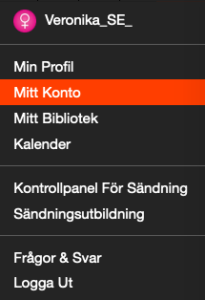
Gå till “Mitt konto” i menyn.
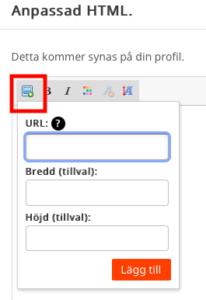
Ladda upp dina bilder via fotoikonen (värd dem via en webbplats som ImageShack).
Lägg till en kort text, färger och länkar som matchar din stil.
Design, sociala medier och synlighet
Snabbt snygg design
Skapa något själv med Canva eller ta det professionellt med Photoshop. På så sätt sticker du ut direkt.
Om mig
Berätta kort vem du är, din stil och vad tittarna kan förvänta sig av dina shower. Håll det lekfullt och äkta — det fungerar bäst.
Tipsmeny
Ange dina handlingar och priser tydligt. Färre frågor, fler tips, mer flöde i din show.
Visa vad du erbjuder
Inte online? Inga problem! Tack vare ditt aktivitetsflöde kan fans fortfarande gilla dina inlägg, kommentera och… skicka dig tips. På så sätt fortsätter du att tjäna bra offline.
Använd ditt flöde smart: publicera uppdateringar, teasers eller foton och påminn tittarna om att de också kan ge tips där.
Läs mer om: Aktivitetsflödet
Sociala medier synliga
Länka dina X/Twitter och andra sociala medier snyggt. Fans vill också följa dig utanför CAM4 — på så sätt bygger du snabbare en lojal community.
Läs mer om: X/Twitter-grunder
Gott intryck räknas
En stark design lockar rätt tittare och leder ofta till fler tokens. Streamar du och tjänar bra? Då får du ett erbjudande från oss om en gratis profildesign. Vill du ha en själv direkt eller vill du ha en ny? Det är också möjligt för 250 tokens.
Checklista: tydlig header, fräscha bilder, kort “om mig”, tipsmeny synlig, sociala medier länkade och ditt flöde aktivt. Uppdatera din profil månadsvis.
Att veta vad du ska ta betalt är lika viktigt som hur din show ser ut. Tydliga priser hjälper dina tittare – och din plånbok.
Tips: Sätt upp dina mål i förväg och håll dig till dem för mer självförtroende och tips.
Hur vet jag vad jag ska ta betalt?
Börja med din önskade inkomst och arbeta bakåt. Detta håller det realistiskt och uppnåeligt.
1) Bestäm ditt minimum
Vad är det minsta du vill tjäna per månad för att täcka dina fasta kostnader?
2) Bestäm ditt “bekväma” mål
Vad känns bra för att leva bekvämt? Inte för högt, men utmanande.
3) Dela upp det över din sändningstid
Dela ditt mål med antalet shower/timmar. Detta ger dig ditt mål per show.
Gör dina mål små – mikromål håller spänningen vid liv och ger tittarna snabba “vinster”.
Exempel: Vill du ha 1000 tokens (~100 USD) per show? Dela upp det i 4 mål på 250 tokens.
Mål 1: 250 tokens = naken
Mål 2: 250 tokens = oljeshow
Mål 3: 250 tokens = leka med dig själv
Mål 4: 250 tokens = komma (endast om du mår bra med det)
Proffstips: Håll dig till dina mål. Om du fortsätter att ändra dem verkar det som om du tvekar – tittarna märker det direkt.
Snabba triggers som alltid fungerar
Gör små, direkta åtgärder lättillgängliga. Detta uppmuntrar till mer frekvent dricks.
Tunga = 1 token (någon ger 1 token dricks → du sticker ut tungan kort – lekfullt och roligt)
“Snabb visning av bröst” för ett kompakt antal tokens
Använd din tipsmeny
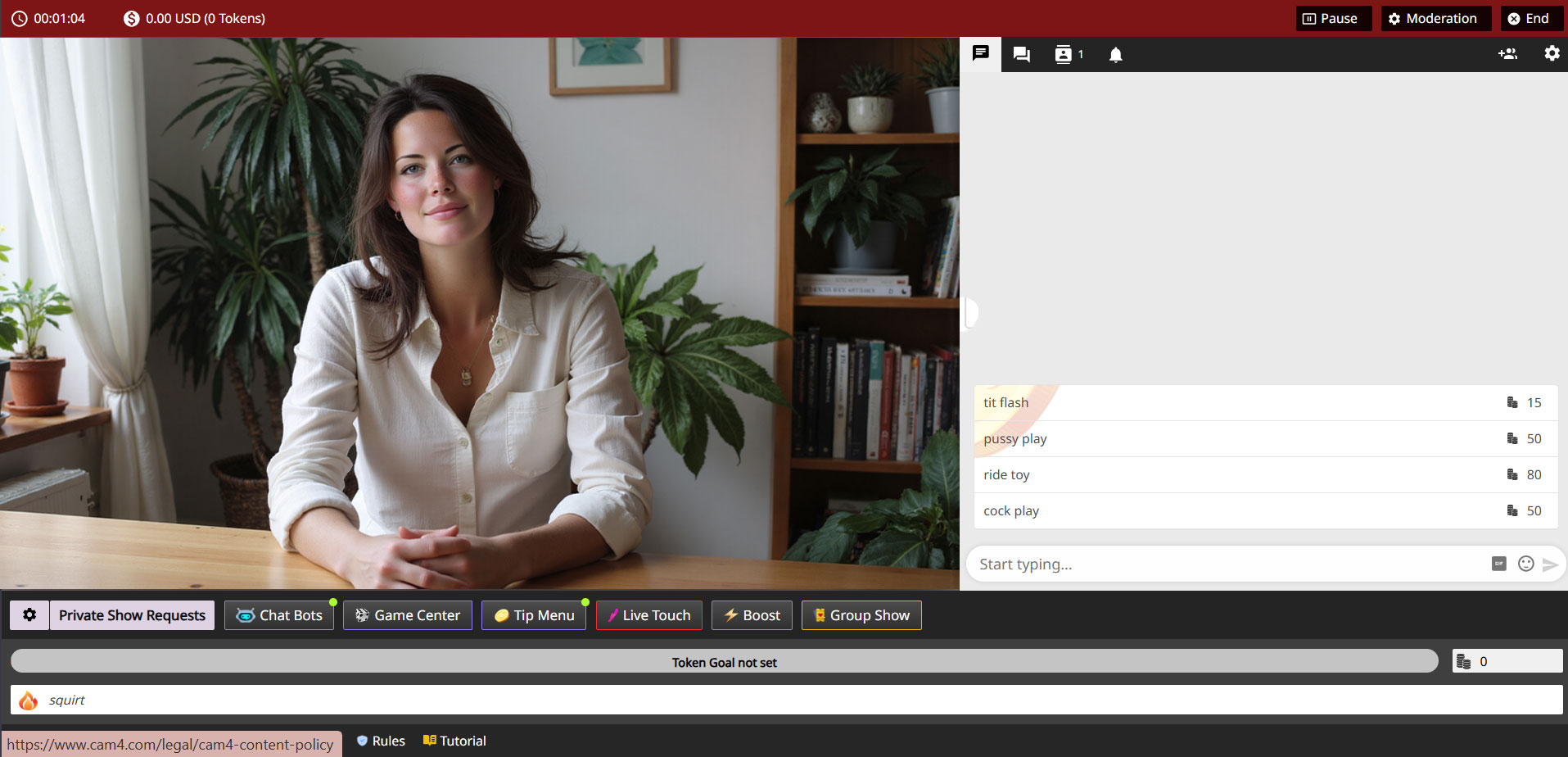
Undvik frågor som “vad kostar det här?”. Din tipsmeny gör det tydligt vad du erbjuder och till vilket pris. Du hittar den i fältet under din sändningsskärm (även justerbar i en privat sändning).
Rumpa25 tokens populär
Bröst25 tokens
Vagina50 tokens
Tunga1 token
Oljeshow150 tokens
Privat meddelande20 tokens
Viska namn10 tokens
Låtönskning15 tokens
Dans (1 min)40 tokens
Byta kläder60 tokens
Hämta leksak80 tokens
Anpassad (ditt val)—
Rekommenderade priser som vi ofta ser: Rumpa = 25 • Bröst = 25 • Vagina = 50. Du bestämmer alltid dina egna priser och gränser.
Att göra
Var kristallklar med dina priser och vad du erbjuder.
Dela upp din show i små mål för konstant framsteg.
Tacka de som ger dricks och nämn uppnådda mål högt.
Testa, utvärdera och justera din meny baserat på vad som fungerar.
Var uppmärksam
Ändra inte dina mål mitt i showen.
Håll dig inom dina gränser och inom plattformsreglerna.
Var konsekvent: Det som står på din meny levererar du också.
Viktigt: Följ lokala lagar och plattformsregler. Endast artister över 18 år och samtycke krävs alltid.
We’ll tell you everything here — short, clear, and applicable.
The secrets to becoming a TOP webcam model on CAM4
This article helps you get off to a flying start for more viewers, more interaction and more tokens — without unnecessary complexity. Focus on your Activity Feed and Fanclub for reach and stable income.
Tip: work with clear goals, a clear Tipmenu and a consistent posting cadence on your Feed.
1) Start here: account, verification & payout
Before you can go live: verify your age/identity and set up your payout in 10 minutes. Block countries/regions if necessary.
Account & ID‑check (2257)
All performers (18+) must be ID‑verified. This also applies to duos/groups — everyone on cam must be verified.
Set a fixed price per private message and mention this in your bio or Feed. Use it for short questions, personal responses and quick requests — within your boundaries and platform rules.
Price indication
Start simple and test: many models start between 1-2 tokens/message. Increase when busy, decrease for more volume.
Useful example sentences
“Want a personal shoutout? Pay per Text is on.”
“Ask your question in DM — 1-2 tokens per message.”
Use Token Keno, Spin the Wheel and Roll The Dice for extra excitement and income. Let viewers bet tokens and link creative rewards to outcomes (assignment, piece of clothing off, special interaction).
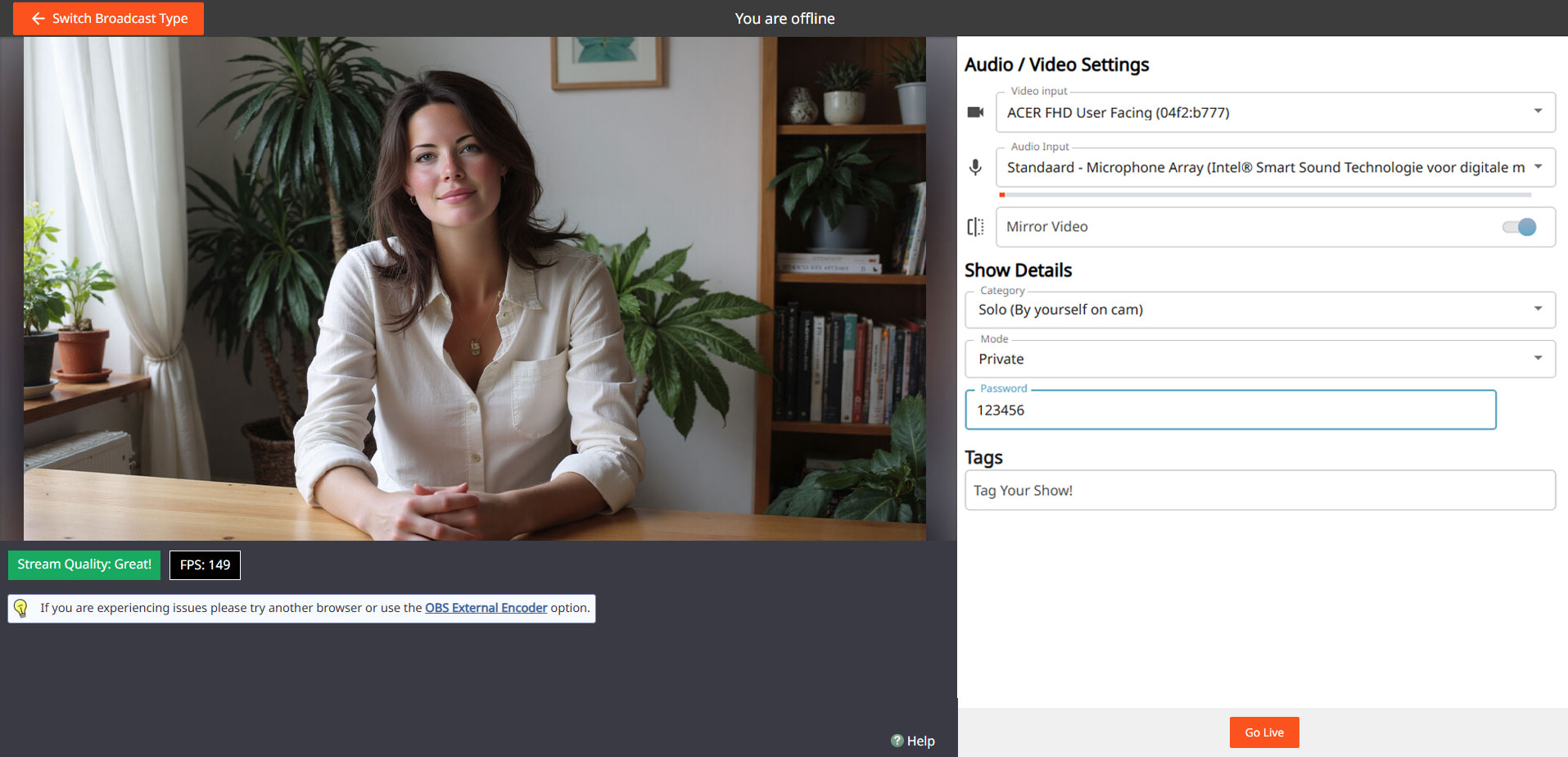
Innan du går live för första gången kan du öva med en lösenordsshow först. På så sätt kan du i lugn och ro upptäcka hur sändningen fungerar — utan direkta tittare i ditt rum.
Tips: Använd detta som din “generalrepetition” för att minska stress och gå live med självförtroende.
Vad är en lösenordsshow?
En lösenordsshow är en privat sändning som endast är tillgänglig för personer med det lösenord du anger. Du kan bara behålla detta lösenord för dig själv så att du kan öva helt privat.
Öva: vad ska du testa?
1) Utforska knapparna
Se hur din kamera kommer in i bilden, var du ställer in dina mål och hur du gör tipsmenyn synlig.
2) Testa din installation
Kontrollera ditt ljus, ljud, bakgrund och kameraposition utan tryck från tittarna.
3) Öva ditt flöde
Gå redan igenom hur du vill bygga upp en show: från hälsning till att arbeta med mål och menyer.
Gör det till en övningsshow — använd mikromål som om du vore live. På så sätt lär du dig hur mål ser ut i bilden.
Mål 1: 10 tokens = kontrollera hur målet ser ut
Mål 2: 20 tokens = testa ljud och musik
Mål 3: 30 tokens = byt kameraposition
Proffstips: skriv ner anteckningar under din lösenordsshow — vad fungerar bra, vad vill du justera?
Varför detta är smart
En lösenordsshow ger dig:
Lugn och ro att lära känna plattformen tekniskt
Självförtroende innan du går live för en stor publik
Mindre risk för stress eller tekniska fel under din första riktiga show
Ställa in en lösenordsshow
Gå till din sändningsskärm, välj “Show Type” och välj Password Show. Ange ett lösenord och behåll det bara för dig själv om du bara vill öva.
Steg:
Öppna sändningsskärmen Välj “Lösenordsshow”
Ange lösenord
Gå live & testa
Du kan senare använda samma process för att göra en privat show med en utvald grupp fans.
Do’s
Använd lösenordsshowen som ditt övningsutrymme
Testa både kamera och ljud utförligt
Se hur mål och tips visas i bilden
Känn dig fri att öva flera gånger innan du går “riktigt” live
Var uppmärksam
Glöm inte att återställa dina inställningar till en vanlig sändning efter din lösenordsshow
Ge inte bara bort ditt lösenord om du verkligen vill öva privat
Håll dig alltid inom dina egna gränser och plattformsregler — även i en lösenordsshow
Viktigt: följ lokala lagar och plattformsregler. Endast 18+ artister och samtycke krävs alltid.
Although the UK is not subject to DAC7, we are updating our processes to align with global standards, including similar European regulations like DAC7. These changes mean we need to collect additional information from broadcasters/creators to process payments. Providing accurate information is essential to avoid issues with payouts.
Why are we collecting this information?
To comply with international transparency standards, we are required to gather specific details from our users. These regulations aim to prevent tax fraud and ensure payments are processed correctly. While DAC7 applies to the EU, aligning with these standards allows us to maintain a consistent and secure platform for all users, including those in the UK.
What information do we collect?
We may request details such as:
Your full name
Your address
Your National Insurance Number (NIN)
These details are necessary for compliance with tax regulations and transparency standards. Your information will only be used for these purposes and shared with tax authorities as legally required.
What is a National Insurance Number, and where can you find it?
Your National Insurance Number (NIN) is a unique identifier issued by the UK government for tax and social security purposes.
You can find it on:
Payslips
Tax return documents
Your personal tax account on the HMRC website
National Insurance card (if issued)
Official letters about tax, pensions, or benefits
What if you don’t have a fixed address?
If you’re traveling or don’t have a permanent residence, determining your tax residency can be more complex. Generally, your tax residency is the country where you spend more than six months (183 days) in a year. We recommend reviewing the tax laws of the countries where you’ve stayed to identify your tax residency.
Does this mean authorities will know what you do on the platform?
No. We only report payment transactions based on the information you provide. The nature of your activities on the platform will not be disclosed.
What happens if you don’t provide the required information?
Starting January 2025, providing this information will be mandatory to continue receiving payments. If the required details aren’t submitted, we won’t be able to process your payouts. Submit your information on time to avoid any interruptions.
When and how do you submit your information?
We will begin collecting this information in December. Once you log in, you’ll receive instructions on how to securely submit your details.
What happens to your information?
Your information will be used exclusively to comply with regulations like DAC7 and similar global standards. It will be shared with relevant tax authorities as required by law and handled in accordance with applicable privacy laws.
We have heard your feedback and elevated your DM experience.
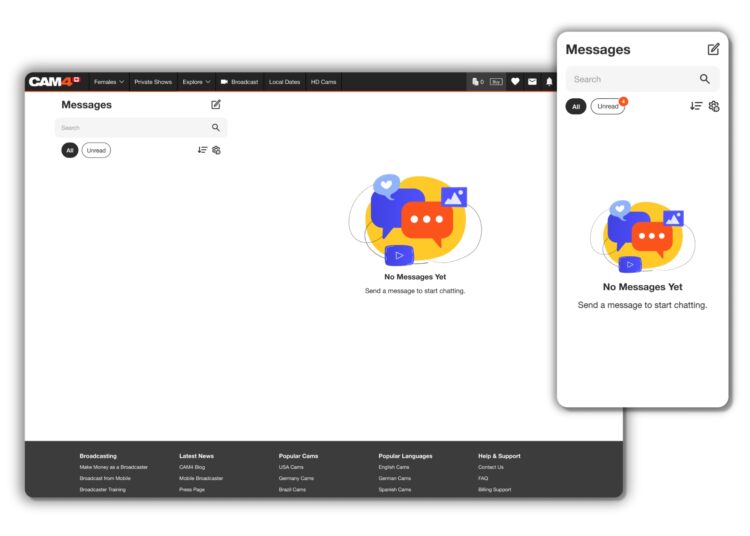
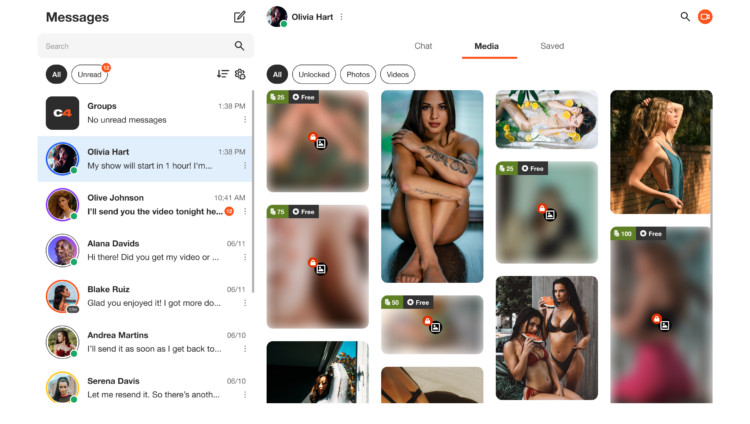
To support you as you become familiar with messenger’s great features, we have provided you with an easy to follow guide to all of the Chat and Media functionality, and so much more!
The first thing you’ll notice about this new communication tool is how much easier it is to use, as well as it providing far more than just the ability to chat!
BENEFITS OF USING CAM4 MESSENGER
Increased Privacy – Create connections with only the users that you choose though chat and Private shows.
Filtering Options – Easy access to important information and content.
Monetization – Earn tokens while chatting through tipping, selling content, gifting, and Private shows.
Mobile Friendly – Now it’s easy to use our new Messenger tool on the go!
CHAT UPGRADES
As well as the common features, such as saving, replying, deleting, adding Gifs, and Emojis, you now have additional tools to make messages stand out and have control over who messages you. Let’s break down a few of them for you.
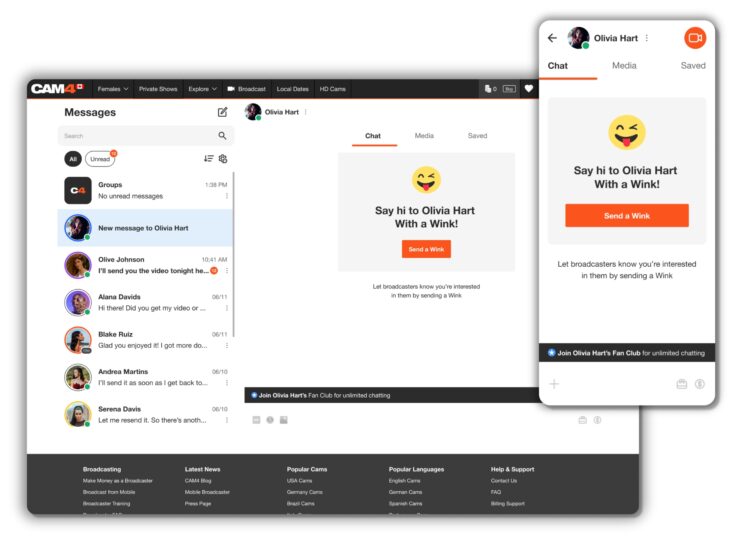
WINKS Wink’s are sent from Non-gold users who would like to chat with you. The ability to type in the chat will only be enabled once you reply to their wink.
Gold users can message anyone they want – No winks needed!
SELL CONTENT
With this feature within the Media functionality of Messenger, you can add content from your ‘Media’ directly into the chat, allowing the user to purchase and enjoy.
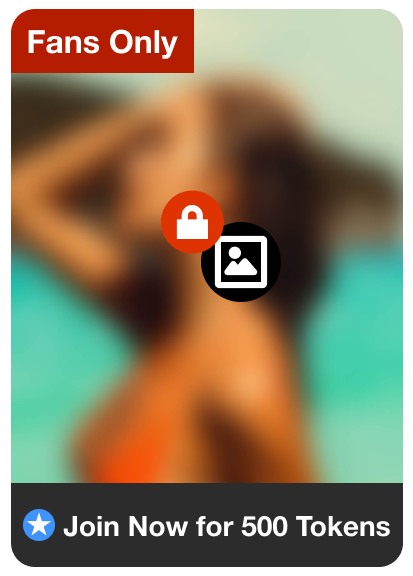
FAN CLUBS You can share your Fan Club Content via the chat. This will allow you to promote your ‘Fan Club’, and the user can simply click on the link to view it. They will then be prompted to join, and once they have, the content will be visible to them in the chat.
HOST A PRIVATE SHOW
Offer Private Shows at any time through Messenger!
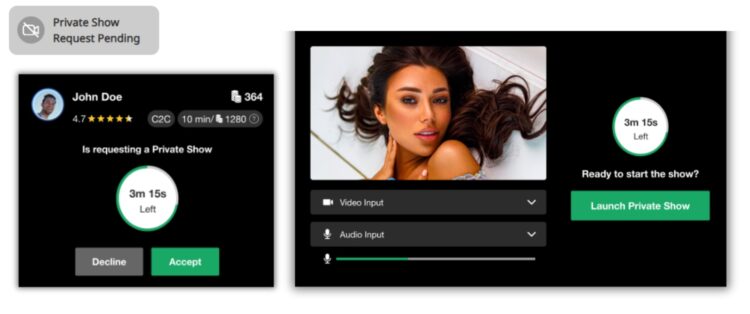
Don’t worry about going live on your profile, your users can now request a Private Show directly with you from Messenger!
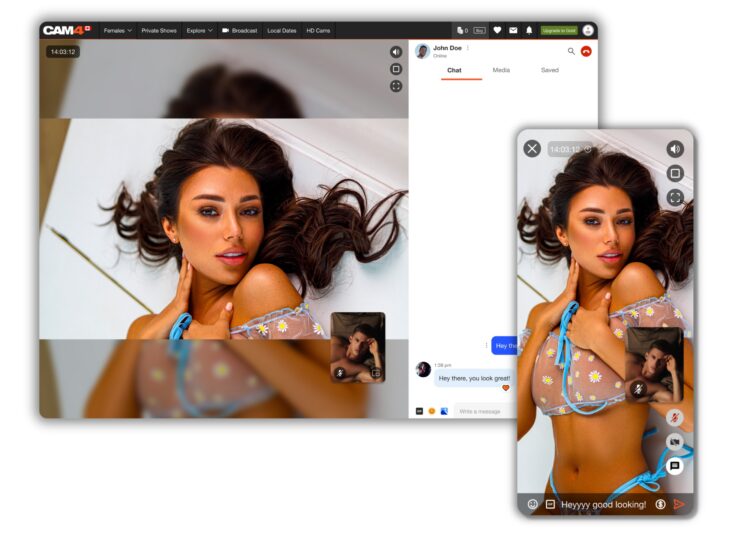
This super function allows both creators and users to enjoy some alone time, without the possibility of others spying. Turn on Cam2Cam or keep it a 1-way private show – whichever you both want to explore.
You can start the Private Show yourself by simply clicking on the camera icon at the top right of the chat window – another great feature to make the process quick and easy.
Remember – once the show has ended, the user can rate the show, a great way to gain feedback. Also, the earnings gained from the show will appear in the chat, giving you instant insight without having to review your account.
SAFETY AND INFORMATION
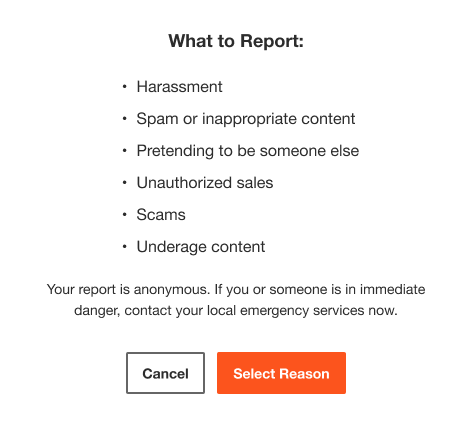
REPORTING USERS
Fill out and submit a report form to our support team to investigate. Note: this will not remove the user’s ability to contact you.
BAN USERS This facility will mean that the user will be removed from your chat and also banned from your shows. The user will still be able to see the chat, as well as any media they have purchased from you, but they won’t be able to contact you. Additionally, your username will no longer appear in any searches by the user.
CHAT BOT “SPARK”
Receive answers right away to questions you have about messenger, your shows, the site, and rules right from your chat window!
ORGANIZING WITH FILTERS
Use filtering to keep your messenger nice and organized. Grouping and saving important messages is a breeze and you can also select and delete multiple messages to manage your inbox!
EDIT THREADS Remove unwanted chat session in bulk so your inbox isn’t cluttered with old DMs.
MEDIA All of the media you send or receive in the chat will appear in the Media Tab. The content can be sorted by ‘Unlocked’, ‘Photos’ and ‘Videos’, making it super easy to find!
SAVING You fans send you important information that you may want to easily find later. While in your chat with them, click on the “Saved” tab to see all messages you saved from that user. Messages and content that you save, will appear chronologically.
We think the new CAM4 Messenger is the perfect way to enhance the interface between creators and users, making it easier for everyone to stay in touch.
👉 If you have any questions, feel free to ask theCoaching Bot👈
NEED MORE HELP?
Read our FAQ’s or join one of our regular Coaching Sessions every Tuesday & Thursday at 10am EST for useful insights and to meet other creators.
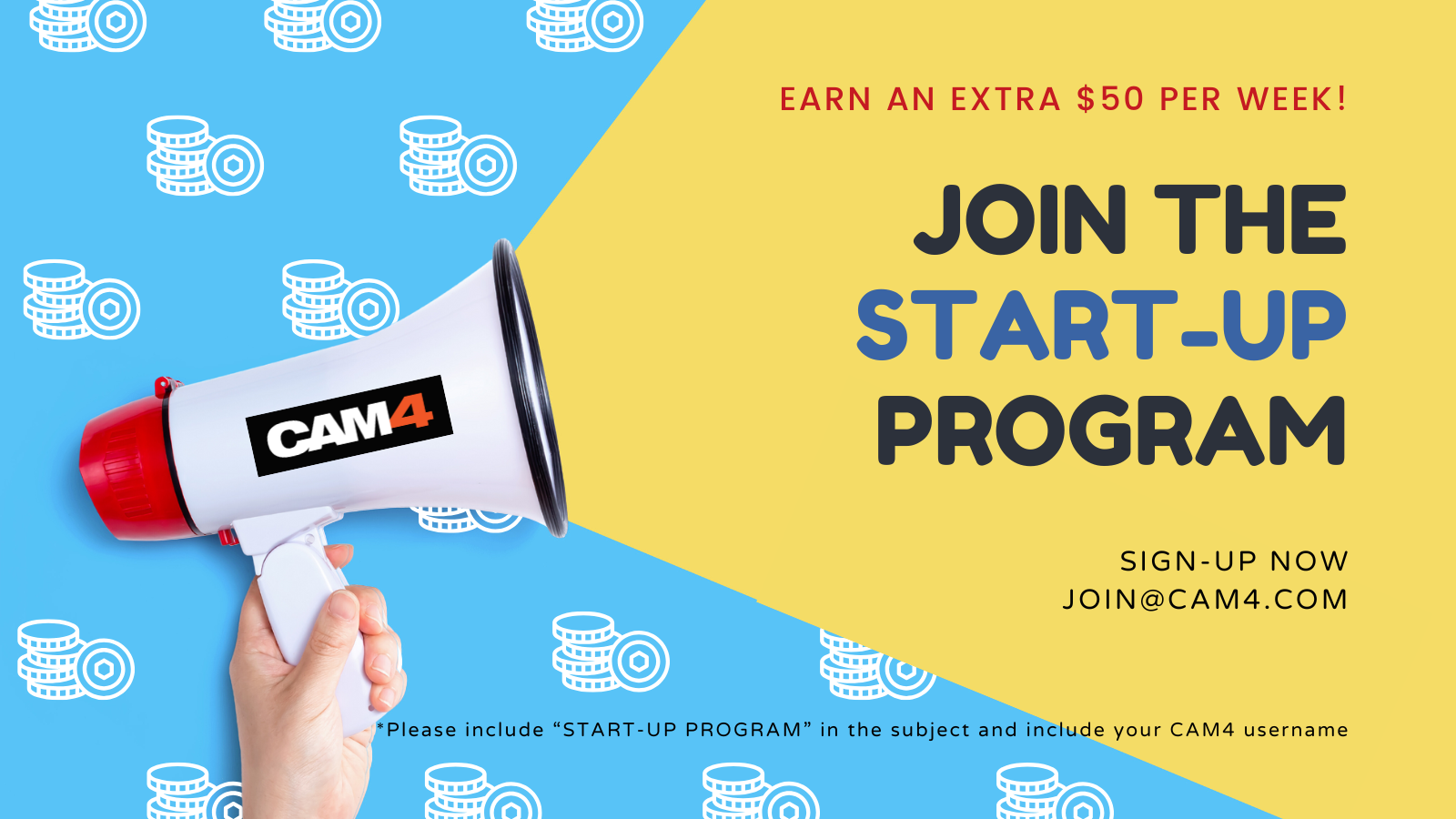
Earn an additional $400 in the first 8 weeks on Cam4 – Signing up NOW for our Start-up Program.
We are making it easier for you to get started on CAM4. This bonus is only available to NEW CREATORS in their first 8 weeks to help your earn more, while you build up your fan base.
HOW DOES IT WORK? It’s super easy!
We will match your tips up to a max of $50 each week, that’s it!
Here’s how you can take part:
Step 1: Send an email to join@cam4.com, include “START-UP PROGRAM in the subject your CAM4 Username.
Step 2: CAM4 staff will confirm your start date and add you to the program will be supporting you through your 8 weeks.
Important!Requirements for participation:
Your ID on file with is is North American
New to CAM4 in the last 60 days. Having multiple accounts will disqualify you.
You have not blocked Canada or the USA (you can block your own province/state)
You acknowledge that attempted fraud can lead to immediate exclusion from the this program and possibly even from CAM4 as a whole.
Moving tokens back and forth between accounts to achieve your bonus is not allowed and you will be removed from the program if you are caught doing it.
Only tips earned from viewers will be counted towards the weekly total that we will match.
You can only be a part of one incentive program at a time.
Bonuses will be credited to accounts no later then end-of-day Tuesday the following week.
PRO TIP
CAM4 offers FREE live coaching in North Americia every Tuesday & Thursday at 12pm EST. Join one of our classes with Coach Vanna Faye so she can teach you how to make the most of our platform and answer any questions you may have.
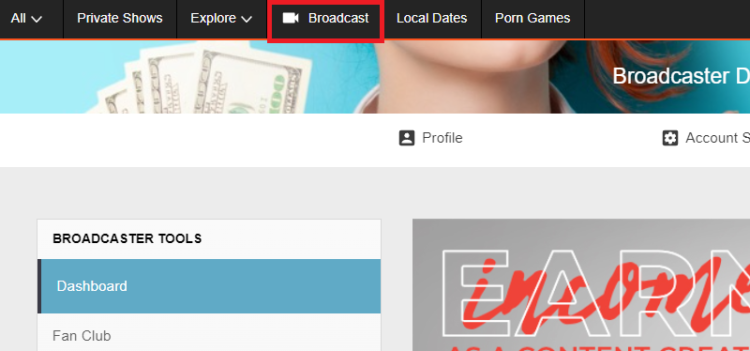
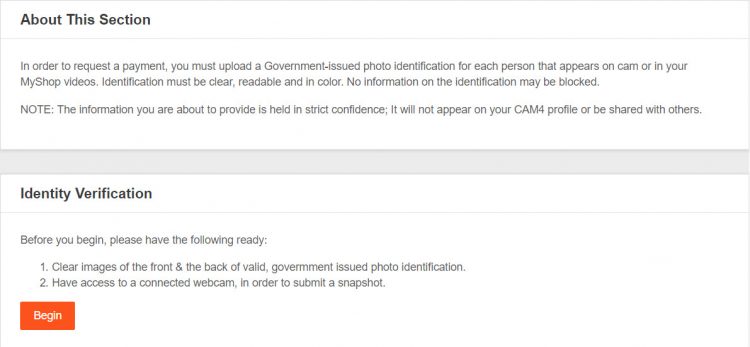
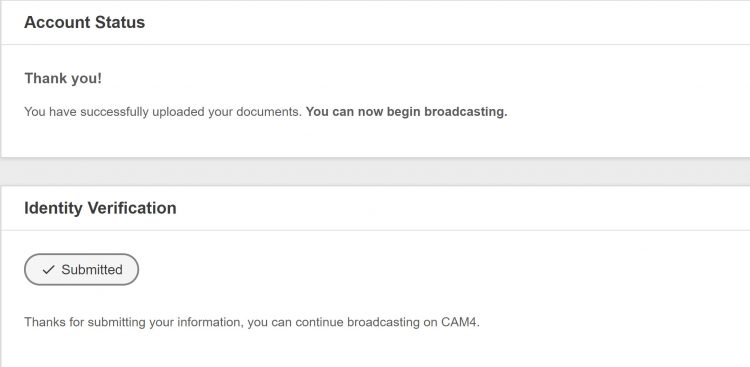
Before you can start broadcasting and earn money, you’ll need to submit your ID and go through the approval process in your Broadcaster Dashboard.
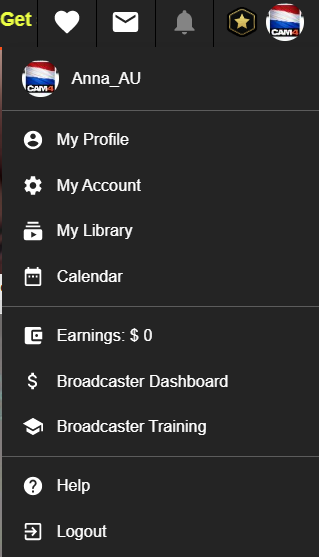
*You can also access your dashboard in ‘My Account’. It’s listed under ‘Broadcater tools’ on the lower left side of your screen.
Finding where to upload your ID is easy with this helpful notification you’ll see on your dashboards main page.
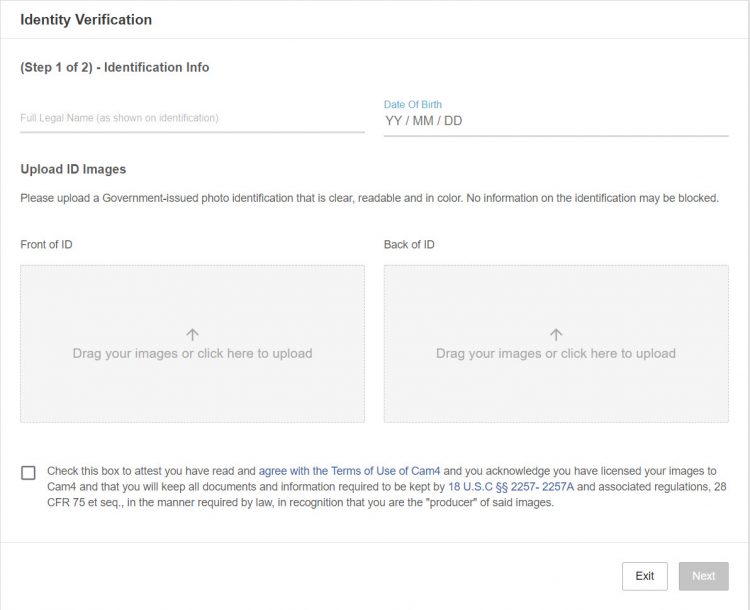
ID requirements:
• Valid Government-issue PHOTO ID (expired ID will not be accepted)
• ID must be in decent, readable condition with no tampering or visible damage that could block information.
Upload requirements:
• Clear, high quality, colour image. *recommended resolution 240dpi
• No part of the ID can be blocked, covered, or cut out of the photo.
Next, we require that you check the box at the bottom of the page that means you agree to the following:
• You’ve read, and understand the CAM4 site rules.
• You’re allowing CAM4 to show your image live on the site.
• You’re the sole owner/creator of all content you share on CAM4.
• You will collect and maintain records of ALL performers’ identification information that are seen on your live broadcast or content you sell on CAM4. You also swear to have them readily accessible if you’re ever asked to produce them.
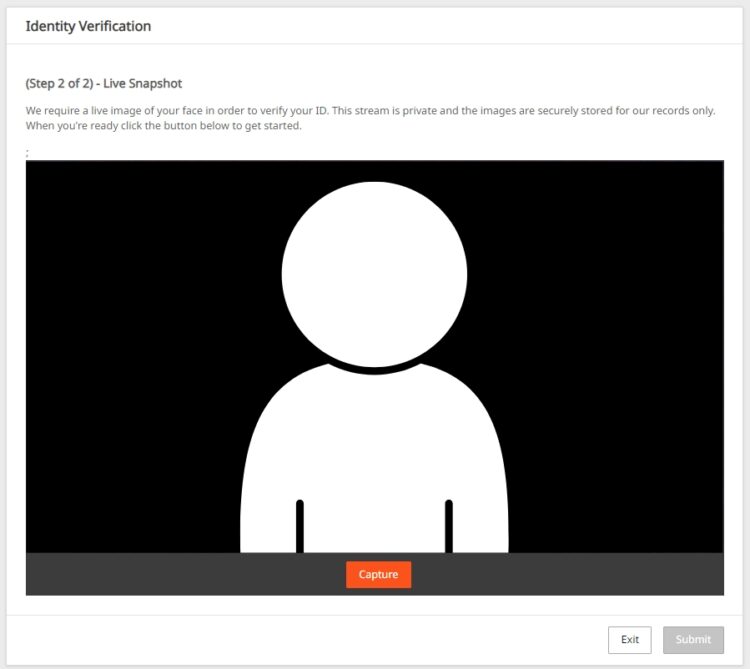
For added protection, we ask for a live snapshot of your face to verify your ID. Please make sure you are in a well lit room with all scarves, hats, toques, and hairstyles removed that block your full face from being seen.
NEED A HAND ? CAM4 is excited to introduce a brand-new function within your CAM4 broadcasts. With our NEW ChatBot tool you will be able to multitask while giving your viewers that special chat room experience unique from other broadcasters.
WHAT IS A CHAT BOT ? A ChatBot is a conversational tool that can assist your LIVE chat with ease and free up those busy hands of yours… think of it as your very own personalized moderator. By utilizing the ChatBot function during your CAM4 broadcast it will help automate messaging so you can remain focused and give your audience your undivided attention.
A few examples and benefits of what a ChatBot can be helpful with include : WELCOME BOT Generate a specific “Welcome Message” visible to NEW viewers who join your room. Note, this message has a 5 second delay when someone comes in.
TIPPING BOT Send out a “Thank You” message when a certain tip amount has been received or a token goal achieved. Including different chat responses for different token thresholds TIMED / AUTO NOTIFICATION BOT Create a set of predefined messages that will be displayed in your Public Chat at predetermined time increments. Note, atleast 3 messages from viewers must be sent in the chat for these messages to begain.
Examples – Updates on Room Goals – Tip Menu changes – Fan Club / My Shop offerings and discounts – Notifying your audience of Room Rules – Promoting Social Media handles – Promoting Wishlists (CAM4 Swag Store, Amazon, Stock Room, etc) – Upcoming shows and cam Schedule
With an endless list of customizable options and 3 unique bot commands, CAM4’s NEW ChatBot feature is a sure way to keep your show flowing, all while doing the work for you and keeping your viewers in the loop and their tokens tipped.
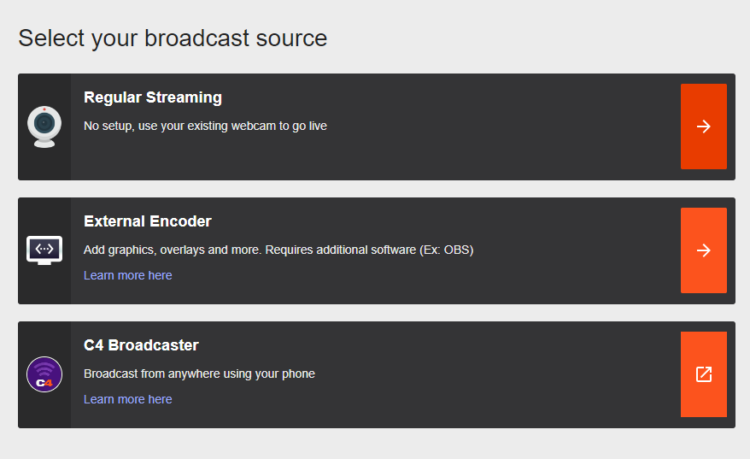
Let’s have a look at what it will look like when you start Regular Streaming:
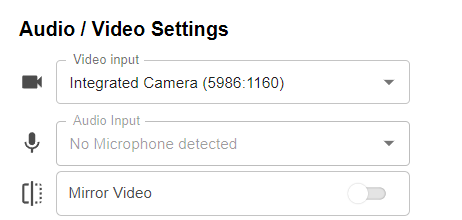
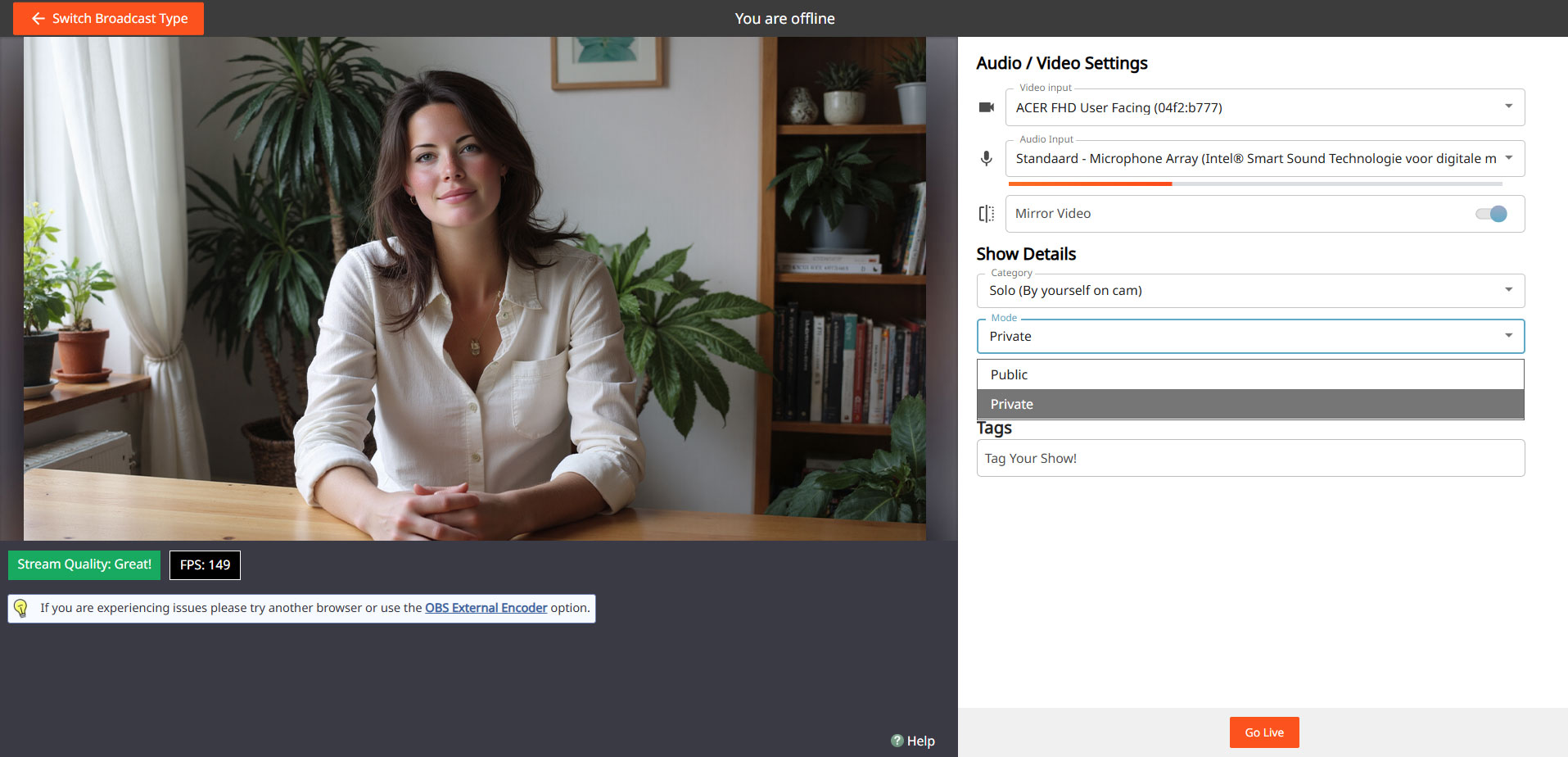
Step 3: Video / Audio Settings
It is important that you give permissions for CAM4 to use your video and your microphone. Once you give these permissions, CAM4 will detect your video and audio devices:
You don’t have to worry about the aspect ratio of your video. This will be chosen automatically, based on the ideal proportions for your hardware.
Usually you don’t have to tinker with these settings and CAM4 will detect the right devices automatically. But here you can select your preferred video and audio input if you wish, or choose to use an external encoder like OBS.
You can flip your image horizontally by toggling Mirror video.
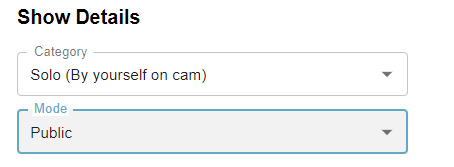
Step 4: Show Details
Underneath your audio and video settings, you will find your show details:
Category
Here you can select whether you will broadcast by yourself (Solo) or with another, verified user. Depending on your gender, you’ll be shown the options (Male-Female, Male-Male, or Female-Female).
Select the appropriate category.
Mode
By default this is set to public. If you are an approved CAM4 broadcaster (2257/ID approved) then you can choose to have a password protected room.
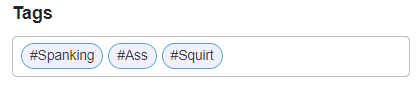
Step 5: Set your tags
Tags are a great way to communicate to potential viewers what to expect from your show.
Choose tags that are appropriate to what your show is all about. This will make sure viewers will get to see what they want, and you get viewers that want to see what you want to show!
We recommend picking about 3 tags.
Step 6: Check your stream quality
Below the area where your video is shown, you’ll see information about your stream quality and FPS:
It’s useful to give these a quick glance before you start your broadcast, just to make sure that your video quality is to your viewers satisfaction.
Stream Quality Indicates any stream issues so you can fix them before you start your broadcast. The light bulb shows troubleshooting suggestions.
FPS – Your cameras frames per second (FPS). 25-30 FPS is ideal.
When you see a low Stream quality and/or FPS, it may be worthwhile to do a speedtest and/or a reset of your router.
Step 7: Go Live!
Once your settings are correct you can go live and start your show!
 To support you as you become familiar with messenger’s great features, we have provided you with an easy to follow guide to all of the Chat and Media functionality, and so much more!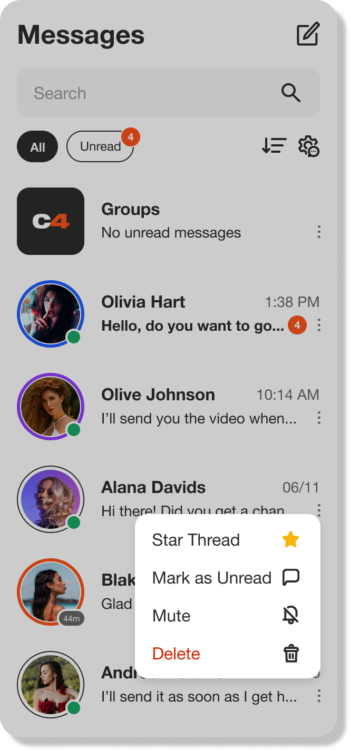

 BAN USERS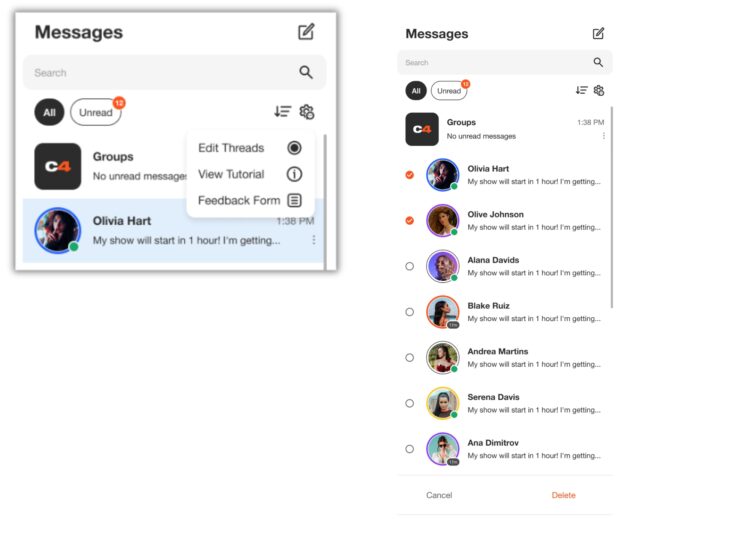


 WELCOME BOT
 TIPPING BOT
 TIMED / AUTO NOTIFICATION BOT