Archiv der Kategorie: Allgemein

Connecting a Wishlist to your Profile

Let your fans SPOIL you!

Fans are always looking for ways that they can help and spoil their favorite broadcasters. Create a Wishlist on one of these great sites and let your fans know exactly what you need!
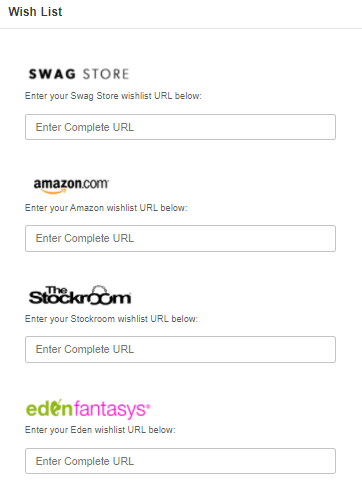
What do I need to Do?

  1. Visit the website of one of the CAM4 supported stores listed above.
  2. Create an account on their site and use their registry or Wishlist function to start building your list.

    If you are having issues, please contact the store you are building your Wishlist on. CAM4 does not provide support these platforms.

  1. Once your list is complete copy the Registry or Wishlist URL that they provide you and go to CAM4.com.
  1. Login into your CAM4 and hover your mouse over your profile icon on the top right-hand side of the homepage. From the menu click on “My Account”.
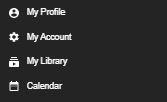


5. Click on “Wishlist” and add the URL below the logo for the store you used and click “Save”

When you visit your profile on CAM4 you will see your wish list appear on the bottom left under you “Detailed Bio”.
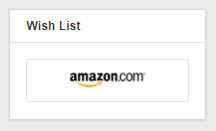


To add a list for another CAM4 supported store, just repeat the process and you will see the logo linking you viewer to your list appear under “Wishlist” as well.

PRO TIP: When creating your Wishlist, DO NOT use your real name. All Wishlist will hide your mailing info but some will show the owners name when viewing the list. If you want to hide your legal identity, always use your fake name.


~That’s all for this lesson!

Happy Camming!
Love, Your Coaching Team!
 

Your Tip Menu

Launch Your Very Own Custom Tip Menu to Improve Engagement and Increase Earnings!

Tell your fans what to tip for and earn more tokens, set up yours now!

What Is It?
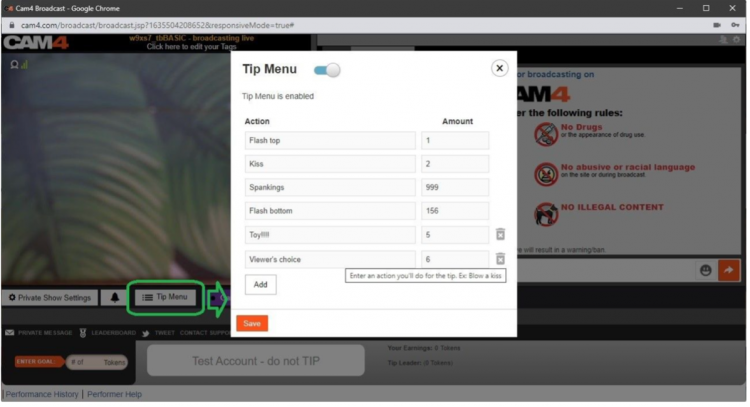
The CAM4 Tip Menu is a fun tool that allows you to create a customized list of actions with the corresponding token amount a viewer needs to tip for you to perform the action during your performance. We’ve recently upgraded our tipping menu functionality to allow for simple set up and easy viewer access. Performers who’ve launched their own tip menus have reported heightened activity and ultimately an increase in show earnings! 

Benefits of Creating a Tip Menu:

  • The tip menu is an easily customizable list that you control and can change / update at any time
  • Your viewers know exactly what they can tip for each performance action without having to ask
  • You won’t need to set up an HTML bio
  • The tip menu is easily accessible via your profile during every show
  • Less chatty viewers are more likely to engage

Quick & Easy Tip Menu Set Up
Locate the Tip Menu feature near the Game Center and enter each action and the required tipping amount. *Please note you must enter at least four (4) actions to activate your tipping menu for viewers

You can add up to 12 tip menu options; click the trash can icon to the right of each option to delete and update. Once you’ve completed your list, click SAVE to activate.

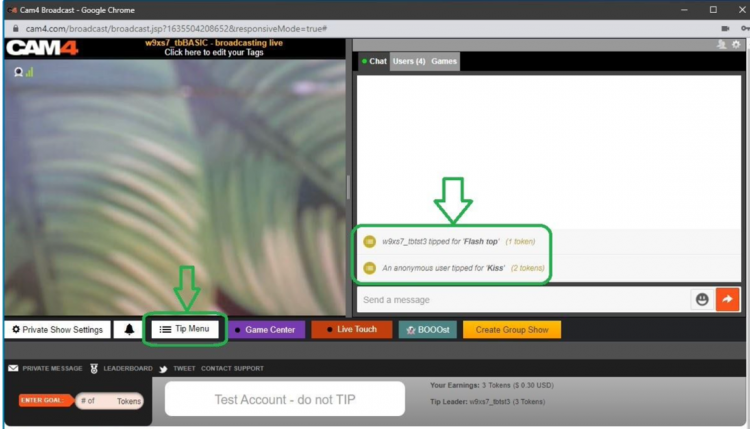
You will receive a special notification in your chat window every time a viewer selects an item in your tip menu


Tip Menu Ideas
What you include on your tip menu is completely up to you, and the great thing is you can add and update the menu as you learn what your viewers want and need in your shows!  Here are some sample tip menu options to get you started:

  • Blow kisses
  • Custom shout out message
  • Flash boobs
  • Oil rubdown
  • Spanking
  • Twerk
  • Insert toy for 15 seconds

Get creative here – the sky really is the limit!

The Key to Tip Menu Success
Our best advice for making the tip menu work for you is to keep your list of options fresh and creative while continuously directing viewers to it during your show.

We’re Here to Help You Win!
If you need help setting up your tip menu or are looking for ways to maximize this fun tool, please reach out to support@CAM4.com at any time and one of our experts will guide you.


~That’s all for this lesson!

Happy Camming!
Love, Your Coaching Team!
Use C4Broadcaster on your Windows Browser

If you’re using both Windows on your computer and a Samsung device for streaming with C4Broadcaster, you can now mirror your phone through wi-fi and enjoy the app directly onto your PC.

REQUIREMENTS:
1. Windows 10
(running the Windows 10 May 2019 Update) 

2. Samsung device
(listed below in the supported devices list running Android 9.0 or above)

Follow these simple steps to set it up:

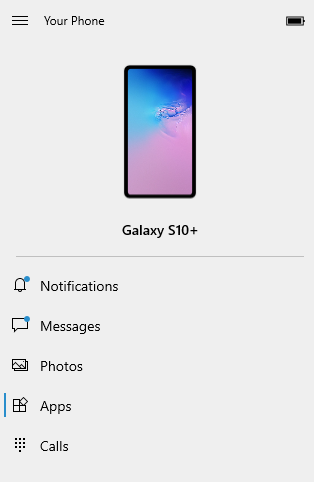
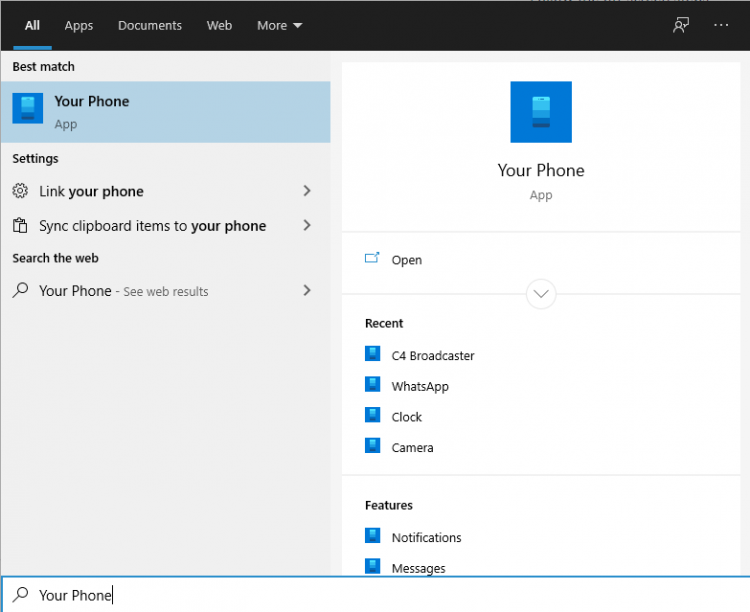
On your PC: Go to > Start and search for Your Phone. 
Windows 10 users with running the Windows 10 May 2019 Update will have the abillity to mirror their screen through wi-fi.

Log in with your Microsoft account in the application.
Follow the on-screen steps.

ON YOUR PHONE:

Check if the device you’re using is listed below as one of the supporting devices.

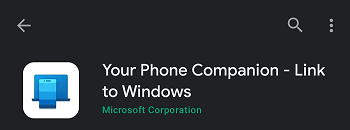
If yes, then check if you already have preinstalled on your Samsung device, “Your Phone Companion – Link to Windows” application. If not, it can be found on the Google Play Store and be downloaded from there.

Follow the on-screen steps

Make sure your phone and your PC are both connected to the same wi-fi network

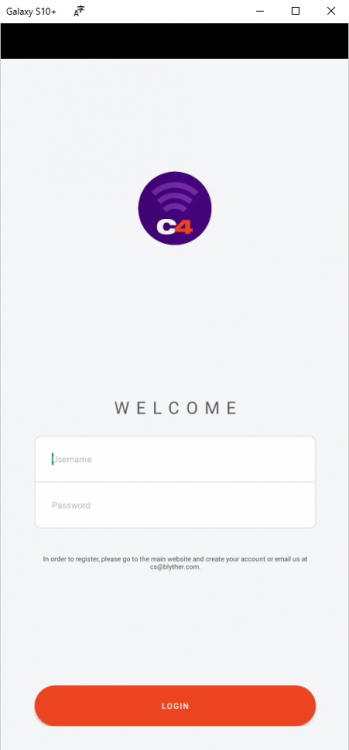
After the initial setup, you can access C4Broadcaster from the Apps button in the Your Phone menu.

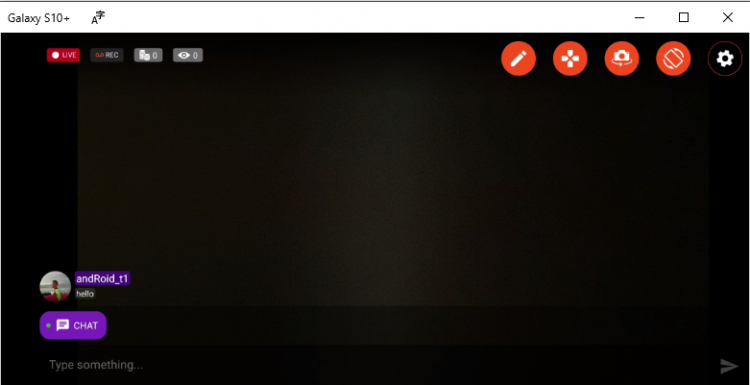
Accept the request on your phone and voila, you can now use C4broadcaster on your PC.

The experience is the same as on mobile, you can switch the camera, rotate the device, play tipping games and apply image filters like you did when using solely your phone


~That’s all for this lesson!

Happy Camming!
Love, Your Coaching Team!
Attract Spies with a Solo Private Show

Make It Easier To Stream On More Than One Cam Site 

If you broadcast on CAM4 and another site (or sites!) at the same time, it can be hard to pay attention to the chat in all of them at once – especially if you go private with a viewer!

Sometimes going private on one cam site even means pausing your streams on the others, and losing your viewers.

Now, you can use the Solo Private Show feature to help maintain your audience on all the sites at once. If you go private with a viewer while you’re on another cam site, start a Solo Private Show on CAM4. Your audience will see that you are in Private and can spy on your CAM4 broadcast as usual, but you can focus on the viewer paying you to go private.

HOW TO SET IT UP

When you are live on CAM4 select „Private Show Settings“ on the bottom left side of the broadcast window.

This allows you to start a private show with no viewer which

  • Gives you privacy for the show.
  • Keeps your directory position and viewers in CAM4.
  • Offers an increase in your revenue by having spy viewers.

You will find a new tab under your private show settings called Solo to set this up

Once you have picked all your settings and pressed the „Start“ button you will see some changes to you menu below your broadcast image. This allows you to see how long you have been hosting a solo show and what you have gained from your „Spy“ viewers.


  • # of Spies
  • Fan Club Spies
  • Show earnings
  • Spy earnings
  • End Show


~That’s all for this lesson!

Happy Camming!
Love, Your Coaching Team!

Open Broadcaster Software (OBS)

CAM4 is an official streaming platform on OBS! This means OBS will auto configure your exact setting needs for optimal streaming on CAM4.

Here’s how it works:

  1. Login to Cam4.com > Select Broadcast
  2. Select > External Encoder
  3. Select > Get Stream Key
  4. Highlight Stream Key and Copy key as it will be pasted into OBS
  5. Open > OBS
  6. Select > Tools. Then select > Auto Configuration Wizard
  7. Select > Optimize for streaming, recording is secondary
  8. Click > Next
  9. Base (Canvas) Resolution select: Use Current

** Base canvas = your primary monitor’s resolution**

  1. FPS: Select 30
  2. Click > Next
  3. Stream Type: Streaming Services
  4. Service: Cam4 (show all if Cam4 is not listed)
  5. Stream Key: (clear if populated; paste key previously copied from your Cam4 broadcast window)
  6. Estimate bitrate with bandwidth test: CHECKED
  7. Prefer Hardware Encoding (if an option): UNCHECKED
  8. Click > Next
  9. Stream Warning pop up box: Select YES and wait while settings are configured
  10. OBS then shows Final Results for your settings.

              Select Apply to use the new settings.

              Settings will not be applied if you select Cancel

Other Article to check out:

What Is External Encoding?

How Do I Improve My Broadcast Quality?

How To Use Lightstream Studio


~That’s all for this lesson!

Happy Camming!

Love, Your CAM4 Coaching TEAM

Auto Pause after a Private or Group Show

Auto-Pause is designed to give you time to prepare to be in front of your regular viewers again after your Private or Group show ends.

Go grab some food or something to drink, clean up, use the washroom, or change your outfit. You have 5 minutes to do whatever you need to do before going live on cam for your viewers again.

HOW DOES IT WORK?

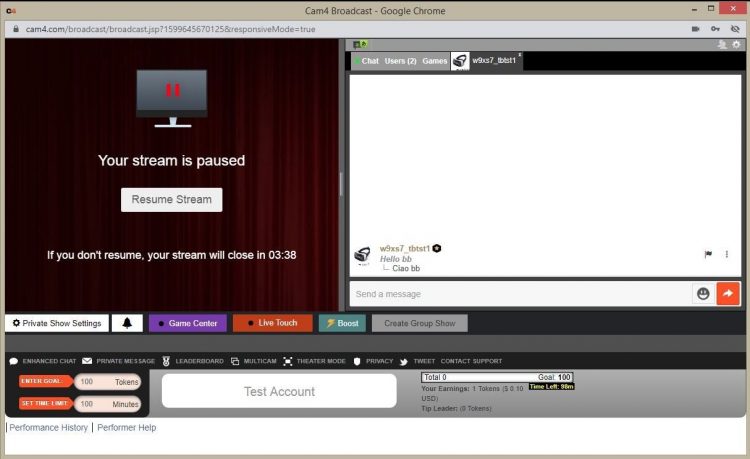
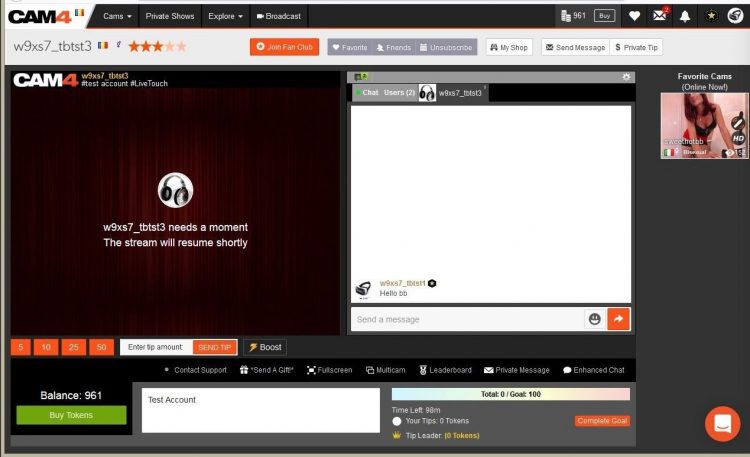
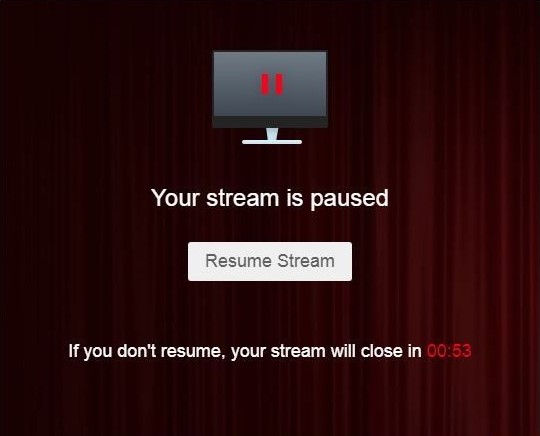
Start your Private or Group show as you normally would.  At the end of the show, your stream will pause for a maximum of 5 minutes .

What YOU will see:


What your VIEWERS will see:

The stream is resumable at any time by clicking on the „Resume Stream“ button. 

If you do not resume the stream during the first 5 minutes, the stream ends automatically. 

Private Show requests are not available while your show is paused. 

~That’s all for this lesson!

Happy Camming!
Love, Your Coaching Team!

BOOST: Das ultimative Tool zur Erweiterung deines Publikums

CAM4 BOOST — Vergrößere dein Publikum

BOOST: Die ideale Möglichkeit, dein Publikum zu vergrößern

Fällt es dir schwer, ein Publikum aufzubauen? Bist du gerade online gegangen und möchtest deiner Show einen guten Start verschaffen?

Platziere deinen Raum mit BOOST weiter oben in der Cam-Übersicht — für nur 25 Tokens!

Bei CAM4 hast DU das Steuer in der Hand! Rücke in der Cam-Übersicht nach oben, damit mehr Menschen deine Show entdecken können!

So funktioniert’s

Der BOOST-Button erscheint auf deinem Bildschirm, sobald du einen Livestream startest, und ist für dich und deine Fans sichtbar.

Sobald ein Boost gekauft wurde, wird dein Raum für die Dauer des Boosts unter den obersten Cams auf der Website platziert.

  1. Klicke auf den BOOST-Button, um loszulegen.
  2. Für 25 Tokens kannst du deine Cam für 5 Minuten boosten oder bis 10 neue Personen deinen Raum besucht haben — bis zu einer maximalen Dauer von 30 Minuten.
  3. Klicke zur Bestätigung auf Weiter. Die Tokens werden von deinem CAM4-Konto abgezogen und deine Cam wird in der Cam-Übersicht neu platziert.

Was passiert, wenn dein BOOST startet?

  • In deinem Chat erscheint eine Nachricht, die dir zeigt, wer den Boost gekauft hat.
  • Ein Balken in deinem Übertragungsfenster füllt sich langsam, während die Zeit abläuft.
  • Der Button zeigt jetzt Boost aktiv und einen Countdown an. Er ist deaktiviert, sodass du während eines laufenden Boosts nicht darauf klicken kannst.

Profi-Tipp

Während dein Boost aktiv ist, sehen mehr Menschen dein Vorschaubild. Das ist deine Chance, mehr Fans in deine Show zu locken! Sorge für Abwechslung mit einer verführerischen Pose, einem sexy Striptease, einer Wet-T-Shirt-Show oder Nahaufnahmen. Nutze die Gelegenheit, die Aufmerksamkeit deines neuen Publikums zu gewinnen.

Was passiert, wenn dein BOOST endet?

  • Der Button zeigt wieder BOOST an und wird erneut aktiviert. Du kannst darauf klicken, um einen weiteren Boost zu starten.
  • Eine Nachricht in deinem Chat bestätigt, dass der Boost beendet ist, und zeigt dir, wie viele Zuschauer du währenddessen dazugewonnen hast.
  • Deine Position in der Cam-Übersicht ändert sich, aber du landest nicht unbedingt wieder auf deinem ursprünglichen Platz. Deine neue Position berücksichtigt den Anstieg deiner Zuschauerzahl während des Boosts.

Auch deine Zuschauer können dich BOOSTEN!

Fans suchen immer nach Möglichkeiten, ihre Lieblingsmodels zu unterstützen. Warum ermutigst du sie nicht, die BOOST-Funktion für deinen Raum zu nutzen?

Mit ihrer Hilfe kann ein Boost einen Unterschied für deine Show und deine Sichtbarkeit auf CAM4 machen.

CAM4 CAM OF THE MONTH — OFFIZIELLE REGELN

(Aktualisiert im Januar 2026)

1. Teilnahmevoraussetzungen

Um am Cam of the Month-Wettbewerb teilzunehmen, müssen DarstellerIn während des Wettbewerbsmonats alle folgenden Voraussetzungen erfüllen:

Verdienstanforderung

DarstellerIn müssen während des Wettbewerbszeitraums mindestens 500 USD in Tokens verdienen.

Wettbewerbspreise, Boni und Einnahmen von anderen DarstellerIn oder Studios werden für diese Anforderung nicht berücksichtigt.


2. Preisberechtigung und Auszahlungsstruktur

Preisabgleich-Regel

Die Preise werden an die monatlichen Einnahmen des DarstellerIn angepasst, bis zur maximal veröffentlichten Preissumme für die jeweilige Platzierung.

Beispiel:
Verdient ein DarstellerIn 500$ und der Preis beträgt 1.000$, erhält der DarstellerIn 500$.

Platzierungsanpassungen

Erfüllt ein DarstellerIn in einer Top-Platzierung nicht alle Teilnahmevoraussetzungen, rückt der nächstqualifizierte DarstellerIn auf diese Platzierung nach.

Preise werden ausschließlich an DarstellerIn vergeben, die alle Teilnahmevoraussetzungen erfüllen.


3. Allgemeine Regeln

  • Während jedes monatlichen Wettbewerbszeitraums müssen mindestens 500$ verdient werden. Boni und Wettbewerbspreise sind ausgeschlossen.
  • Um einen Preis vollständig zu erhalten, musst du mindestens den Betrag des Preises verdienen.
  • Verdient man weniger, wird nur der tatsächlich verdiente Betrag ausgezahlt.
  • Beispiel: Verdient man 1.000$, gewinnt man aber einen Preis von 1.500$, erhält man 1.000$.
  • Du musst ein genehmigtes Profilfoto haben, auf dem du klar zu erkennen bist.
  • Trinkgelder von anderen DarstellerIn oder Studios zählen nicht zum erforderlichen Mindestverdienst.
  • Nur eingeloggte Zuschauer zählen zur Gesamtzahl der Spitzenzuschauer*.
  • Ein DarstellerIn kann nur einmal pro Tag / pro Monat gewinnen.
  • Eine gültige E-Mail-Adresse muss hinterlegt sein, damit wir dich im Gewinnfall kontaktieren können.
  • Mitarbeiter, Auftragnehmer und Coaches von CAM4 sind von der Teilnahme ausgeschlossen.
  • Shows, die gegen die Nutzungsbedingungen verstoßen, werden automatisch disqualifiziert.
  • CAM4 behält sich das Recht vor, DarstellerIn bei Verstößen, Betrug oder Missbrauch der Plattform zu entfernen oder zu disqualifizieren. Die Entscheidung der CAM4-Administration ist endgültig.
  • Jegliche Form von Belästigung gegenüber CAM4-Mitarbeitern oder Mitgliedern wird nicht toleriert und führt zum Ausschluss vom Wettbewerb.
  • Alle Inhalte und Teilnahmen müssen den CAM4-Nutzungsbedingungen und den Community-Richtlinien entsprechen.
  • CAM4 behält sich das Recht vor, diese Regeln jederzeit zu ändern oder zu aktualisieren.

* SPITZENZUSCHAUER – Mitglieder, die eingeloggt sind und deine Übertragung ansehen. Die Anzahl der Spitzenzuschauer kannst du für jede Übertragung einsehen unter:
Darsteller Dashboard > Einblicke > Live-Übertragungen

Submit a Share-able Image

Do YOU want to be promoted on one of CAM4’s Official social-media accounts? Even be our monthly Cover Model on X.com?


Well, CAM4 needs YOUR help… Send us any of your best quality SFW (Safe For Work / Non Nude) images below, and your X.com or Instagram info so we can tag you.

USA/ Canada:
Click HERE to upload your SFW images now!!!!


United Kingdom/ Australia:
Upload for UK/AU 

Or contact: julia@cam4.com

And don’t forget, give us a follow