CAM4 offers broadcasters, moderators, and chat members options to make their experience safer and more fun. Here’s a rundown of how each chat function works, and how to use it.
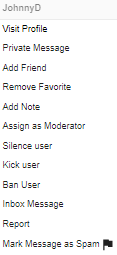
To access your moderation tools click on the 3 dots seen on the right hand side of a username, or go to your user list and right click on a name.
FEATURES
Add note
This little tool lets you keep a file on the viewers in your room for future use. You can even color code them as blue or red!
Ignore
This will stop you from seeing someones chat in the room but only you, everyone else will be able to see their chat. This function is better suited for viewers to ignore each other, broadcaster should use silence instead.
Assign as moderator
You have the power to choose a helper in your shows. This person will be able to do some of your dirty work for you like banning and silencing negative people. This is a big responsibility though so make sure you communicate how you want your room run to your moderator so everything runs smoothly.
Silencing
This will completely silence the user in the room, no one will be able to see their chat. A silence stays on a user till you remove it from your ‚Manage Silences‘ list that is under the little gear icon in the top right hand corner. Use this option if there’s someone abusing other members, has a negative attitude, spammers, or beggars.
Kicking
When you kick someone out of your room they ca come right back in so this tool is best to get control of a situation if you need to. For example, two of your viewers are having an argument so you kick both of them out as a wake up call.
Banning
Only ban a user if no lesser functions have worked, and they’re still being abusive to your or your guests. Banning users shouldn’t be a first option for abusive chat members. Once you ban someone, they can’t come back into your room until you remove the ban. There’s no full site ban function.
Remember! It’s your room, your rules! Everyone is here to have fun, so don’t be afraid to use these tools if someone is bringing your room down.
~That’s all for this lesson!
Happy Camming!
Love, Your CAM4 Coaching TEAM